
ARK: Survival Ascended Dedicated Servers hosted on your very own Hardware is a totally different world from hosting a server on a shared hosting server. No sharing resources on your own server. No limit to the number of players that can play on your server.
Unlike some Third Party Server Hosts waiting until the middle of the night to update their mods to the most current. You can setup your Dedicated Server to whatever your liking for your Server, Cluster, Maps & Who You Grant Admin Rights To.
ARK: Survival Ascended is a demanding game and the Unreal Engine 5 version requires even more from the servers CPU and RAM than most other games. As such most game server guides are not sufficient for ARK and a misconfigured or underpowered server can quickly lead to problems like rubber-banding, save corruption and crashes under load. All of which can quickly drive your community away to play other games.
Blog contents
Server & Process Guide This Server & Process Guide provides a full stack overview. It includes information on selecting the right hardware and on tuning the OS for your needs. Also covered is configuring the server’s network and how to keep a process running on a server from reboot to reboot.
Whether you end up provisioning bare metal servers in a data center or are simply comparing dedicated hosting features for your web site. The key principles for getting a well managed server up and running (clean) whether with 10 players or 100 players are covered here.

What Is an ARK: Survival Ascended Dedicated Server?
A dedicated server for ARK: Survival Ascended is a separate process running a server for ARK: Survival Ascended outside of your ARK: Survival Ascended game client. This process is persistent, meaning it runs 24/7 and saves the world even when you are not playing. The process can also handle multiple connections at once, i.e. many players connecting at the same time.
Dedicated vs. Non-Dedicated vs. Official
- Dedicated server: Runs on separate hardware or a VPS. Always online. Full admin control over mods, settings, and player rules.
- Non-dedicated session: Hosted from inside the game client. Goes offline when the host quits. Tether distance limits where other players can roam.
- Official server: Operated by Studio Wildcard. No admin access, fixed settings, and high population competition.
Can You Make a Dedicated Server on ARK Ascended?
ARK: Survival Ascended Dedicated Server tool for ARK: Survival Ascended is distributed for free by Studio Wildcard via Steam. The tool for setting up a Dedicated Server for ARK: Survival Evolved can be installed on any computer. After installing the tool the Dedicated Server can be set up as a standalone process and does not have to be started within the game on the computer that is hosting the Dedicated Server.
Two Paths: Self-Hosted or Managed
Self-hosting a server is hosting it on your own hardware like a spare PC or a bare-metal server. Managed hosting is renting server resources from a provider. For bare-metal servers at Netrouting you start at 49 per month. Due to the high memory-load of the Unreal Engine 5 games (like ARK) a dedicated amount of CPU- and RAM-power is required. At these servers you get a lot of power and no “noisy neighbors”.
At the end of the day no matter what route you decide to take at the core of your machine will be hardware and that hardware dictates the capabilities of the said machine. Below is a list of typical hardware found in most ARK Ascended players machines that allows for decent performance in the game without a significant drop in frame rate while performing said tasks in the game.
Hardware Requirements: What Your Own Machine Needs to Run ARK Ascended
| Resource | Minimum | Recommended |
|---|---|---|
| CPU | 4 cores @ 3.0 GHz | 8 cores @ 3.5 GHz+ |
| RAM | 16 GB | 32 GB |
| Storage | 100 GB SSD | 200 GB NVMe |
| Bandwidth | 100 Mbps unmetered | 1 Gbps unmetered |
Architecture Overview
Our Dedicated server is a single process binary (ShooterGameServer). It's a single process per map. Clients connect directly to the server over UDP. The game state / save games / mod loading are all handled by a single thread cluster, thus at very low player counts, single core CPU speed is more important than core count.
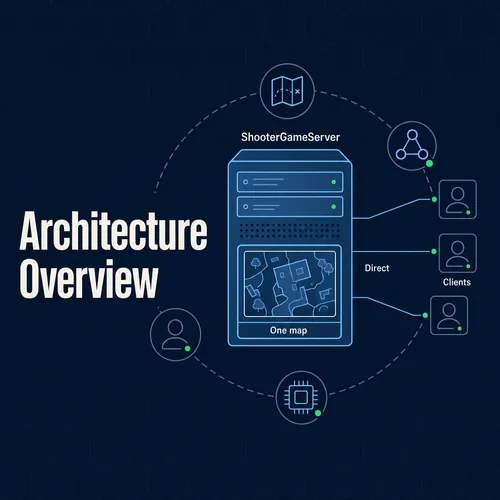
Open these ports on your firewall and router:
- 7777 UDP, game traffic (primary)
- 7778 UDP, raw UDP socket, this port can be used in combination with port 7777.
- 27015 UDP, Steam query port
Netrouting offers Dedicated Servers with unmetered 10 Gbps uplink and DDoS Protection. As public ARK servers can have peak traffic times, this can be interesting for our customers.
Quick Setup
- Install SteamCMD and run
app_update 2430930to pull the ASA server binary. - Create a launch script pointing to
ShooterGameServer.exewith your map name, ports, and?MaxPlayers=argument. - Edit
GameUserSettings.iniandGame.iniunderShooterGame/Saved/Config/WindowsServer/for rates, difficulty, and mod IDs. - In addition to your local firewall, you need to open up UDP ports 7777, 7778 and 27015 on your OS and ensure all upstream NAT rules are also opened.
- To get started, start up the server, make sure it is visible in the list in your Steam server browser, then you can start adding people to play on your server.
Common Mistake to Avoid
Do not try to run multiple map instances on the same port block (i.e. same host and port number). Each map instance needs a separate port pair (i.e. 7777/7778, 7779/7780, etc). Overlapping on a port block causes connectivity problems that are very difficult to diagnose.
Once the hardware is the correct size and all of the ports have been accounted for, the server files can be pulled to complete the initial start-up of the process.
Dedicated Server Setup: Installing ARK Survival Ascended via SteamCMD
| Resource | Minimum | Recommended |
|---|---|---|
| CPU | 4 cores @ 3.0 GHz | 8+ cores @ 3.5 GHz |
| RAM | 16 GB | 32 GB |
| Storage | 100 GB SSD | 200 GB NVMe |
| Bandwidth | 100 Mbps unmetered | 1 Gbps unmetered |
Architecture Overview
The current implementation of ASA is running as a single-threaded game loop within Unreal Engine 5 back-end. The server-process is bound to UDP port 7777 for game traffic as well as to TCP/UDP port 27015 for the Steam query interface. Players connect to the public IP of the server directly via the mentioned ports. There is no relay involved, thus location of the server has a direct impact on player latency.
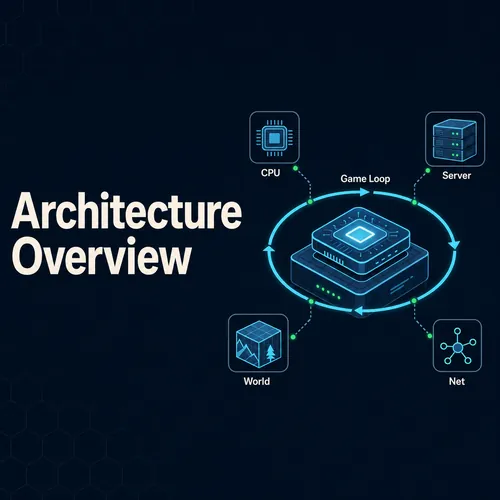
Port forwarding behind a NAT is required and we forward the following ports: UDP 7777 and UDP/TCP 27015 to the servers internal IP address. If you are running more than one map on one server.
The game port is raised by 2 for each new map (7777 to 7779 to 7781 etc.) and the query port is raised by 1 (27015 to 27016 to 27017 etc.). Dedicated servers from Netrouting are delivered with a public IP and thus without a NAT layer, thus this step is not required.
Quick Setup
- Install SteamCMD and run
app_update 2430930 validateto pull the ASA server binaries. - Create a launch script pointing to
ArkAscendedServer.exe(Windows) or the Linux binary, passing your map name, session name, and port flags. - Open UDP port 7777, and also open up TCP/UDP port 27015 on your firewall. Do a UDP port scan to confirm your ports are opened.
- Set
MaxPlayers,ServerPassword, andAdminPasswordinGameUserSettings.inibefore first launch. - Test if the server can be found in users’ Steam server browser or connect to IP:port directly in ASA client.
Performance Tip
One of the key points from the video that many people will miss is that the actual bottleneck of ASA is single core clock speed, not core count. Therefore, when choosing a server to run ASA on, the raw GHz of the bare metal solution should be prioritized over the thread count of a VM, especially a low frequency high core count VM.
For example, a VM with 40 cores @ 500Mhz will hit a tick rate degradation point around 20 players. By contrast, A bare metal solution with a high clock Intel Xeon or AMD EPYC will not have this issue.
The next step to get running after starting the server process is network reachability. That means the correct ports, the correct firewall rules and the correct router configuration.
Port Forwarding, Windows Firewall, and Network Configuration
To connect to a ARK: Survival Ascended dedicated server, there are 3 layers of configuration required: The ports that the server is listening on, Windows Firewall rules, and port forwarding on your router.

ARK Server Ports
Three ports are required to connect to a Remedy server. These need to be opened for both TCP and UDP traffic, unless otherwise specified.
Game port: 7777 (UDP), primary player connection
Query port: 27015 (UDP), Steam server browser discovery
RCON port: 27020 (TCP), remote console administration
Windows Firewall Inbound Rules
Open Windows Defender Firewall, select Inbound Rules, then New Rule. Choose Port, enter 7777 and 27015 for UDP, then 27020 for TCP. Allow the connection for all profiles. Repeat for outbound rules.
Router Port Forwarding
Log into your router admin pages (usually found at 192.168.1.1) and forward the following ports: UDP port 7777, UDP port 27015, and TCP port 27020. The local IP of the server machine needs to be the target for these ports.
Your public IP can be found on many ‘what is my IP’ lookup services found on the web. You then need to share this public IP with any players outside of your LAN. For community perspectives, see How to set up an ARK: Survival Ascended Dedicated ... .
What Is the Best Server Hosting for ARK: Survival Ascended?
All cloud and bare-metal servers can be configured to circumvent the router and get the public IP directly on the server. Firewall rules still apply. Our bare-metal servers are deployed within 60 minutes. We start at $49 per month (DDoS protection included as standard). We have locations in Miami, Amsterdam, Frankfurt and more.
After you set up your network layer you can start configuring your server. The INI files are where you can set up the options for your server such as the player cap, tame rates, etc.
Server Settings, INI Configuration, and Game.ini Tuning
There are 2 main files for ARK Survival Ascended server that control most of the settings so it is best to get them correct before launching the server.
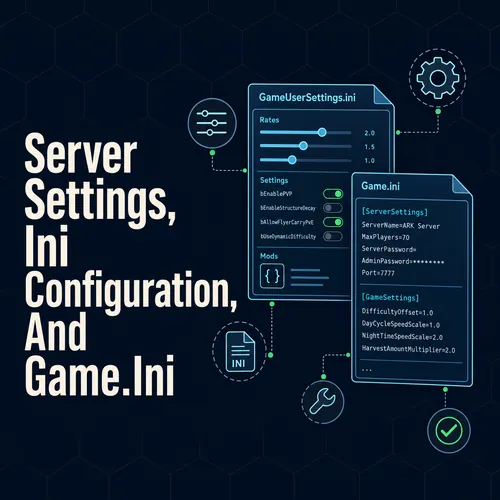
Config File Locations
Both files are located in the folder ShooterGame/Saved/Config/WindowsServer/ in your server directory.
- GameUserSettings.ini: A file that contains information such as server name, server password, max players, taming speed, harvest rates, and all the XP multipliers for each creature.
- Game.ini, diepere afstemming op motorniveau: aangepaste engrammen, dino spawns, aanpassing van statistieken
A typical GameUserSettings.ini block looks like this:
SessionName=MyServerServerPassword=secretMaxPlayers=20TamingSpeedMultiplier=3.0HarvestAmountMultiplier=2.0XPMultiplier=2.0
Set ServerAdminPassword here to enable RCON and in-game admin commands. Note: Survival Ascended uses Unreal Engine 5 config syntax, some Survival Evolved keys no longer apply.
Mods and Server Manager
Installing a mod in your server manager is done by searching for the mod in the mod tab by the id of the mod on Curseforge. The mod manager will then download and install the mod for your server, it will also set the correct load-order after a server-restart.
How much RAM does an ARK: Survival Ascended dedicated server need?
Netrouting Bare-Metal Dedicated Servers come with the right configuration to host your ArmA sessions. A small private session with 16 GB RAM for a few players and a public server with 20 to 30 players for 32 GB RAM and more.
ArmA sessions also require a lot of RAM when running Mods or custom Maps. We provide our customers with a rapid deployment (less than 60 min) of unmetered 10 Gbps Netrouting connectivity to host your ArmA sessions with the highest possible tickrates.
A correctly configured server is not necessarily a reliable server. This article describes how to ensure your server is online automatically after a reboot, after a crash or after the nightly patching cycle.
How to Keep Your Own ARK Server Running: Scheduled Tasks and Auto-Restart
An unattended server crash will mean that all unsaved work from all players will be lost. Windows has two tools to prevent this sort of problem. The first tool, Task Scheduler, can for example be used to restart the server after a crash (for example after a reboot). The second tool is a script that keeps starting the server until it is running again properly. Such a script is also called a looping script.
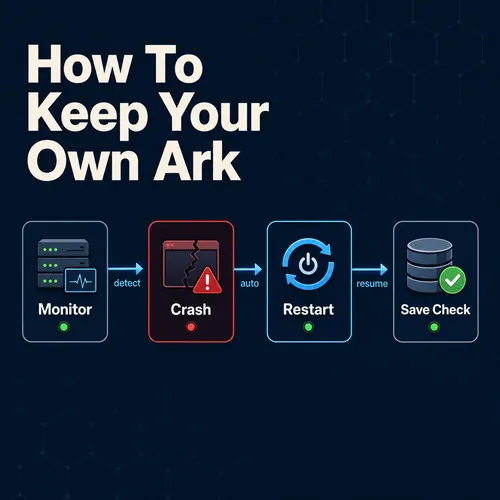
Auto-Start on Reboot with Task Scheduler
Open Task Scheduler, create a basic task, and set the trigger to At startup. Point the action at your server launch script. Enable Run whether user is logged on or not so the dedicated server starts without a desktop session.
Crash Recovery via Batch Script
Wrap your server executable in a :loop batch script. When the process exits, the loop restarts it automatically. Add a 10-second timeout between restarts to avoid rapid-fire crash loops that mask real errors.
Update Automation with SteamCMD
Add a nightly SteamCMD task to validate and update your server files. This should run to complete before your scheduled restart time so that your own ARK world will be updated to the latest patch without you having to manually do so.
Can You Run Multiple ARK Ascended Maps on One Dedicated Server?
We create a server for each map, listening on a separate port (by default port 7777, and then 7778, 7779, etc.). Each map then needs its own task and approximately 8-12 GB of RAM. In general, one server is able to run 2-3 maps, depending on the needed resources.
However, with High performance hardware (e.g. as offered by Netrouting: bare-metal servers from 49,. Per month with up to 1 TB RAM and unmetered 10 Gbps network) it is possible to run multiple instances of the maps without problems with contention on the server.
| Method | Trigger | Best for |
|---|---|---|
| Task Scheduler | System reboot | Auto-start after power cycle |
| Batch loop script | Process exit | Instant crash recovery |
| SteamCMD scheduled task | Nightly schedule | Patch automation |
For persistent ARK worlds we would recommend to use all three to keep the world running longer. Managing Windows automation as overhead would be stupid. Instead just host your server on a managed dedicated server and you get someone to keep your server up and running for you. You don’t have to keep an eye on all the scripts etc.
The overhead of self-hosting brings us to the question, whether self-hosting is the best architecture for you or rather bare-metal hosting is the better way to go.
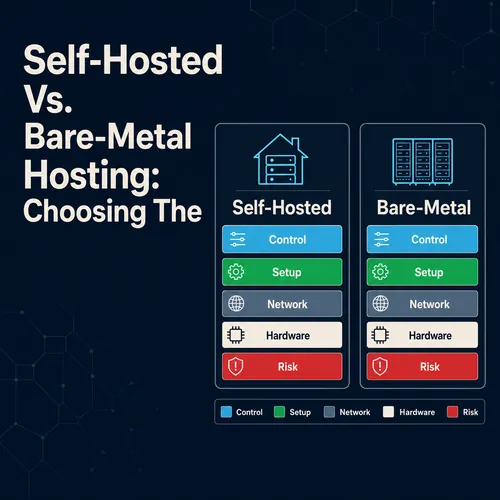
Self-Hosted vs. Bare-Metal Hosting: Choosing the Right Path
My understanding from reading how someone setup a dedicated ARK: Survival Ascended server at home was going to be pretty straight forward but I was wrong! The limitations of home hardware, data on home internet services and power for server will quickly highlight just how difficult it can be to host a server at home for playing ARK. This post will explore setting up a server for playing ARK, home hosted vs. server hosted. For more context, see BattlEye.
Home Machine Hosting
- Check your upload bandwidth as ASA is streaming world state to all players in your game. Most residential ISP’s have capped upload of less than 50 Mbps. This will allow a few players playing off of one account at low frame rate but a full tribe server will have lag during peak hours.
- Deal with your dynamic IP address. Periodically your ISP will change your IP address. Online games are problematic here as every now and then all players have to retrieve the server address of the game. Using a dynamic DNS service can solve this problem, but then that service also can fail.
- Consider the power and cooling needs for your server. A system designed for 24/7 gaming will likely draw around 300W to your home, continuously, that is to cost of power, as well as to generate additional heat within your home.
Note: Home uptime depends entirely on your router, ISP, and power grid. There is no SLA. One outage wipes your session.
Bare-Metal Dedicated Server Hosting
- The server files are then deployed on the server hardware. The files for the ASA server are installed and configured on a bare-metal server, for example a Linux server running Ubuntu, which is then handed over to the customer. As the server is running bare-metal there are no shared resources and therefore no noisy neighbors.
- Netrouting offers you data-center based connectivity. Our network has 1 Tbps+ of capacity and all ports on the machines are unmetered 10 Gbps ports. This means that your home network is not a bottleneck and you have a fixed IP (not a dynamic IP). There is no throttling by your ISP.
- We're not promising rainbows here but our uptime guarantee is REAL. 99.9% SLA and 24/7/365 NOC monitoring means you can kiss “hope the router stays up” good bye. We'll get bare metal up and running for you within 60 minutes.
What Ports Does an ARK: Survival Ascended Dedicated Server Use?
Typically three UDP ports are required to be opened up through ASA firewall rules: port 7777 for game traffic, port 7778 for raw UDP traffic and port 27015 for Steam query traffic. On bare metal servers, you typically would setup firewall rules on the server itself rather than on a router for a home network. However, in such scenarios, you would have to do port forwarding and sometimes even run into issues with large ISP's blocking game server ports.
After your server becomes reachable the next step is to get the server listed in the server list for your players to connect to.
ARK Server Lists: Finding, Joining, and Getting Your Server Listed
To add your ARK: Survival Ascended Dedicated Server to the in game server list. Players will need to know how the server list pipeline is created to allow your server to be listed by searching for servers in game. This involves opening up your servers query port to the outside world as well as setting the servers public visibility flags.

How the Server Browser Works
When using the in-game browser to search for servers through Steam, a UDP query is made to the Steam backend server. Third parties have created sites to aggregate this data and display it to users in a ranked fashion (e.g. most players connected, closest, etc. with criteria such as uptime also). Your server must respond on its query port (default port of UDP 27015) for it to be included in any list of servers.
Making Your Server Appear
Three settings control visibility. First, the server must be set to public, not LAN-only. Second, ?ServerName= in your launch parameters sets the display name. Third, your firewall must expose both the game port (default 7777) and query port (27015) to inbound UDP traffic.
Static Public IP, Server need fixed Public IP address. Servers with Dynamic Public IP (like normal server online) sometimes get removed from Aggregator listings because of changes of Public IP address. By default Servers within Netrouting Data-center facilities are set up with fixed Public IP address.
Unofficial vs. Password-Protected Servers
Unofficial public servers appear on the list with no barrier to entry. Password-protected servers still appear but show a lock icon, players need the password to join. Fully private servers can be hidden from the list entirely by setting ?ServerPassword= combined with disabling public registration.
For long-running ARK instances it is important to monitor and keep stable. The monitoring can fail severely depending on the underlying infrastructure of your hosting provider.
Why Choose Netrouting for ARK: Survival Ascended Dedicated Server Hosting
The Unreal Engine 5 is a very CPU intensive / bandwidth intensive engine and therefore the CPU power as well as the bandwidth have to be as high as possible in order to create stable game sessions with high playercounts. Our bare-metal dedicated servers can be provisioned within 60 minutes and start from 49/month. The servers are equipped with the latest Intel Xeon as well as AMD EPYC processors.
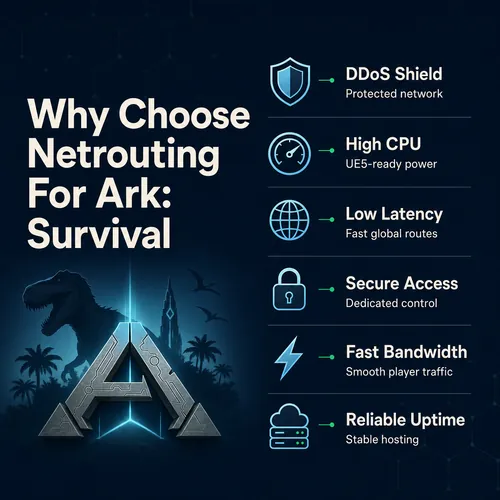
- Unmetered 10 Gbps network connectivity, no slowdowns during peak times for high-volume events like DDoS "raids" or mass-connects.
- DDoS protection is included. As game servers you can expect to get attacked quite a bit. We offer standard blackhole services as well as advanced scrubbing to keep your Ark Survival Ascended server up and running.
- Free private network to connect up Servers for cluster map setups without cost.
- Our 7 facilities enable us to reach European as well as North American player bases. The locations can be connected to each other with fast routing of low latency. In addition to Amsterdam, Frankfurt and The Hague in Europe we also have locations in Stockholm, Bucharest, Miami and Hong Kong.
- 24/7 NOC + 1-hour ticket guarantee. We’re here 24/7/365 to monitor your servers for you and prevent problems from occurring in the first place, before they can become a complaint to your players.
Proxad is ISO 9001 certified, ISO 27001 certified and has a Service Level Agreement (SLA) of 99.9% of uptime. Our infrastructure is managed with the dedicated server operator in mind. This allows for the upload and management of your server files and settings as well as managing your server with your own server manager tooling.
Explore our gaming industry hosting page or contact sales to discuss the right configuration for your ARK dedicated server setup.
Below is a summary of our proposed Technical Requirements and Advantages which we have outlined in a simple check list for your evaluation considerations.
The Core Requirements for a Reliable ARK Survival Ascended Dedicated Server
| Resource | Minimum | Recommended |
|---|---|---|
| CPU | 4 cores @ 3.0 GHz | 8+ cores @ 3.5 GHz |
| RAM | 16 GB | 32 GB |
| Storage | 60 GB SSD | 100 GB NVMe |
| Bandwidth | 100 Mbps unmetered | 1 Gbps unmetered |
Architecture Overview
The main game loop in ASA is single-threaded (so no multithreading headaches for now) but it does use worker threads for the physics simulations (although that could probably be made single-threaded as well for simplicity). Since each map is its own process for cluster play, you spawn off a process for each map. Connections from the players are done via UDP, so you have to open up the appropriate ports on your firewall.

- 7777 UDP, game traffic
- 27015 UDP, Steam query
- 27020 TCP, RCON (optional)
Netrouting Bare Metal Servers are delivered with unmetered 10 Gbps uplink ports and a private network between the servers. This makes them predestined for multi-map projects. Inter-process traffic would otherwise have to get counted into your bandwidth limit.
Quick Setup
- Install SteamCMD and run
app_update 2430930to pull the ASA dedicated server binary. - Create a launch script passing
TheIsland_WP?SessionName=MyServer?MaxPlayers=70 -server -log. - Please make sure to open up UDP ports 7777 and 27015 in your firewall or security group.
- Set
-UseBattlEyein the launch args and verify the BattlEye service starts cleanly in the log. - Make sure your server is listed in the Steam Server Browser before you "advertise" it to your players.
Performance Tip
Do not run multiple map processes on the same physical core set. Pin each process to its own CPU socket or NUMA node using taskset. Sharing cores between map processes causes tick-rate drops under load, the symptom is rubber-banding that appears only when all maps are populated simultaneously.
Key Advantages of a Bare-Metal Dedicated Server for ARK Ascended
Unlike noisy-neighbor CPU contention found on shared game-server hosting plans, a bare-metal ARK: Survival Ascended dedicated server allows you to host ShooterGame binaries and tweak server parameters on completely isolated resources. The limits to your server’s datacenter uptime and scalable bandwidth are those that you place upon it, exceeding the loads found on high player servers of large tribes. Home hosting cannot compare to these characteristics.
For teams running multiple servers or planning growth, dedicated server ARK Survival Ascended hosting is the only architecture that scales cleanly. Explore Netrouting's gaming infrastructure options for purpose-built dedicated servers starting at 49 per month.
Control your ARK: Survival Ascended dedicated server to your hearts content. From managing the server, through to your players and even the modded rules you set. However, providing the best ARK dedicated server experience requires some serious hardware.
We recommend no less than 16 GB of RAM, paired with a modern multi-core CPU to handle even the smallest of ARK servers. Don’t forget to set up the Game.ini and port correctly from the offset, otherwise you could run into many problems post launch with your ARK dedicated server.
Hosting on your own machine works for testing. For a server that stays online around the clock without eating your home bandwidth or electricity budget, bare metal is the smarter path. Netrouting's dedicated servers start at 49 per month, deploy in under 60 minutes, and come with unmetered 10 Gbps connectivity, exactly what high-player-count ARK sessions demand. Browse available configurations and get your tribe online today.
Host the game close to the players.
Share the player regions, the expected player count and the game. We help you pick the hardware and the location.