
You book visits to your colocation space in the Amóni portal, under Colocation › Datacenter Access. Pick the site and the time window, say who's coming and why, and submit. If everyone on the visit is already on your permanent access list, the visit is confirmed on the spot and the access codes appear right away. Otherwise it goes to our team first.
Before you start
- You need colocation space at the site. That can be a shared colocation package or a rack of your own. The page only offers the sites where you have one, and shows "No colocation services" if you have none.
- Everyone who comes needs a government-issued ID. A passport, or an ID card or driver's license valid in the facility's country. Nobody gets in without one.
- Know who's coming. People on your permanent access list can be ticked from a list. Anyone else is added as a one-off visitor with their name and, ideally, email address, phone number and company.
Permanent access holders and one-off visitors
There are two kinds of people on a visit, and the difference decides how fast you get an answer.
| Permanent access list | One-off visitor | |
|---|---|---|
| Who | Your staff who are enrolled at the facility | Anyone else: a contractor, a new colleague, a vendor engineer |
| Getting in | Their own credential plus the visit's access code | A temporary access code, and a badge our team hands over at reception |
| When | Any hour | Only during the site's staffed hours, which the page shows |
| Approval | Automatic, as long as nothing else on the visit needs a decision | Always authorized by Netrouting first |
You can see who's on your list in the Permanent access card on the same page.
Adding someone to your permanent access list
There's no button for this in the portal yet. Open a ticket with the person's full name, email address and company, and the site. Enrollment includes a biometric step at the facility itself, so the easiest way is to book their first visit as a one-off visitor and have them enrolled while they're there. After that, they show up in the list and can be ticked on every later visit.
Schedule a visit
- In the portal, open Datacenter Access under Colocation.
- Choose the Location.
- Set Visit start and Visit end. The start has to be in the future, and the window has to be at least 45 minutes and no longer than 5 days. The form tells you straight away if the window breaks one of those rules.
- Under Authorized personnel, tick the people from your permanent access list who are coming. Use the search box if the list is long.
- For anyone who isn't on the list, click + Add one-off visitor and fill in their details. Only the first name is required, but an email address and phone number help reception reach them. You can add up to 10 one-off visitors to a visit.
- Pick a Reason, such as new equipment or a failure.
- Tick any Requirements for this visit:
- Loading bay access, if you're bringing equipment in or taking it out.
- Server lift / heavy-equipment handling, for anything you can't carry safely.
- On-site smart-hands assistance, if you want one of our engineers with you. This one is billable.
- Describe the work in Work description (up to 2,000 characters). "Rack two 1U servers in cabinet A12 and connect them to the existing PDU feeds" lets us prepare the floor. "Maintenance" doesn't.
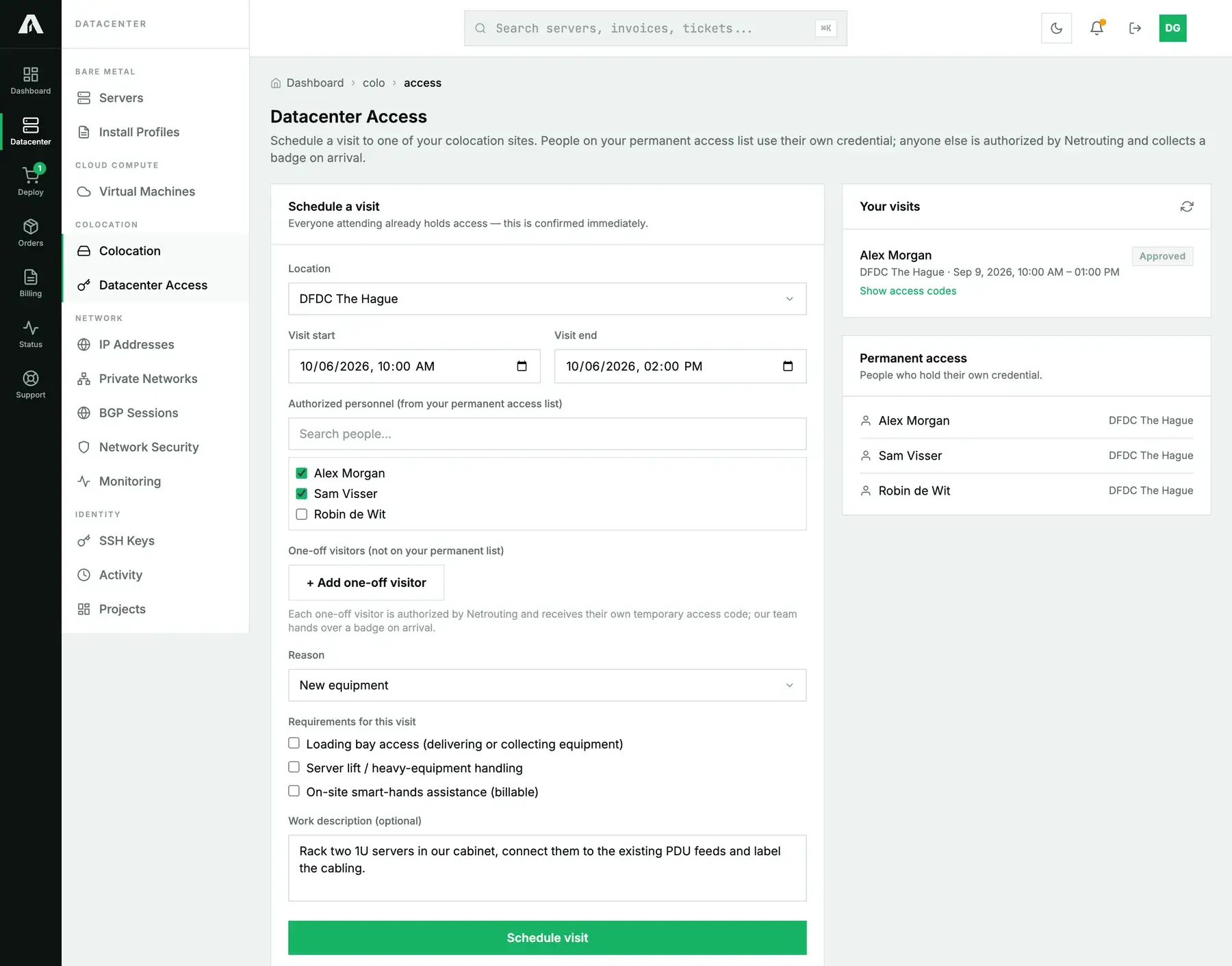
- Click the button at the bottom. It reads Schedule visit when the visit will be confirmed immediately, and Request visit when our team has to look at it first.
Confirmed right away, or reviewed first
The subtitle of the form tells you which of the two is about to happen before you submit, so you can plan the trip around it.
| On the visit | What happens |
|---|---|
| Only people from your permanent access list, no requirements ticked | Confirmed immediately. The access codes appear on the page. |
| At least one one-off visitor | Netrouting authorizes the visit first. |
| Loading bay, server lift or smart hands ticked | Confirmed by Netrouting, because our team has to arrange it. |
| A colocation package on hold, or suspended services on the account | Reviewed by Netrouting, whoever is coming. |
Now and then a visit that should have been instant comes back as recorded instead, with the message that we'll confirm it shortly. That happens when the facility's access system doesn't confirm it on the spot. Nothing is lost; the visit waits for our team like any other request.
Your access codes
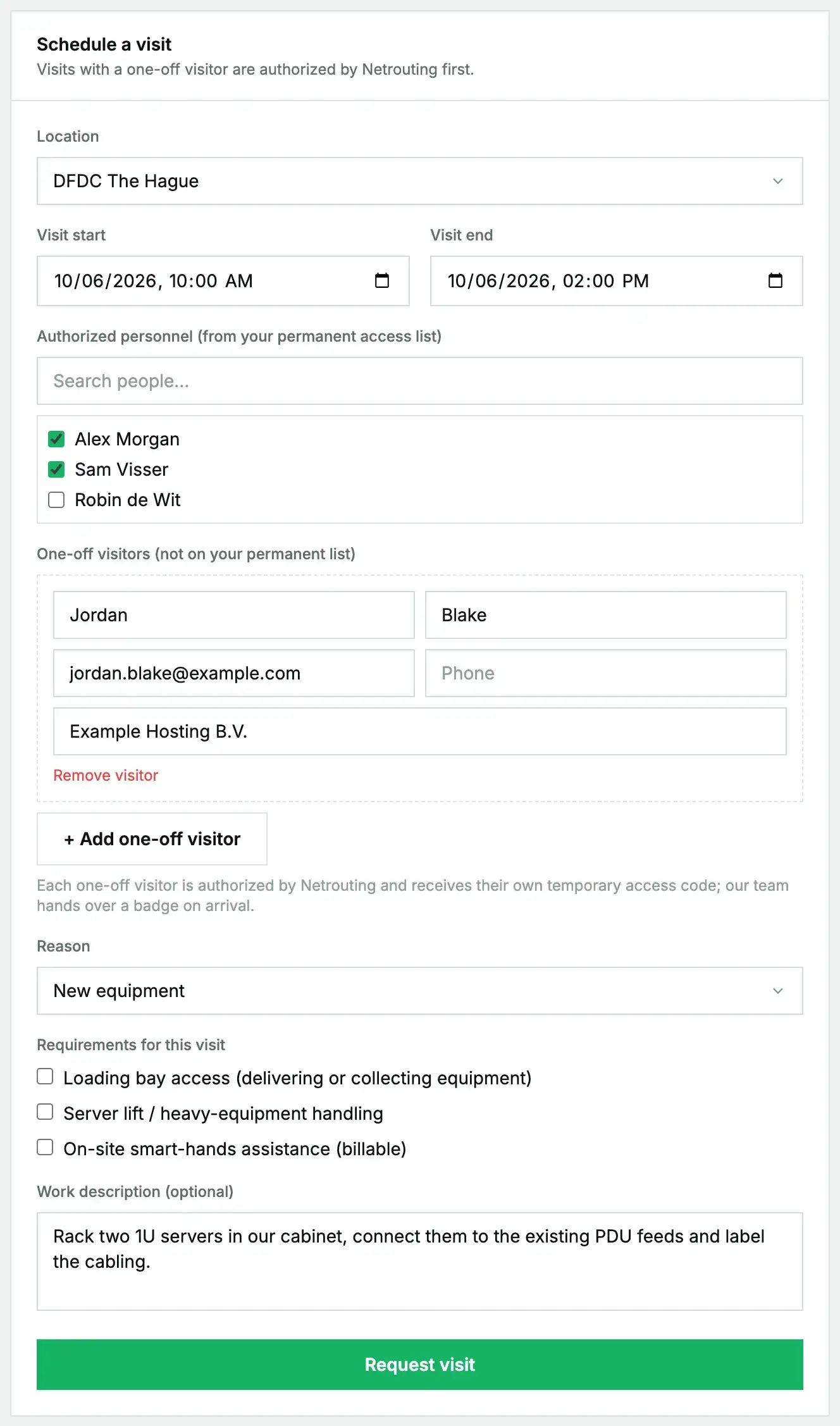
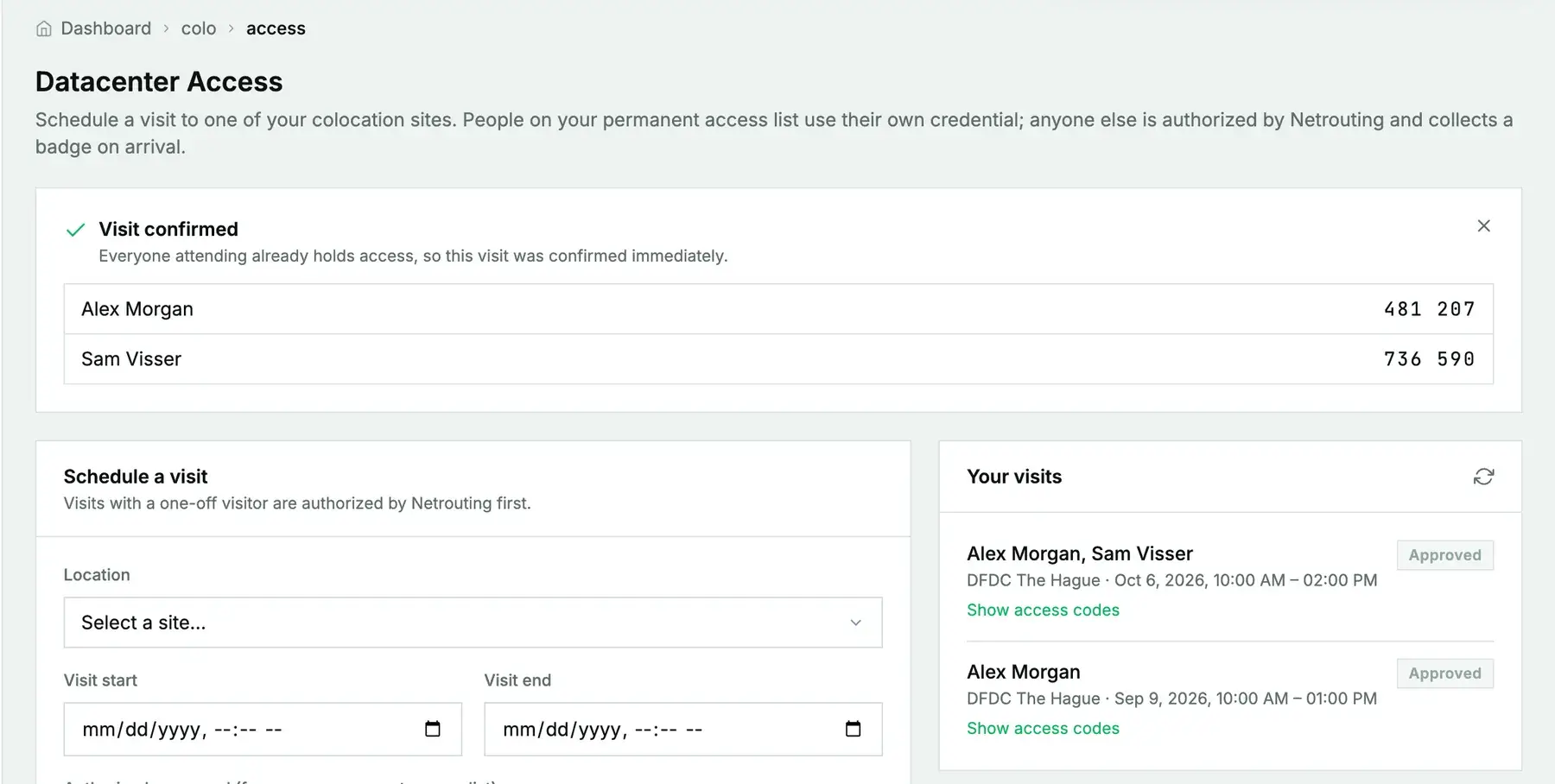
A confirmed visit shows a code for each person, directly under the page title. Each code only works inside the visit window, so a code for next Tuesday won't open anything today.
For a visit our team approved later, go to Your visits and click Show access codes on it. The codes are read from the facility's access system when you ask for them; we don't keep a copy. If the visit was approved a moment ago, the page may say the codes are still being issued. Check again in a few minutes.
On the day
- Bring the ID. You can be asked for it on any visit, including by staff who know you.
- People on your permanent access list use their own credential together with the visit's access code.
- One-off visitors report to reception, where our team hands over their badge. That's why they can only come during staffed hours.
- Work only on your own equipment, and follow the facility's posted rules.
- If you need our help on site outside staffed hours, it's charged at after-hours rates.
Deliveries and collections
If you're bringing hardware yourself, tick Loading bay access on the visit, and Server lift if it's heavy. For a courier delivery or collection without a visit, open a ticket with the courier, the tracking number, the number of packages and what's in them, so reception knows to expect it. If you want our engineers to install the equipment once it arrives, say so in the same ticket.
Changing or canceling a visit
The portal doesn't have a cancel button for visits. Open a ticket with the site and the visit's date and time, and tell us what should change. A new visit with a different window is also fine; just let us know the old one isn't needed.
Schedule a visit from the API
The same flow is in the Amóni API. Reading needs a key with read. Submitting a visit needs colo.write, a separate scope because it puts people in a building (see API key scopes).
First find the site id and the ids of your permanent access holders:
curl -s https://api.amoni.app/v1/dc-access/locations \
  -H "Authorization: Bearer nr_live_..."

curl -s https://api.amoni.app/v1/dc-access/authorized \
  -H "Authorization: Bearer nr_live_..."

curl -s https://api.amoni.app/v1/dc-access/reasons \
  -H "Authorization: Bearer nr_live_..."
Then submit the visit. party takes the ids from /dc-access/authorized; guests takes one-off visitors. Send the window as ISO 8601 with an offset, so the site's time zone survives the trip.
curl -s -X POST https://api.amoni.app/v1/dc-access/requests \
  -H "Authorization: Bearer nr_live_..." -H "Content-Type: application/json" \
  -d '{
    "location_id": 3,
    "visit_start": "2026-10-06T10:00:00+02:00",
    "visit_end": "2026-10-06T14:00:00+02:00",
    "party": [41, 42],
    "guests": [],
    "reason_id": 2,
    "loading_bay": false,
    "server_lift": false,
    "smart_hands": false,
    "notes": "Rack two 1U servers in cabinet A12 and connect them to the existing PDU feeds."
  }'
A visit that is confirmed immediately answers 201 with the codes:
{
  "success": true,
  "data": {
    "id": 97,
    "status": "approved",
    "auto_approved": true,
    "message": "Everyone attending already holds access, so this visit was confirmed immediately.",
    "flags": [],
    "access_codes": [
      { "attendee": "Alex Morgan", "code": "481 207" },
      { "attendee": "Sam Visser", "code": "736 590" }
    ]
  }
}
A visit that needs our team also answers 201, with "status": "pending", "auto_approved": false and a message saying why. Poll GET /v1/dc-access/requests/{id}; once its status is approved, the same response carries the access_codes. If it comes back denied, the visit in GET /v1/dc-access/requests carries a staff_note with the reason. GET /v1/dc-access/requests lists all your visits.
The errors you're most likely to meet:
| Status | code |
Meaning |
|---|---|---|
| 403 | not_your_location |
You don't have colocation at that location_id. |
| 403 | party_not_yours |
An id in party isn't on your permanent access list, or that person isn't currently enrolled. |
| 422 | window_past, window_short, window_long |
The window starts in the past, is under 45 minutes, or is over 5 days. |
| 422 | no_attendees |
Neither party nor guests names anyone. |
Troubleshooting
- The page says "No colocation services". No colocation package or rack is linked to your account. If you have one, open a ticket so we can link it.
- A person "is not currently enrolled for access". Their's enrollment has lapsed or was never completed. Add them as a one-off visitor for now and open a ticket about the enrollment.
- The visit was confirmed but there are no codes. Open Your visits and click Show access codes. If it says the codes can't be read just now, try again shortly.
- The site isn't in the Location list. The list only shows sites where you hold colocation. For any other site, open a ticket.
Related guides
- Colocation at Netrouting: bringing your server in and managing it remotely
- Courtesy remote hands, for small tasks you'd rather not travel for