A physical server backup strategy is what will save you from turning a 2 hour recovery into a 2 day disaster. Unlike virtual servers, bare metal servers run directly on physical hardware, and thus are not amenable to the same kinds of image based backups, snapshot, and recovery tools that are provided for virtual servers by their respective hypervisors.
When a disk fails or a misconfiguration corrupts system files on a server's operating system or virtual machine, you need a tested and repeatable recovery process at the ready to restore operations as quickly as possible. Implementing a robust backup strategy helps minimize downtime by ensuring critical systems can be restored quickly following hardware failures or configuration errors. For more context, see purpose-built bare metal servers.
Whether the trigger is a natural disaster, cyberattack, or equipment malfunction, having a verified backup enables rapid restoration of business-critical services. Unexpected system crashes can leave critical infrastructure offline for extended periods, making comprehensive backup coverage essential for maintaining business continuity.
Blog contents
Bare metal backup has been a solved problem for a while now. The challenge is choosing the right tool for the job (i.e. the workload at hand), then implementing it with no holes to hit your RPO and RTO numbers. This guide follows the common methods for performing bare metal style backups (image, file, block level) on a machine running cluster services and then lists the known working tools for each case, followed by a look at scheduling and retention.
The goal of this work is to arm the server administrator with enough knowledge about modern backup storage to properly test the work done to backup all of the servers in their production environments (single dedicated server or a multi node site with locations across the globe). Once armed with the right knowledge to test the work done to fully recover from a loss (intentional or accidental) to be a non event.
Testing bare metal recovery work ensures that administrators can confidently restore entire production systems when hardware failures or catastrophic events occur. Organizations migrating from legacy storage infrastructure should verify that their chosen backup solution supports both modern and older hardware platforms to ensure seamless restoration capabilities.
What Is Bare Metal Backup for Servers?
Bare metal backups contain a complete system image. This would include all operating system files, the boot sector, all drivers, all applications, and all critical volumes. This single backup would then be restorable to a system. A system state backup on the other hand contains information about the system configuration, but it does not contain any applications or data on any other volumes.
In practice, BMR backup includes partition tables, firmware settings, and all mounted volumes to guarantee a bootable restoration. The hardware configuration details captured in BMR backups enable restoration to different physical machines, provided the backup solution includes proper driver injection capabilities. Administrators must understand that system state captures only configuration metadata, making it insufficient for complete disaster recovery scenarios requiring full hardware replacement.

What Is Bare Metal Backup and Bare Metal Restore?
A bare metal backup is a sector by sector image of a server. This type of backup contains all the information needed to restore a machine on new or failed hardware even without an installed operating system. Organizations typically schedule this image backup process during maintenance windows to minimize performance impact on production workloads. Restoring this image to the same machine after a disk failure typically completes faster than provisioning replacement hardware, making it ideal for quick recovery scenarios.
This completeness is what makes bare metal recovery different from a file level or system state backup. A file level or system state backup will recover data, but a bare metal recovery will actually fully recover and entire environment. Restoring the entire system from a bare metal image eliminates the need for manual OS reinstallation and application reconfiguration, dramatically reducing downtime during critical recovery scenarios.
Bare Metal Recovery BMR Restore Guide
Bare Metal Machine Data Recovery BMR
Boot from full image on new/different hardware. BMR (Branch Minor Repair) is the process of restoring a server from a full image on new/different hardware. This requires a full image of the virtual machine (a full backup), not a partial backup, as a partial backup does not contain enough information to recreate the boot environment as well as the last application(s) were running.
Some backup solutions also support physical to virtual conversions, enabling organizations to restore bare metal images directly into virtualized environments for improved flexibility and disaster recovery options.
Note: A system state backup cannot drive a BMR. Without the full volume image, recovery stalls at first boot. Organizations relying solely on system state backup for their recovery strategy will discover this limitation only during critical restoration attempts, when time is most precious.
Bare Metal Restore and Backup Software
A good bare metal backup solution will allow you to capture both server workloads and client operating systems from a single management console. Modern backup software typically provides centralized dashboards that streamline the management of multiple endpoints, reducing administrative overhead while maintaining consistent protection policies across your infrastructure. Organizing servers into different protection groups enables administrators to apply tailored backup schedules and retention policies based on criticality and compliance requirements.
When evaluating bare metal backup software, look for the following three key features: 1) block-level imaging to ensure a complete and accurate data image is created 2) the ability to create bootable recovery media from the created data image 3) support to restore on dissimilar hardware. This is what really determines if a BMR solution will work when it really counts.
Many enterprise-grade solutions also include advanced features like encryption, compression, and incremental imaging to optimize storage efficiency and security. Incremental imaging significantly reduces storage consumption by capturing only changed blocks between backup cycles rather than duplicating entire system images repeatedly.
Now that we have a definition for recovery and a description of how to use an image, we can outline the recovery process step by step.
How Does Bare Metal Recovery Work for Backup and Restore?
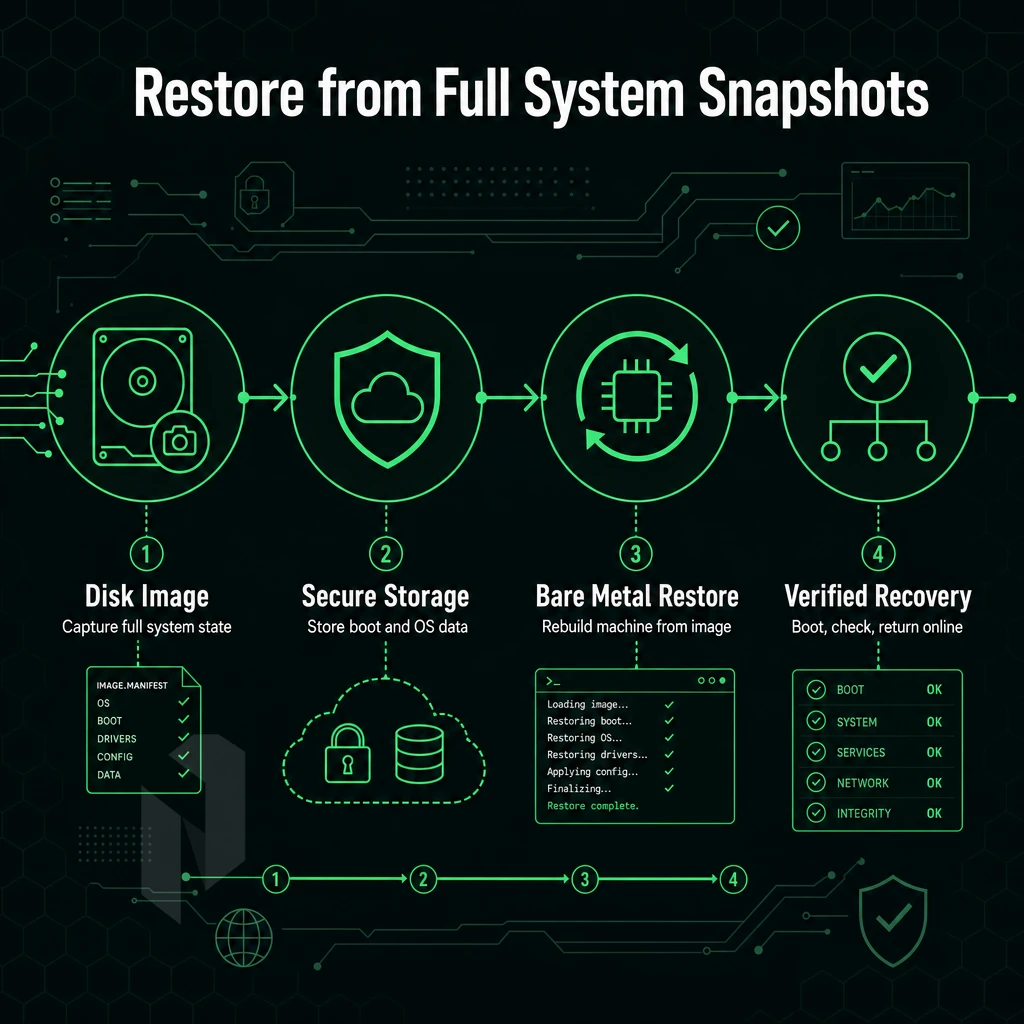
Bare metal recovery is used to fully restore a computer from a saved disk image. This will include the operating system, boot information, data and all applications. This process will not require a reinstallation of the operating system and setting up applications from scratch. The following is an overview of the Bare metal recovery process.
How Does Bare Metal Recovery and Backup Work?
Disaster Recovery Media and Boot Environment
- Boot from recovery media. Boot from a USB drive or mount an ISO from which you have made recovery media. This will load an environment to perform a system restore that is independent of the failed OS.
- Load the correct hardware drivers for all storage controllers, network adapters and other chipsets. The boot environment must be able to load and detect all of these components before it can attempt to read from the target disk or attempt to retrieve the boot environment from the network backup image.
Restoring to Dissimilar Hardware
- Point the engine at the backup image. Locate the stored snapshot (local, NAS or cloud) and the engine reads raw data from the image rather than reading individual files. This is why full-system recovery is so fast.
- Write the image back to the target system. Our Restore Engine writes the complete system volume (partition(s), OS and all applications) to the target disk(s). On different hardware than where the image was created, it even auto-injects the required drivers for you to boot up the recovered system seamlessly.
- Verify and reboot. Verify that the data on the partitions is intact. After verification the system can be rebooted. On the same hardware the system should boot up immediately. On dissimilar hardware a brief reconciliation of the drivers for that system will occur during the first boot.
Note: Skipping driver injection on a hardware swap is the most common cause of a failed recovery boot. Always confirm your backup solution supports different hardware restore before you need it.
How to Take a Bare Metal Backup?
First install a block-level backup agent on the respective server. This agent enables the creation of a complete bare metal backup by capturing all system components at the block level, ensuring full recoverability in the event of hardware failure.
Lastly test the restores on a regular basis; an untested backup is an assumption, not a guarantee.
Once you understand each recovery method for restoring from a backup, including the ability to perform bare metal recovery, you'll quickly realize that not all types of backups are created equal and some offer more recovery options than others. In this article we’ll explore the Bare Metal Backup and how it compares to other types of backup alternatives.
Bare Metal vs. System State vs. Full Operating System Backup
Bare metal images are backups that contain the entire computer system, including the OS, boot sector, applications, and data, all stored as a single bootable image.
System state backups contain the OS configuration, registry, and services such as Active Directory; however, this type of backup cannot be used to boot up a separate computer. A full backup of selected data contains all the data at a given point in time; however, this type of backup typically does not contain boot files. Organizations running Windows Server environments should also back up certificate services to preserve PKI infrastructure and ensure encrypted communications remain functional after restoration.
Comparing the Three Barracuda Backup Types
| Type | What It Captures | Bootable Image | Best For |
|---|---|---|---|
| Bare Metal Backup | Full disk image including OS, boot sector, apps, data | Yes | Complete server rebuild after hardware failure |
| System State Backup | Registry, OS config, Active Directory, certificate and cluster services | No | Restoring corrupted OS config on a running server |
| Full Backup | All selected files and folders | Not always | Data recovery when the OS is still intact |
When Operating System State Recovery Is Enough
System State Recovery: The server is still up but the configuration has gone awry or AD has been trashed.
Note: System state recovery cannot restore a server to bare hardware. If the disk has failed, you need a bare metal restore.
How Do I Back Up My Server?
Windows Server Backup creates two types of Image Backups. One is called a Full Server Backup which backs up all of the Volumes on your server. The other is a Bare Metal Recovery which only backs up the boot critical Volumes on your server. In both cases the bare metal restore utility is started from within the Windows Recovery Environment.
- Open Windows Server Backup, launch it from Server Manager or run
wbadminfrom an elevated prompt. Choose Backup Once or Backup Schedule. - Select backup type, choose Full Server to protect everything, or Custom to include only the volumes needed for a windows bare metal restore.
- Choose a destination for your backups to write to. This can be an external disk, network share or even remote storage. Never backup to the same disk that you are trying to protect.
- Run and verify the job complete without errors. Test the recovery in an isolated environment from time to time to verify the image can actually boot.
On dedicated bare metal server s which are hosted by Netrouting. The managed hosting layer on top of that also handles OS monitoring across virtual machine environments and makes scheduled image snapshots to support bare metal recovery bmr, which makes the work to maintain a reliable recovery point a lot easier.
Deciding between different backup types is only half the task.
Image-Based Backups vs. File-Based Backups for Bare Metal Servers
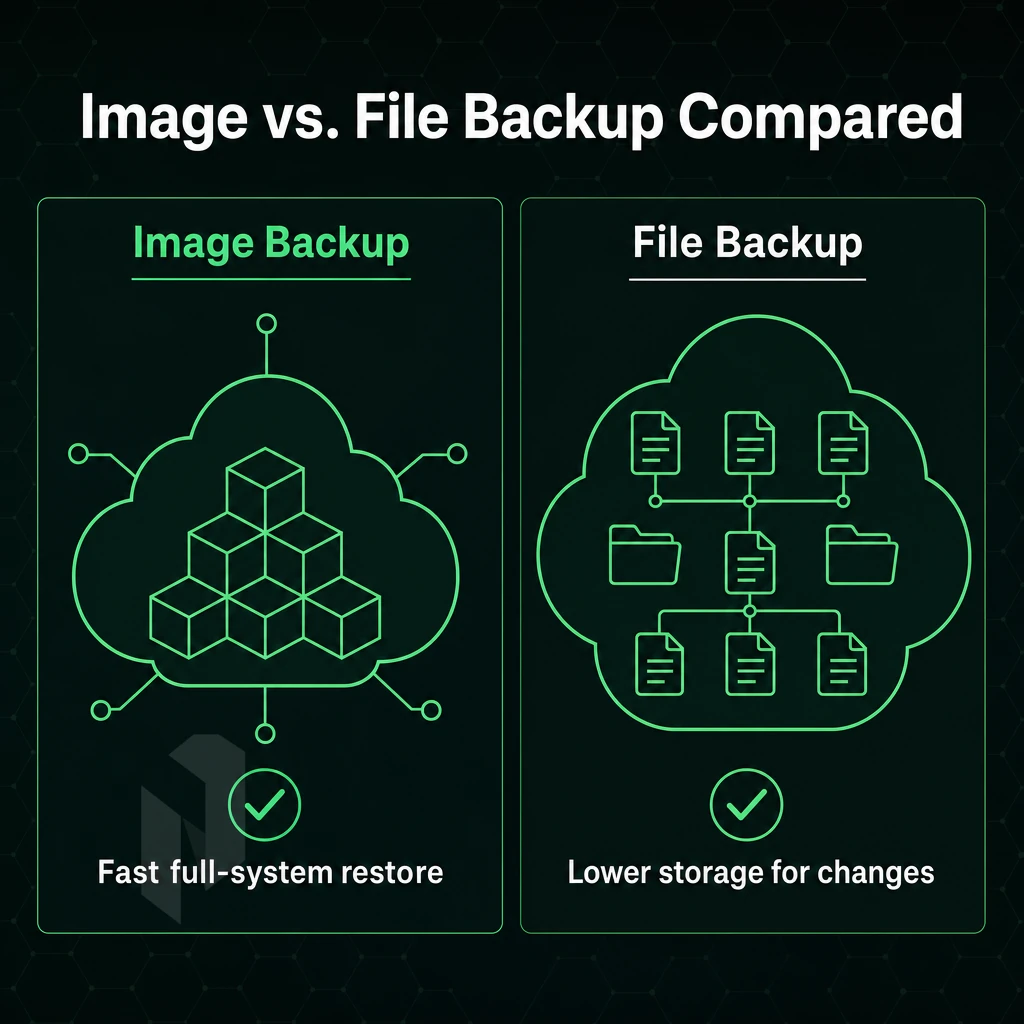
When choosing a backup model for a bare metal server, you need to consider the recovery time and the amount of storage required.
Image Based Backups: Block-Level Capture
Image-based backups can contain an entire system (OS, boot loader, applications and data) as a single system image (SI). Such backups can be restored very quickly, because the entire disk is simply rewritten with the single image. These types of backups can also be used to migrate to heterogeneous hardware. I.e. After running a backup job, you can restore to a completely different physical machine, without the normal issues caused by drivers not being compatible with the new hardware.
Incremental Backups and Differential Within the Image Model
After a full image, incremental backups store only blocks changed since the last job, minimising storage growth. Differential backups store all blocks changed since the last full job, so each differential grows larger but recovery needs only two sets: the full plus the latest differential.
File Based Backups: Granular but Slower to Recover
File based backups are simply copies of individual files and directories.
How to Perform a Bare Metal Server Backup and Restore
Select Repair your computer and then follow through to Troubleshoot and then System Image Recovery.
For production data on your Netrouting dedicated server(s), we recommend to schedule a nightly full image (with weekly full and daily increments) for your production data. We store the weekly fulls for 30 days and can recover them within 15-45 minutes (depending on the amount of data).
From here we will go through step by step a bare metal backup from scratch using the backup models previously outlined. For more context, see Bare-metal restore.
Bare Metal Backup Software: What to Look For
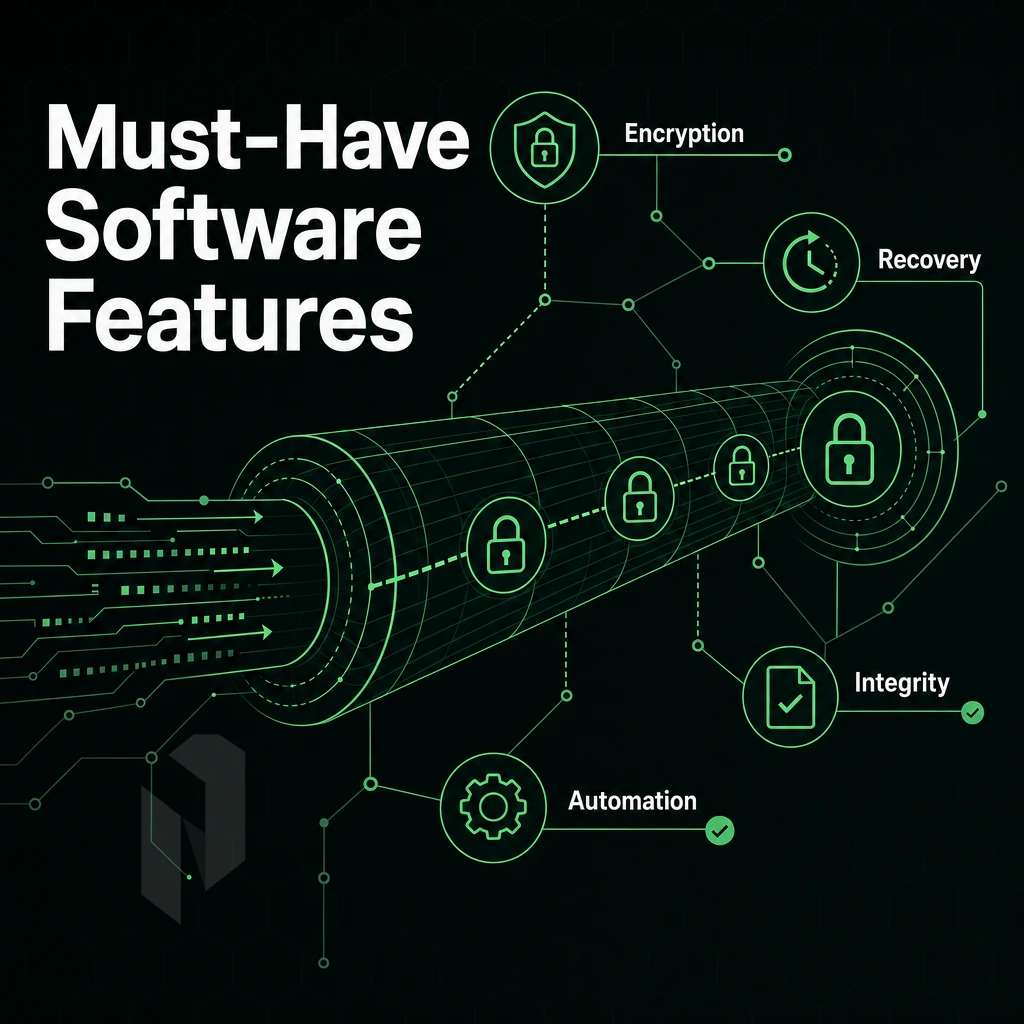
Not all data backup tools are created equal when it comes to performing a bare metal recovery. The following are some criteria that help to distinguish between the high-end data recovery tools used for enterprise-level servers and the file-level data backup agents typically used to backup operating system and user data on servers and workstations for file and directory restore purposes.
When choosing a data backup and recovery tool for bare metal restore purposes, the tool must be able to perform a complete end-to-end recovery of the server.
Core Capabilities to Evaluate
Full images every cycle are a waste of storage space and extend your backup window unnecessarily.
For Microsoft SQL Server and the directory service, we need consistent, transaction safe snapshots.
Note: Recovery media generation is a must have feature. This feature must be able to generate bootable recovery media (WinPE or Linux rescue media) that allows for full recovery to bare metal hardware without having to restore from an operating system.
Does Bare Metal Restore Work on Dissimilar Hardware?
Yes, when the software supports it. Alternate hardware restore enables you to restore a backup data image from a physical machine to entirely different server hardware by injecting the correct drivers during recovery.
In addition to physical servers, the platform should also support virtual machines. A hybrid shop that has physical workstations as well as virtual servers needs a single platform for data protection, and protection groups to manage data protection on a large scale.
Offsite Replication and Storage Compatibility
Some of the enterprise-class solutions (on par with Barracuda Backup) are cloud-integrated offsite replication tools. Check the free space required for the replication as well as the retention period for the replicated data.
This simplifies your operations and reduces the risk of data loss during a disaster recovery event.
Picking the right software is a technical decision but putting it in a structured disaster recovery plan is an organizational decision and that’s where the real resilience is.
Quick Checklist for Advanced Features
Use this checklist to verify that your physical machine backup strategy covers all critical layers before a disaster happens.
- You can use image-based backup software, which takes a full image of the hard disk (including the Operating System, Bootloader, etc. as it is on the disk, with the exact same partition layout etc.).
- Create an automated backup schedule to take daily delta backups for a minimum of 30 days and take weekly full system backup images for a minimum of 30 days.
- Check that the server’s backups are stored at a geographically separate location to the server itself.
- Perform end-to-end testing of dedicated machine recovery on a non-production machine at least once per quarter.
- Document your target recovery time and point objectives prior to an incident.
- On your hardware server enable hardware RAID to protect against single drive failure outside of your scheduled backups.
- Does your chosen backup solution support the creation of bootable recovery media and thus also allow a restore to non-identical hardware?
- Incorporate physical host backup into your total business continuity Plan including the network, DNS and the firewall rules.
dedicated host server backup is not add on infrastructure, it is the fundamental part of any proper failover planning strategy.
System state backups and file based backups are also important as they fill in the gaps left by single-tenant server backups.
How fast you recover from a disaster is directly related to how well you were prepared to handle it in the first place. Having documented procedures, tested incident recovery restores, and offsite disk images, including operating system files, stored through data replication is the only way to hope to have minutes of downtime as opposed to days of downtime. Make sure you test your resilience planning restores before you actually need them to find out if they will work for you.
If your current infrastructure makes it difficult for backup software to deliver consistent, automated physical node backups, limited bandwidth, no offsite replication path, aging hardware incompatible with modern backup storage, the underlying server setup is the problem. Netrouting's dedicated servers include unmetered 10 Gbps connectivity, a free private network for replication traffic, and data center locations across Europe, North America, and Asia. Explore dedicated server options or contact the team to discuss a configuration built around your recovery objectives.