Setting up a dedicated server for Palworld on your own hardware ensures that you are not affected by problems like lag, low performance storage, player limits, and arbitrary server shutdowns that occur with shared game hosts.
With a proper Palworld dedicated server you can configure the server however you like, add mods, and control player access.
Deploying a multi-player game to a server has more moving parts than your average game install. In addition to provisioning the proper hardware for your game, users will need to configure SteamCMD, open up the correct UDP ports on their firewall. Additionally, Tweak a variety of server parameters for optimal gameplay at the expected player count.
Blog contents
If initial deployment encounters errors, you may need to re run the installation script after verifying all dependencies are correctly installed. Backing up your pal saved config regularly protects against data loss during updates or system failures. Consult the official documentation page for troubleshooting common deployment issues if your initial launch fails. Each command executed during setup should be verified for successful completion before proceeding to the next step.
In this guide we’ll walk through the steps to deploying a server to play with friends. Covering the optimal server specs for self hosting at 32 players or more, and locking down your server to ward off unwanted traffic.
What Is a Palworld Dedicated Server and Why Run One?
Unlike a standard co-op session of Palworld. There, the co-op world is tied to the host machine and all players get booted when the host logs off, but a dedicated server keeps the world and its server info running 24/7, whether anyone is online to play or not. For community perspectives, see PSA: How I got my dedicated server working - Steam.
What a Dedicated Server Actually Does
A palworld dedicated server is a process running on a separate physical piece of hardware. It’s a standalone process that handles all game logic, all the connections to players, and the entire world state.
Key capabilities over the default co-op mode: The dedicated server binary allows for persistent world saves and scheduled restarts, which are not available in the default co-op mode. Administrators can preserve their pal saved config settings across restarts by ensuring the configuration files are properly backed up before applying updates or migrations.
Administrators can manage the server process lifecycle using sudo systemctl commands to enable automatic startup on boot or gracefully stop the service during maintenance windows. Each systemctl command requires appropriate permissions, so prefix operations with sudo when managing the server daemon as a non-root user.
- World stays online 24/7.
- Supports up to 32 concurrent players.
- Full admin controls. Kick/Ban players. Modify server information. Modify game rules.
- Persistent progress regardless of who is logged in.
Private Palworld Server vs. Community Server Browser
As a dedicated server, it’s restricted to players that you invite to join, whereas a community server is listed publicly within the in-game browser and can be joined by anyone. Importantly for self hosting, however, both types of server use the same server binary and differ only by a single configuration flag. Private servers are the most common type of server amongst groups of friends playing Palworld together.
When restricting access to invited players only, server administrators typically share the connection details and any required join password through private channels like Discord or direct messaging. Setting up a private server through the dedicated binary gives administrators complete authority over who can access the world and when maintenance windows occur. Administrators can also create a simple landing page with server rules and connection instructions to share with prospective players before they attempt to join.
How Much RAM Does a Palworld Server Need for 32 Players?
It’s wise to plan for at least 16 GB of RAM to run a 32-player full game. Server process idle RAM size is roughly 8 GB.
However, beyond the default settings, there's also RAM used by active players, loaded chunks, and Pal AI, factors that rapidly increase RAM usage, much like running Docker Desktop alongside a game server process. 16 GB is sufficient for headroom but 32 GB is the true comfortable amount for sustained peak loads. Provisioning takes only a few minutes but hardware selection matters greatly in most guides.
Allocating sufficient memory and selecting fast NVMe storage will improve performance significantly during high player activity periods. Running the server in a containerized environment using the official docker image can simplify dependency management while maintaining predictable resource allocation across different host systems.
The bare metal options from Netrouting come with up to 2 TB of RAM and unmetered 10 Gbps uplink ports. This makes them very suitable for high player count servers. Make sure to check the minimum hardware requirements for your game below before you actually provision any hardware.
Palworld Dedicated Server Requirements
- CPU: 4 cores minimum (8 recommended for 16+ players).
- RAM: 16 GB minimum; 32 GB for stable mid-size sessions.
- Storage: 25 GB SSD, avoid low performance storage like spinning HDDs; world saves are I/O-intensive.
- Bandwidth: 10 Mbps upload per 10 concurrent players.
- OS: A 64-bit Linux machine running Ubuntu 22.04 LTS is the recommended operating system.
Architecture Overview of Port Forwarding

Palworld is a dedicated server game, meaning the server process is separate from the client. Players connect directly to each other via UDP in a peer-to-peer fashion. For small groups of friends a single-node server is sufficient. Once port forwarding is properly configured, friends can connect using your public IP address and the designated port number.
Players using the direct connect method should ensure their firewall allows inbound traffic on the specified port to avoid connection failures. Unlike single player mode where world state is tied to the host client, dedicated servers maintain persistent worlds that remain active even when individual players disconnect. For a small group, typical bandwidth requirements remain modest, with most residential connections providing adequate upload speeds for stable gameplay.
- UDP 8211, game traffic (required).
- TCP 25575, RCON management (optional).
If your server is behind a NAT then you can set up your router to do port forwarding for UDP on port 8211 to the internal IP of the host running Palworld. No reverse proxy is needed as Palworld’s networking stack can handle sessions just fine. You can verify the port mapping is active by running the following command on your router's admin interface or checking the NAT table entries.
After verifying port forwarding rules, use sudo systemctl to manage the Palworld service daemon and ensure it starts automatically on system boot. Some routers display the port forwarding configuration on a single status page, making it simple to confirm all rules are applied correctly. Testing connectivity after applying these changes can be done by attempting a direct connection from an external network or using a port scanning tool to verify the UDP port responds to incoming requests on the specified command.
Quick Port Forwarding Setup
- Install SteamCMD on your Linux machine and run
+app_update 2394010 validateto download the Palworld dedicated server binary. - Copy
PalWorldSettings.inifrom theDefaultPalWorldSettings.initemplate and setServerPlayerMaxNum,AdminPassword, andServerPassword. - Launch the server with
./PalServer.sh -port=8211 -players=32and confirm the process binds to the correct interface. - Open UDP port 8211 in your firewall and test connectivity with a test client before proceeding to production.
Port Forwarding Performance Tip
Running a server on low-end storage is one of the biggest mistakes I see.
Now that we've confirmed the server requirements, here's how to get the server up and running.
Four Deployment Methods: Steam, SteamCMD, Docker, and Bare Metal
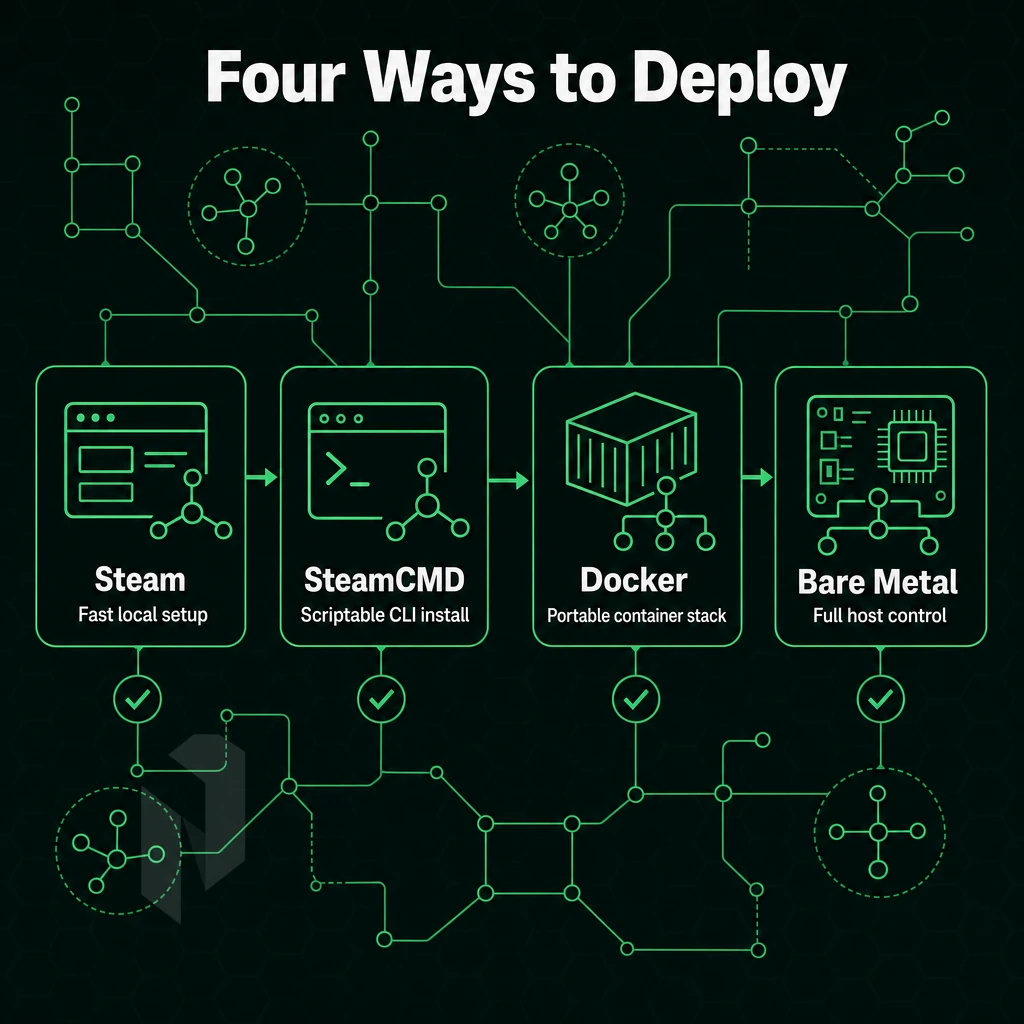
Palworld can be deployed in 4 official ways, including self hosting options, all of which have trade-offs between ease of use and control over the end system. Understanding these trade offs helps administrators choose the deployment method that best matches their technical expertise and desired level of system access.
Method 1: Windows via Steam Library
This is the fastest route for players who already own the game.
- Search for Palworld Dedicated Server in the Steam client's Library > Tools.
- Click Install. This will download and install the server files for your SteamInstallDirectory.
- Launch the server executable and edit
PalWorldSettings.inito configure ports, passwords, and player limits.
Note: Steam must stay running to keep the server active, which ties up your gaming client.
Method 2: Install SteamCMD on Windows or Linux
No GUI.
- Download and extract SteamCMD for your OS.
- Run
app_update 2394010 validateinside the SteamCMD shell to pull the dedicated server files. - Keep your binaries up to date by scheduling updates with a cron job (Linux) or Task Scheduler (Windows).
Can I Run a Palworld Server on Linux?
The official server binary for the game runs natively on Ubuntu 20.04 or later via SteamCMD. For self hosted versions, we prefer Linux servers to run (e.g. Ubuntu Server 20.04 LTS and up) as they use less to run background services than a Windows Server. Thus leaving more resources (CPU and RAM) to be used by the game simulation.
Many administrators choose ubuntu specifically for its long-term support releases and extensive community documentation for server deployments. Running the server on a linux distribution also simplifies scripting for routine maintenance tasks such as world backups and log rotation.
- Install dependencies:
lib32gcc-s1andsteamcmdfrom your package manager. - Run the same
app_update 2394010command to fetch server files. - Use
systemdto manage the process as a persistent service with automatic restarts.
Method 3: Official Docker Image
We provide an official docker image which sets up the server within a container and sets up environment variables for you. You can use Docker Desktop on Windows or the Docker Engine on Linux. The Docker Engine on linux typically consumes fewer system resources than Docker Desktop, making it preferable for production server deployments. The official docker image includes pre-configured networking settings and volume mounts that simplify persistent world storage across container restarts.
- Pull the image:
docker pull thijsvanloef/palworld-server-docker. - Pass environment variables for player count, port, and admin password via
-eflags or a.envfile. - Mount a host volume for the world save data so it persists across container restarts.
Note: Container networking adds a small overhead layer. Map UDP port 8211 explicitly or players cannot connect. The official docker image includes pre-configured networking templates that simplify port mapping, though administrators should always verify UDP 8211 is correctly exposed in their container runtime environment.
Managed Hosting on Bare Metal vs Self Hosting
Dedicated hardware is great for all four methods.
Measure the route. Not the distance on a map.
Use the Netrouting Looking Glass to run a ping, traceroute or BGP lookup from our network, AS6206. Test the real path to your users before you shortlist a site.
Step-by-Step: Installing and Starting Your Palworld Server on Linux
- CPU: 4 cores (8 recommended for 16+ players).
- RAM: 16 GB minimum, 32 GB for stable mid-size sessions.
- Storage: 25 GB SSD; world save files grow over time, so provision headroom.
- Bandwidth: 10 Mbps upload per 10 concurrent players.
- OS: Ubuntu 20.04 LTS or Windows Server 2019.
Game Client Architecture Overview
Palworld uses a listen-server architecture. The dedicated server process for the game manages all game states and streams them to connected clients over UDP. Every client connects directly to the public IP of your server on the game port that you set.
Port forwarding is mandatory on self-hosted hardware.
Quick Setup
- Install SteamCMD, download the SteamCMD package and run the following command to pull the server files:
steamcmd +login anonymous +app_update 2394010 validate +quit. - Configure the server, copy
DefaultPalWorldSettings.inifrom the install directory toPal/Saved/Config/LinuxServer/and rename it. Set your server name, password, and port in this file. - Check dependencies, on Linux, a missing shared object file (
libsteam_api.so) is the most common launch failure. Verify every shared object file is present withldd PalServer-Linux-Shipping. - Launch with performance flags, start the binary with performance flags such as
-useperfthreads -NoAsyncLoadingThread -UseMultithreadForDSto reduce tick stutter under load. - Verify connectivity to the game port by viewing the Steam server browser page or using a UDP port checker prior to inviting players to a game.
Common Mistake to Avoid
Do not skip the performance flags on launch.
Configuring PalWorldSettings.ini
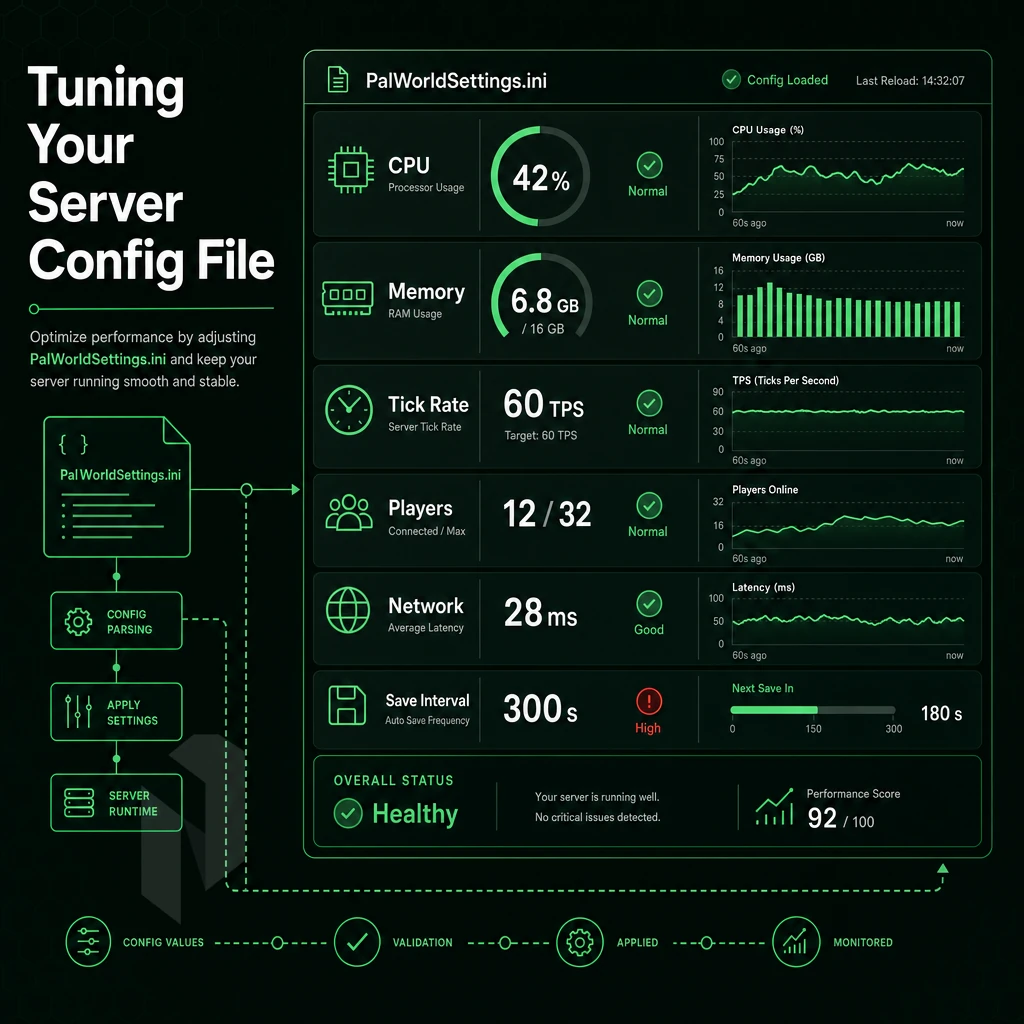
The PalWorldSettings.ini file contains all server-side variables for your Palworld dedicated server.
File Location
The file lives at Pal/Saved/Config/LinuxServer/PalWorldSettings.ini on Linux, or Pal/Saved/Config/WindowsServer/PalWorldSettings.ini on Windows. If the path doesn't exist yet, run the server once to generate it. A "no such file" error simply means the first-run hasn't completed.
Key Settings to Configure
All values sit on a single line inside [/Script/Pal.PalGameWorldSettings]. The most important parameters:
- ServerName, the name displayed in the server browser.
- server password, if this is a public server then leave this field blank, otherwise enter a string to restrict access to this server.
- admin password, required to issue in game admin commands via the console.
- MaxPlayers, Typically this setting is capped at 32 by default. You may need to lower this on very underpowered servers.
- RCONEnabled, set to
Trueto allow remote administration.
Critical: No Line Breaks
All options on one line within the configuration file. If you play Palworld on low performance storage and a single line break sneaks into a parameter block, it'll silently corrupt the rest of the config and load everything with defaults instead.
Why Does My Palworld Server Keep Crashing?
Most problems stem from a faulty ini file, until you fix that, the server process won't start.
So, first of all, fix the ini-file and then search for resource and network problems. And last but not least, you also have to set up your firewall and your port forwarding rules correctly.
Port Forwarding and Firewall Rules
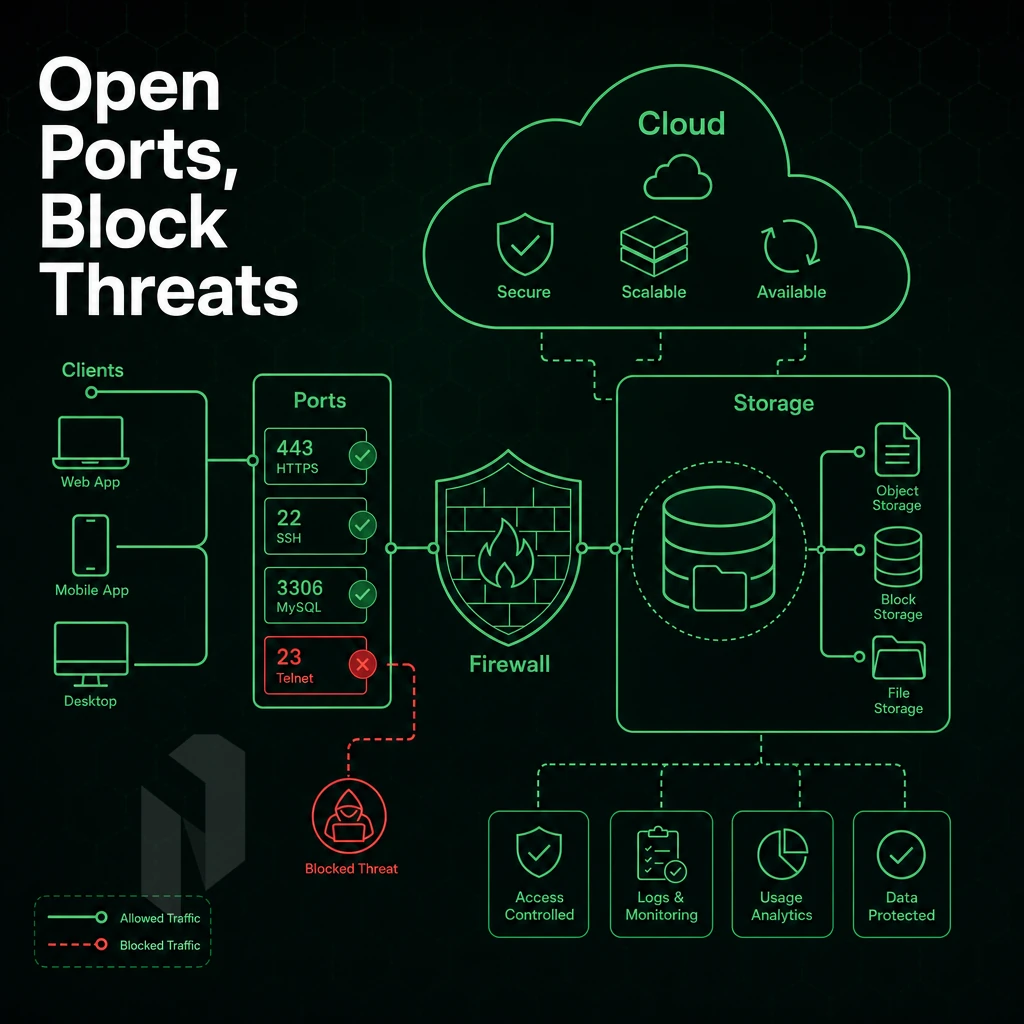
In order to get more players into your Palworld world, you need two types of network configurations. First, the firewall of the server needs to be configured. If you are hosting from home, you also need to configure the router to forward requests. The method for this can differ greatly between hosting on your home connection and a bare metal server with a dedicated IP address.
Port Forwarding for Home-Hosted Servers
By default Palworld runs on UDP port 8211.
On a home router, the machine running Palworld sits on the same network as your router, sharing a private address range. Find the server's local IP (run ip a on Linux or ipconfig on Windows), then log into your router's admin panel. Create a UDP forwarding rule: internal IP → that address, internal and external port → 8211. Repeat for 27015 if needed. Share your public IP with players so they can connect.
OS-Level Firewall Rules on Ubuntu Server
On an Ubuntu server, use ufw to open the required UDP port:
sudo ufw allow 8211/udp.sudo ufw allow 27015/udp(optional, query port).sudo ufw reload.
Verify with sudo ufw status. Confirm both rules appear as ALLOW before testing connectivity.
Bare Metal Servers: No Router Step Needed
A bare metal server has a routable IP address directly assigned to the server’s network interface. Thus, you simply need to open the respective port(s) in your server’s firewall (e.g. as described above), and you’re done. This is how production servers are typically set up via configuration file rather than through Docker Desktop, and Netrouting's bare metal offerings correctly remove this common misconfiguration from the equation.
Do Players Need to Own Palworld Server Access to Join?
The dedicated server software is free to download and use with no additional game license required, but clients connecting to the server must own a copy of the game to access their save data.
Note that there is no free-to-play or trial version of Palworld that allows you to host a server for other players to connect to. Once you have enabled ports on your computer and can connect to your server from other computers, you will need to decide on a method of connection for your players.
Keeping Your Server Stable: Backups, Crash Recovery, and Updates
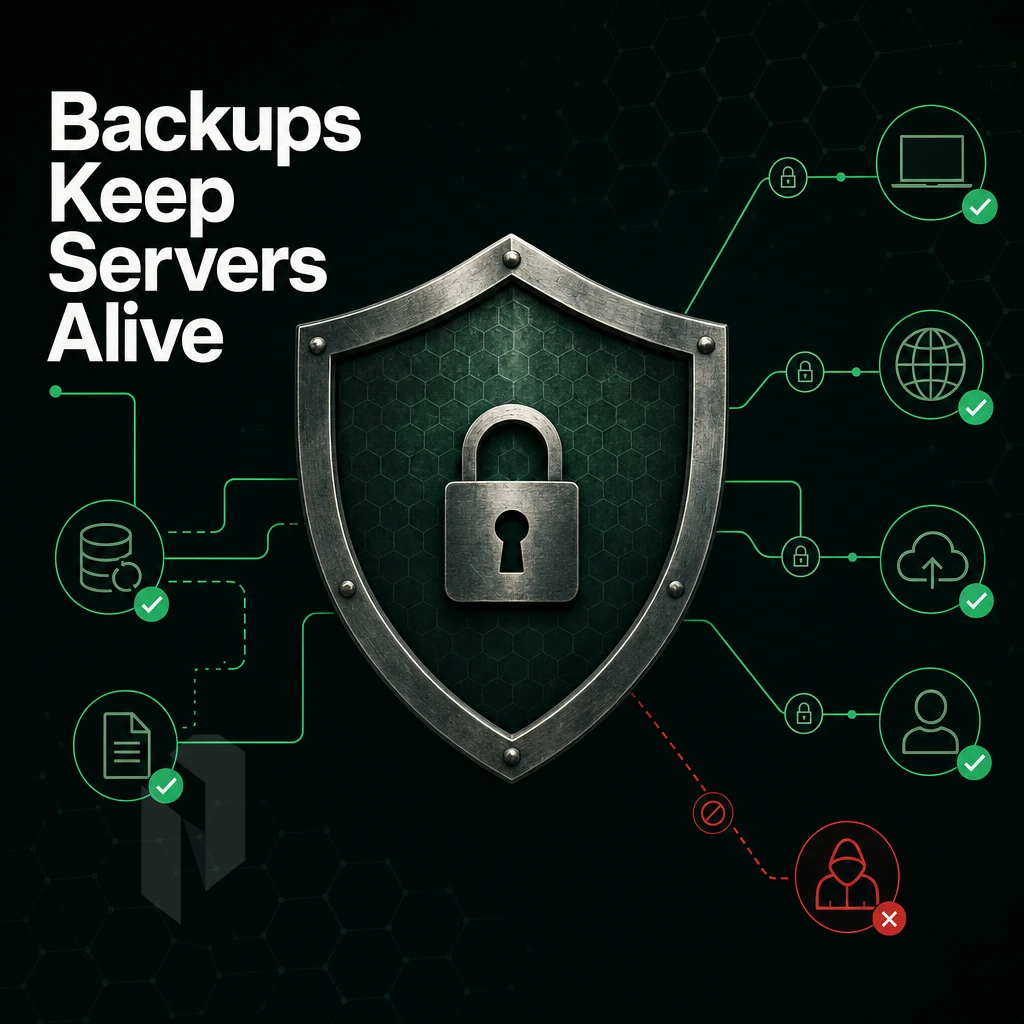
A stable Palworld server has three key components that need to function well together. First, sufficient server resources must be available to handle all incoming requests to prevent crashes. Second, adequate protection of the save data must be implemented to prevent any sort of loss. Lastly, a process manager that can automatically restart the server as needed (without human intervention) must be present. When these components are functioning properly, down time will become the exception rather than the norm.
Common Causes of Server Crashes and How to Prevent Them
Server crashes usually stem from two main problems: not enough RAM and slow storage I/O. The world simulation in Palworld is rather memory-intensive. Below 16 GB of RAM, the Palworld process will exhaust its memory under load and then get killed by the OOM-killer. The process of saving also depends on the I/O of the storage. On a spinning disk, save writes can get stuck in the network traffic and thus get timed out.
Use at minimum 16 GB RAM for a full 32-player session. NVMe or SSD storage eliminates the I/O bottleneck. Monitor /var/log/syslog or journalctl -u palworld for OOM events and disk wait errors before they compound.
Protecting Save Data with Automated Backups
Palworld stores save data under ~/.steam/steam/steamapps/common/PalServer/Pal/Saved/. A simple cron job copying this directory offsite on a schedule gives you automated backups without third-party tooling. Run it every hour during peak play windows and daily during off-hours.
Always backup your world before applying updates. A single failed patch can corrupt all of your world files. A clean backup snapshot of your world on the other hand can be restored in no time.
The systemd Service and Restart Behavior
Configuring a systemd service with Restart=on-failure and RestartSec=10 lets the server restart automatically after an unexpected exit, no manual SSH required. The 10-second delay prevents a tight crash loop from hammering the host.
To deploy a new version, re-run the SteamCMD update command (+app_update 2394010 validate), then reload the unit with systemctl restart palworld. SteamCMD validates file integrity during the update, catching partial downloads before they cause problems. Even with solid crash recovery in place, the underlying hardware still determines your ceiling for game servers, which is why the choice between bare metal and VPS matters more than most guides acknowledge.
Why Bare Metal Beats VPS for Palworld Server Hosting
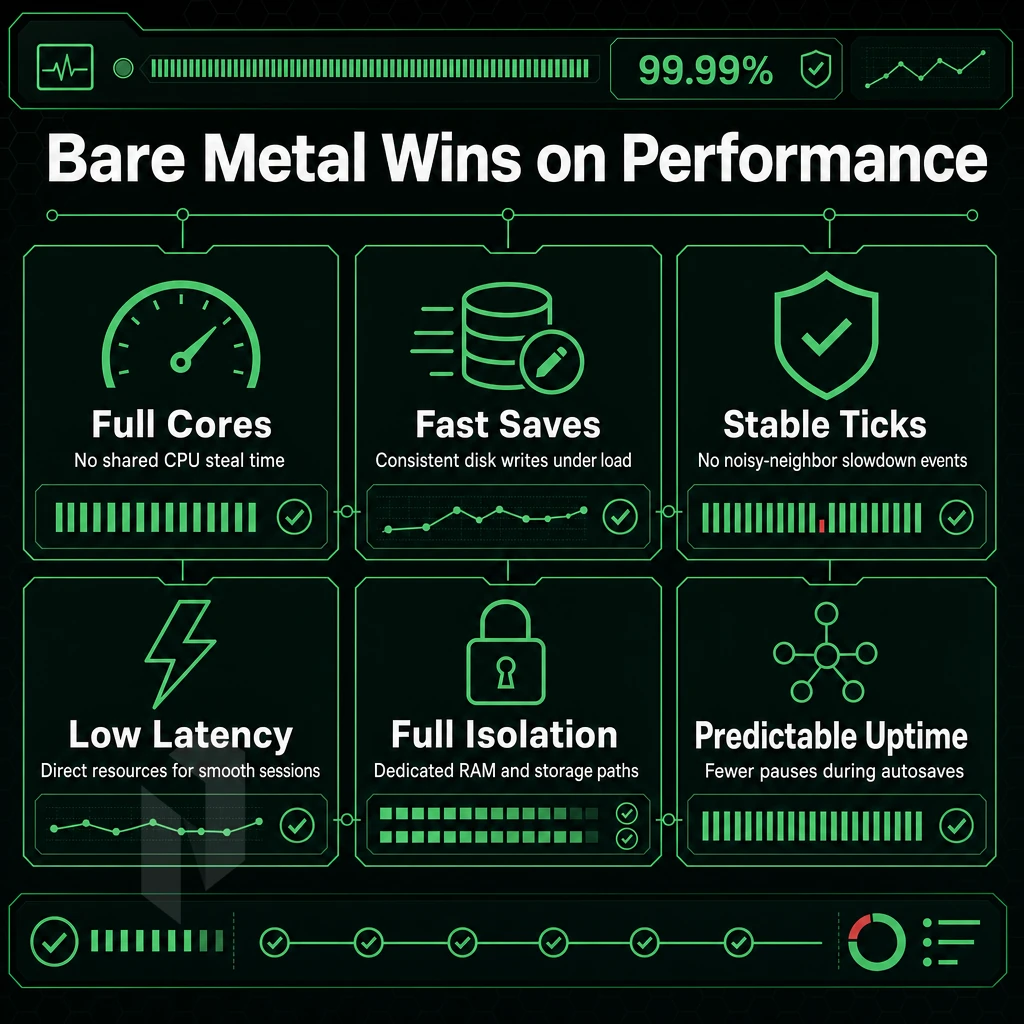
The dedicated server process for Palworld is very CPU bound and constantly writes save data. On a shared VPS, noisy-neighbor CPU contention and unpredictable I/O can cause server crashes and lag spikes which bring down a shared server. Bare metal servers eliminate both of these problems, as self hosting on your own hardware means no resource contention from others.
Our dedicated servers are running on the latest Intel Xeon and AMD EPYC processors. We deploy our services within 60 minutes. All our services come with DDoS protection by default and are unmetered with up to 10 Gbps bandwidth. Our 24/7 NOC and 1 hour guaranteed response time on all tickets ensures that any problems that may occur are resolved quickly before they affect players looking to join multiplayer game sessions.
- Single-tenant hardware: Full control over CPU, RAM and storage, without shared object file contention with neighboring applications.
- Unmetered 10 Gbps bandwidth, large amounts of bandwidth to support many players and large save files without surprise caps.
- Always-on DDoS protection is included on all dedicated servers and there is no need for any additional configuration.
- Low-latency locations: We have game servers in Amsterdam, Frankfurt, Miami, New York, Singapore and Hong Kong to serve European, North American and Asian player bases.
- Managed hosting options, OS patching, monitoring, and automated restarts for you, if you don't want to self host.
- Rapid deployment, Get instant bare metal online within 60 minutes. No provisioning delays to get your Palworld dedicated server up and running quickly.
Even if you just want consistent performance for your Palworld game servers, we recommend talking to our sales team about the appropriate configuration for the number of players you have and where they are located. Below is a quick recap to make sure we covered everything you need for your setup.
Palworld Dedicated Server Setup: Key Steps Recap
- CPU: 4 cores minimum (8 recommended for 16+ players).
- RAM: 16 GB minimum; 32 GB for stable mid-size sessions.
- Storage: 40 GB SSD (world saves grow over time).
- Bandwidth: 10 Mbps upstream per 10 concurrent players.
Architecture Overview
Palworld runs a single authoritative game server process. Clients connect directly over UDP.
Open these ports on your firewall and router:
- UDP 8211, game traffic (required).
- TCP 25575, RCON management (optional, restrict to trusted IPs).
- UDP 27015, Steam query (optional, enables server browser listing).
Netrouting bare metal game servers ship with unmetered 10 Gbps uplinks and free private networking between instances, useful if you run a management VM alongside the game process to back up save data.
Quick Setup
- Install SteamCMD and run
app_update 2394010 validateto pull the dedicated server binary. - Copy
DefaultPalWorldSettings.initoSaved/Config/LinuxServer/PalWorldSettings.iniand setServerPassword,AdminPassword, andMaxPlayers. - Start the process:
./PalServer.sh -port=8211 -players=32 EpicApp=PalServer. - Confirm the server is visible: query UDP 8211 from an external host before opening it to players.
- Set up a
systemdunit withRestart=on-failureso the process recovers automatically after a crash.
Performance Tip
The most common mistake: leaving bIsMultiplay=False in the settings file. The server starts but rejects all incoming connections silently. Set it to True before your first launch.
Running your own Palworld dedicated server gives you full control over settings, player slots, and uptime, none of which you get on a shared session. The hardware requirements are real: under-provisioning RAM or CPU shows up immediately as lag and desync. Getting PalWorldSettings.ini right before launch saves hours of troubleshooting later.
Whether you direct connect via Steam, SteamCMD, Docker, or bare metal, the bottleneck is almost always the underlying hardware. A server struggling with 16 concurrent players needs dedicated resources, not a shared environment. Netrouting's bare metal servers, provisioned in under 60 minutes, give you the raw CPU performance, unmetered 10 Gbps connectivity, and always-on DDoS protection that Palworld sessions demand. Browse dedicated server configurations and get your world online today.
Host the game close to the players.
Share the player regions, the expected player count and the game. We help you pick the hardware and the location.