
Coolify turns a server into your own small platform-as-a-service. From its web dashboard you deploy apps from Git, spin up databases and manage services, a bit like a self-hosted Heroku or Vercel on a machine you control.
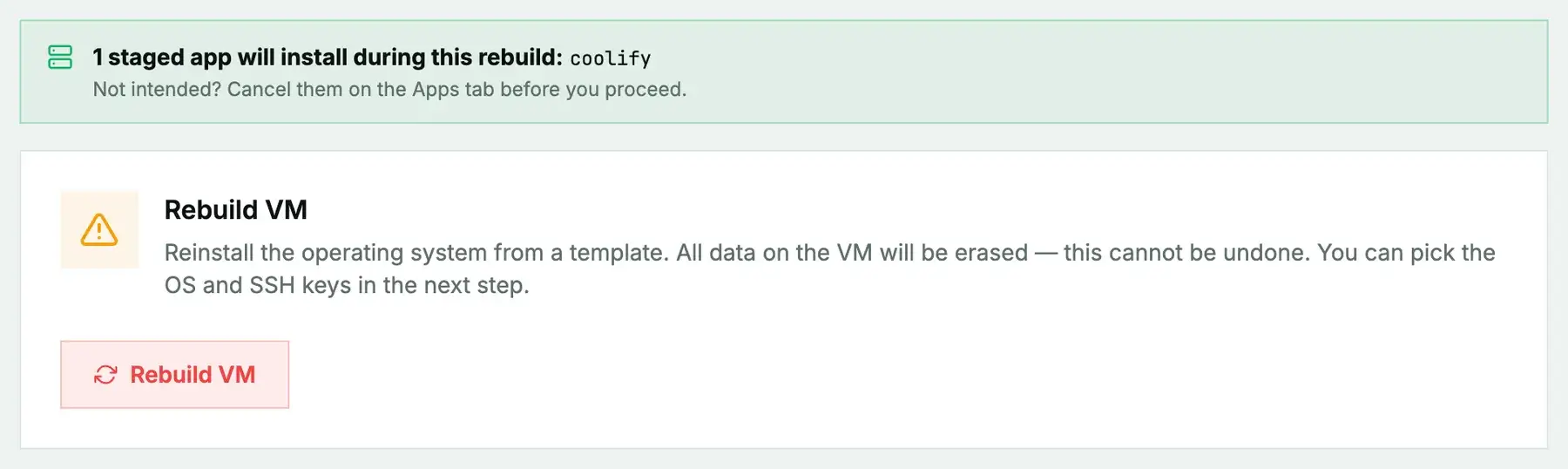
New or rebuilt machines only. Coolify can't be added to a machine you're already running. It installs during the next rebuild (cloud) or reinstall (bare metal), and both erase the disk first, so the machine comes back as a fresh Debian or Ubuntu system with Coolify on top. Use it on a new machine or one you're ready to wipe, and back up anything you want to keep first. To add Coolify to a server that already holds your data, install it by hand instead.
What gets installed
Coolify is installed with its own official installer, the method the Coolify project supports. That installer sets up Docker and everything Coolify runs on.
- The dashboard, on port 8000.
- The apps you deploy later, served on 80 and 443 through Coolify's built-in proxy.
Give it room: Coolify asks for at least 2 CPU cores and 2 GB of memory, and your deployed apps need resources on top of that. No password is generated; you create the admin account yourself.
Install it
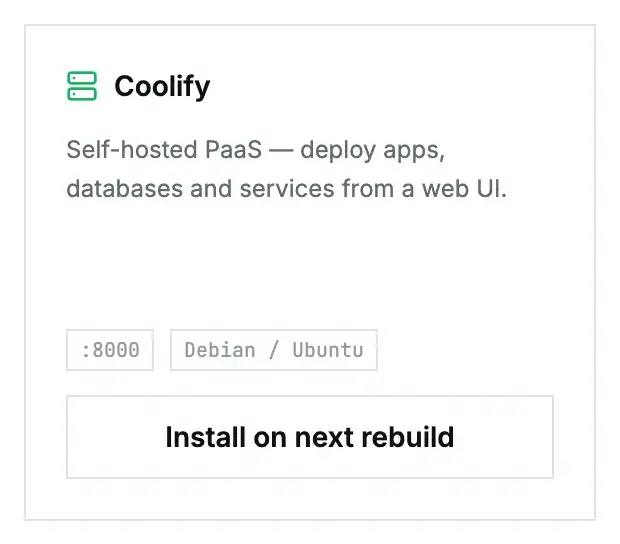
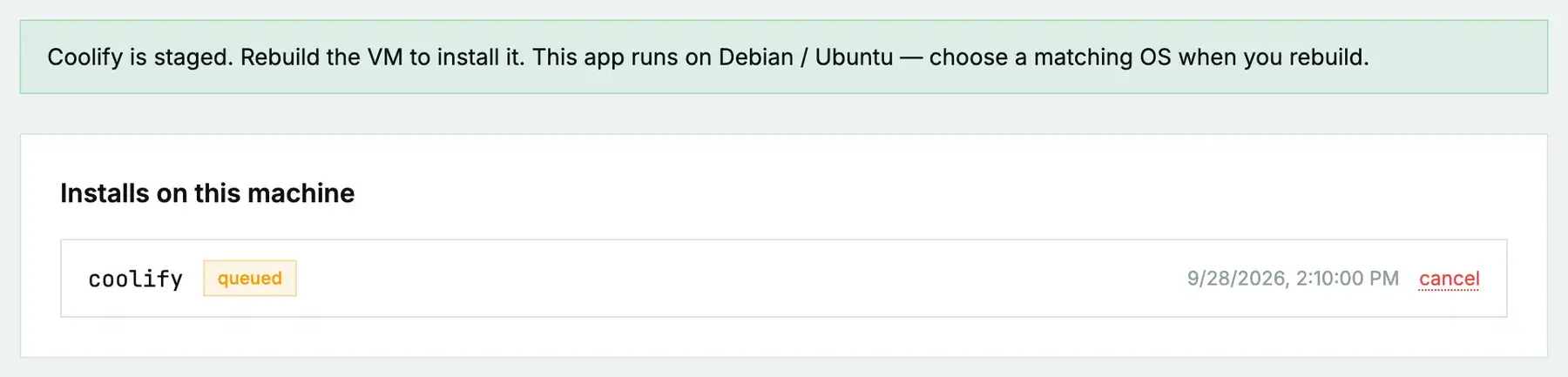
On a cloud instance, open its Apps tab, click Install on next rebuild on the Coolify card, then rebuild with a Debian or Ubuntu image. On a bare-metal server it's Install on next reinstall, then a reinstall with the App: Coolify post-install script ticked. The App Library guide covers the details, the status you'll see, and what to do if it fails.
Claim the admin account straight away
Once it's ready, open http://your-server-ip:8000 and register. The first account created becomes the administrator, so do it right away rather than leaving the page open for anyone who finds it.
After that, allow 80 and 443 in the firewall for the apps you deploy, and consider limiting 8000 to your own address.
Questions we get
- Does it need Docker installed first? No. Coolify's installer handles it; don't also stage the Docker app.
- Where do I learn the rest? The Coolify documentation at coolify.io/docs.
Still stuck?
Open a support ticket with the machine and paste the install log from the Apps tab if it failed. We can see the install from our side.