A full-system backup and recovery failure in a recovery window has a greater cost than just downtime to expose all the gaps in your infrastructure planning for that type of failure. Organizations that lack a tested backup plan often discover critical gaps only when attempting recovery under pressure, compounding both technical and business impact.
How to store the backups and how to simplify the restoration process for a physical server from bare metal backups back to a known good state without having to do a rebuild from scratch. For more context, see dedicated bare metal servers.
This guide outlines the full lifecycle for creating and restoring bare metal backups of physical server s. It covers how to create bootable backups for your entire operating system environment and outlines the strengths and weaknesses of the many different backup agents and imaging tools that can perform block-level backups. The backup creation process captures not only user data but also boot sectors, partition information, and installed application states in a single operation. Modern bare metal solutions often include backup encryption to protect sensitive data both during transmission and while stored in the backup repository. Many enterprise solutions now offer cloud integration capabilities, enabling organizations to store backup images in offsite repositories for enhanced disaster recovery resilience.
Blog contents
Organizations should establish a regular schedule for creating backups to ensure recovery points align with acceptable data loss thresholds and business continuity requirements. One of the key advantages of bare metal solutions is their ability to restore complete systems without requiring manual reinstallation of the operating system or applications. Organizations deploying across multi cloud environments benefit from bare metal solutions that support consistent backup policies and centralized management regardless of where physical infrastructure resides. Proper backup frequency directly impacts the maximum amount of data loss an organization can tolerate during unexpected system failures or corruption events.
Each section outlines the specific commands, configuration choices, and verification steps required to ensure a smooth windows server backup recovery process, a working restore rather than a failing one at 2 in the morning.
What Is Bare Metal Backup and Recovery?
Bare metal backup and restore is the most complete form of protection for a system. A bare metal backup contains everything on the machine. This means that when you do a restore of a bare metal backup, you are rebuilding a completely working system. In contrast, file and directory backups allow you to minimize downtime by restoring individual files and directories from a previous point in time, but this is not the case with a bare metal restore.
What Bare Metal Recovery Captures
A bare metal backup is a complete sector by sector disk image. It contains the full operating system plus boot sector, device drivers, computer hardware configuration, installed applications, and all user data. For more context, see Bare-metal restore.
A file-based backup is not the same as a system backup. In backup and recovery planning, a file-based backup copies specific files or folders, whereas a system backup restores an entire computer to a fully working state from a bootable disk.
What Is the Difference Between Bare Metal Backup and a Full Backup?
A standard full backup is a backup of all files and folders selected at the point in time the backup was performed. A standard full backup, unlike a system image, does not include the boot sectors, partition tables, or the state of the computer drivers at the time of the backup. The restore of a standard full backup requires a working Operating System to perform the restore.
A system state backup goes even further by backing up the OS registry, system files, and the Active Directory on a Windows machine.
Bare metal backup includes all files on a complete system as one huge backup image. Such a backup can be restored on a bare (empty) disk without prior installation of the system (OS). The difference is most relevant when hardware fails completely.
How Bare Metal Recovery Works
- Boot from recovery media. The computer to be recovered is booted from a USB drive or from across the network from a full recovery environment.
- You will see a list of system images created on your system (left part of the screenshot). Then you select one of them and point your restore tool to the image on your backup target (right part of the screenshot).
- This option writes the image to disk. The tool does a sector by sector write of the image to the new or wiped disk. All partitions and boot record information is written as well as overwritten on the target disk.
- Reboot and verify. The system now starts up as it did at the time of the backup: with the exact OS, applications, and data that were there then.
Note: Bare metal restore to dissimilar hardware may require driver injection before the restored OS will boot correctly. Plan for this step when your recovery target differs from the original machine. Testing bare metal restores to hardware with an identical configuration validates your recovery procedures without introducing driver compatibility variables.
There, The data is running on a server.
How Bare Metal Recovery and Backup Software Works
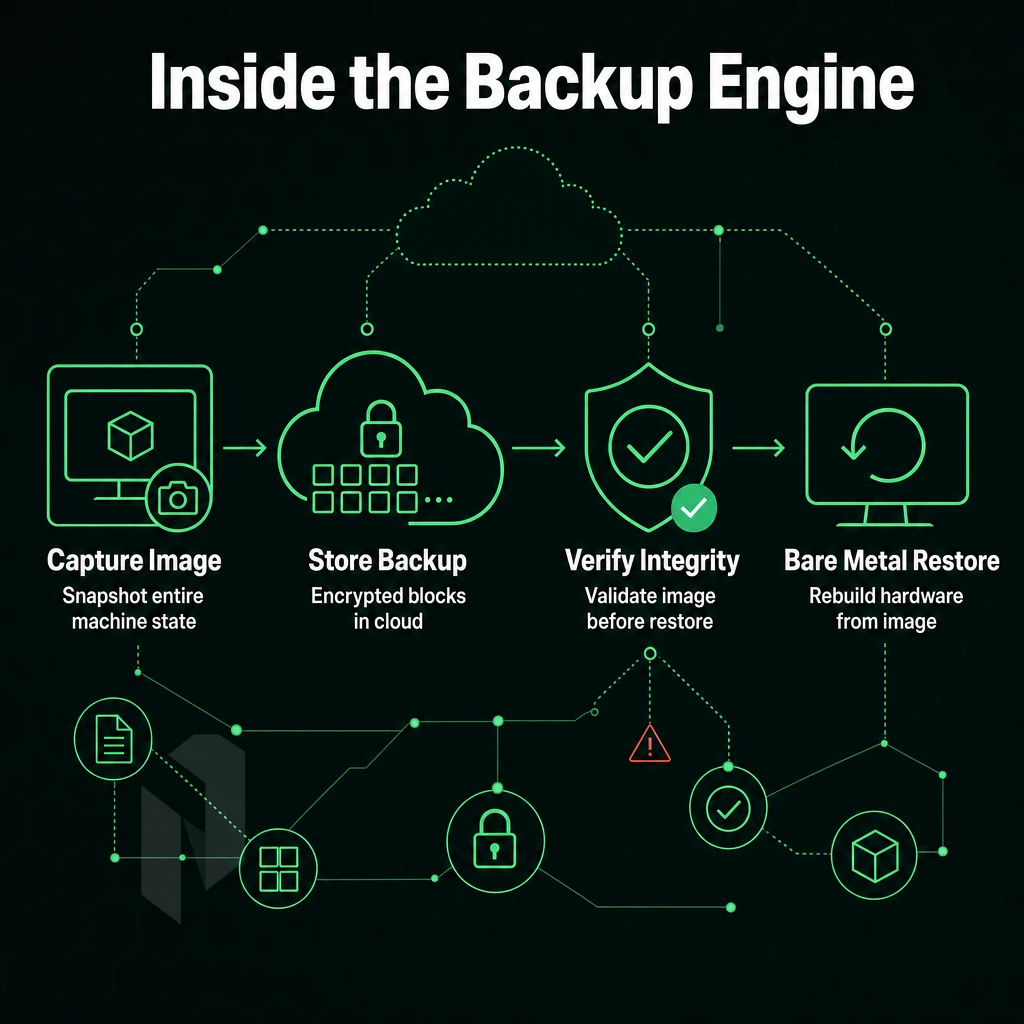
bare metal recovery and backup is a full end to end process. If you skip one of the steps then the recovery will fail. The steps for a full bare metal restore from initial capture to up and running server are listed below.
How Bare Metal Backup Uses Cloud Storage for Capture and Storage
- To do a full disk backup, you would capture a full disk image. This type of backup is read from the system disk (which could contain more than one partition) by backup software and written to a single, compressed image file on your server. Such an image-based backup contains all information about a fully working machine at the time of the backup, not just files as would be the case with a file based backup.
- Store the image on a backup target. This can be a local drive, a network share or even object storage off-site. We make sure to store at least one copy off-site. A single on-site copy is not a backup but a single point of failure.
Note: Image-based backups capture everything in one pass. A raw data backup plan copies files individually and misses boot sectors, partition tables, and driver configurations, making full bare metal recovery impossible without extra steps.
How Bare Metal Recovery Work Gets Done: Restore and Boot
- Boot from recovery media. To recover from hardware failures, boot the failed hardware from a bootable ISO or USB drive. This allows you to run your target hardware from a minimal environment outside of your failed operating system.
- Write the image back. The restoration process writes the captured image back to the system disk in exactly the same partition configuration as it was captured. Modern tools have a hardware abstraction layer which automatically remaps the correct drivers for the dissimilar hardware; full dissimilar hardware restore is possible when the replacement hardware is different from the original hardware.
- Once the data has been written to the storage media you can remove the recovery media and boot the server back up to normal operation. The server will now return to its state prior to the server failure.
Bare Metal Backup and Restore vs System State Backup for Your OS
A full system backup using a bare metal restore returns a bare metal machine to fully working systems including OS, all partitions, installed applications and machine specific configuration. A system state backup contains only information related to the Operating System itself.
This includes the OS’s registry, the boot files of the OS and the data associated with any roles the OS may have. These boot files are essential components that initialize the operating system during the boot process and must be included for successful system recovery.
System State can be used to perform a targeted OS repair whereas a bare metal restore would be used to attempt to minimize downtime due to a catastrophic hardware failure or full disk loss. They are trying to solve two different problems. When planning for different failure scenarios, organizations must evaluate whether a complete hardware failure necessitates full bare metal restoration or if a more targeted recovery approach will suffice.
Organizations facing system corruption scenarios often find that bare metal restore provides the fastest path to a clean, verified configuration when the extent of OS-level damage is uncertain. A system crash caused by corrupted drivers or registry errors may only require system state restoration, while a complete hardware failure demands the full bare metal approach.
Knowing how Bare Metal Restore works is only half the story. In this section we will compare Bare Metal Restore with the other methods of recovery that you may already have in place and take a look at each of their weaknesses.
Bare Metal Recovery vs. Other Recovery Methods
Different disaster recovery methods are used for different types of failures. Because Bare Metal Restore of an entire system (OS, applications, configurations, data) in one step is so unique. It’s important to know in which scenarios it’s the best tool and therefore can be used best before the actual disaster. A comprehensive disaster recovery plan should explicitly document which failure scenarios warrant bare metal restoration versus alternative recovery methods to ensure teams execute the correct procedure under pressure.
How the Recovery Methods Compare
Each of the recovery approaches captures a different scope or focus within the environment. Understanding the scope of each recovery method helps administrators select the appropriate approach based on whether they need to restore individual files, specific system components, or the entire environment.
| Recovery Method | What It Captures | Restore to Dissimilar Hardware | RTO | Best For |
|---|---|---|---|---|
| Bare Metal Restore | Full disk image, OS, apps, data, config | Yes (with driver injection) | Minutes to hours | Full system failure, hardware replacement |
| File based backups | Selected files and folders | Yes, but OS must be reinstalled first | Hours to days | Granular file recovery |
| System state backup | Registry, Active Directory, boot files | Limited | Hours | OS and AD recovery on same hardware |
| Virtual machine snapshot | VM disk and memory state | No, hypervisor-dependent | Minutes | Rapid rollback within the same platform |
| Cloud-native snapshot | Block-level volume copy | No, tied to cloud platform | Minutes to hours | Cloud-resident workloads only |
Can You Restore a Bare Metal Backup to Dissimilar Hardware?
Image based backups are essentially a full boot drive image (at the block level). Most current restore tools with strong recovery capabilities will automatically handle driver injection during the restoration process, ensuring the recovered system can run on the receiving system's storage controllers, network interfaces and chipset.
Some backup solutions can export the captured block-level data as an iso file, providing a bootable format that simplifies deployment across virtualized or physical recovery targets. Organizations can also create bootable recovery media on a usb flash drive to initiate the restoration process when the primary boot device has failed.
Restoring from a backup that supports hardware-independent restore (HIR) is generally reliable. Verification tests should confirm that the restored environment can access all previously backed up data and that application dependencies remain intact after the hardware transition.
Note: Always test dissimilar-hardware restores in a non-production environment first. Driver mismatches are the leading cause of failed recoveries.
Why Bare Metal Recovery Wins on RTO
Rebuilding the OS before recovering data from file-based or system state backups can add hours to your RTO. Performing a bare metal restore allows the full recovery image, including boot critical devices, to be written directly to the target disk without the need for pre-installation of the recovery environment.
Virtual machine and cloud-native snapshot s are fast, but are locked to the respective platforms. Physical machines, which fail from time to time, cannot be easily recovered from such snapshots. Bare metal restore is the only option that also works for physical targets and has no dependencies on platforms and tools.
Although choosing bare metal restore is the right thing to do for your backup, the method is only as good as the strategy behind it.
Choose how much of the machine you need.
Pick the starting point that fits the workload: the whole server, a virtual one, or room for your own hardware.
Take the whole machine.
Choose bare metal when the workload needs a single-tenant server with full IPMI access and control over the operating system and stack.
Start the conversation with
- Workload
- CPU, memory and storage
- Stack
- Operating system
- Location
- Where your users are
Start with a VM. Scale it when needed.
Use cloud compute for workloads that do not need a full machine. Compare vCPU, memory and storage per plan.
Start the conversation with
- Compute
- vCPU and memory
- Storage
- Disk size
- Location
- Preferred region
Bring the servers. Choose the location.
Compare colocation for the equipment you already own. Start with footprint, power and the markets you need to reach.
Start the conversation with
- Equipment
- Rack footprint
- Power
- Expected draw
- Network
- Port and traffic needs
Bare Metal Recovery for Physical Servers vs. Virtual Servers
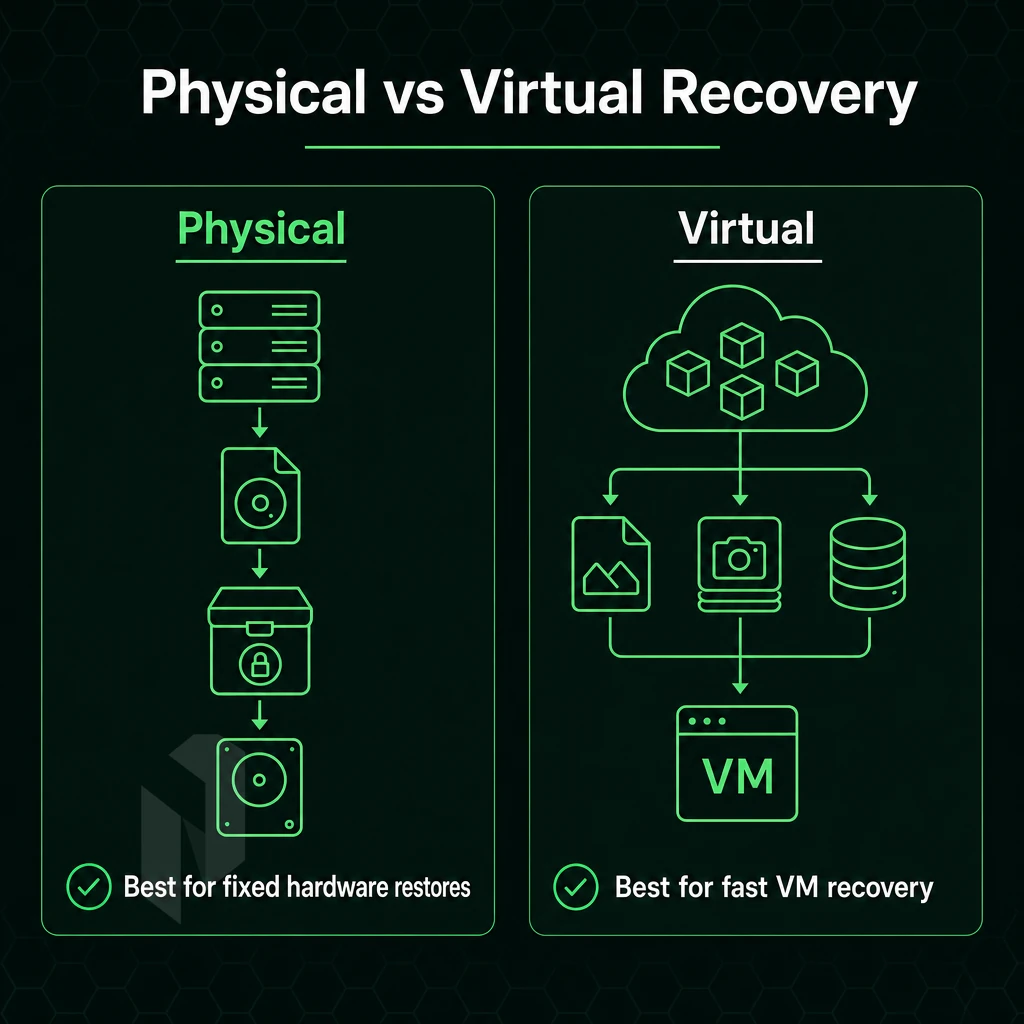
complete system image backup and restore for physical servers versus virtual servers is a different beast. The process, tools and even portability of bare metal backups of servers varies greatly, especially in a hybrid environment.
Physical Servers: Hardware-Aware Imaging
A full disk backup of a physical server contains everything: the server Operating System, its bootloader, partition(s) on the disk(s), all of the server's drivers as well as data. A restore to the exact same hardware as where the backup was created is then no problem.
The booting of the restored server could fail because the restore image does not have the correct drivers.
The physical servers also require bootable recovery media, such as a USB drive or a PXE-boot environment to load the imaging agent from. For instance, Windows Server Backup comes with a Windows Recovery Environment (WinRE) for this purpose.
Virtual Servers: Snapshots vs. True Bare Metal Recovery
Virtual machines are another option that allows for fast recovery using Hypervisor-level snapshots that capture the complete state of an entire operating system and Virtual Machine in seconds. However, these snapshots are not a replacement for Bare Metal recovery, as the backup process does not capture the Hypervisor host, its configuration, or the underlying hardware.
A separate recovery plan will be needed for a bare metal recovery of the physical host, prior to recovery of any of the VMs.
What Should Be Included in a Bare Metal Recovery Image?
A complete image must contain:
- Full disk image including all partitions and the bootloader.
- I check the OS and the system state (registry, kernel parameters, services). The OS and the system state tell me about the computer’s condition and help me decide what to fix.
- Hardware drivers, especially storage and network controllers.
- Application configurations and installed software.
- Network settings: IP addressing, routing, hostname.
Hybrid and P2V/V2P Scenarios
P2V migrations, where a physical server image is restored into a virtual machine, require driver substitution and also modification of the disk geometry. V2P migrations on the other hand require injecting the hardware drivers from the physical server into the entire system image that was created to run as a virtual server.
The image storage in multi-cloud environments is another layer of off-site storage, which can also fail. Our backup and recovery architecture at Netrouting supports off-site replication from a bare metal backup machine to secondary storage located in a different geographic location. This includes daily incrementals as well as weekly fulls with 30 days of retention for both physical and virtual environments.
In this section, you will put that knowledge into practice with a step by step guide on how to recover from a data loss incident.
Step-by-Step: How to Perform Bare Metal Recovery
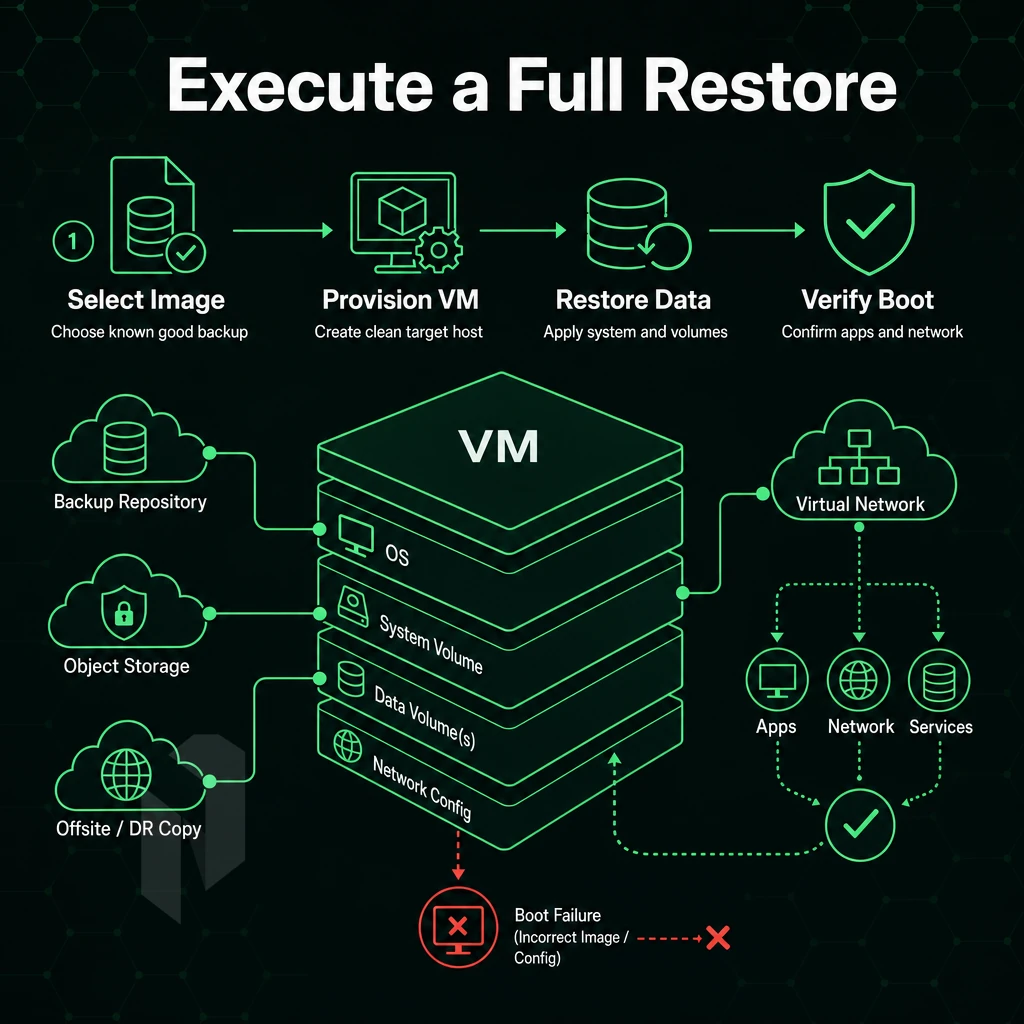
The bare metal recovery process is a step by step process. By missing a step and booting into an incorrect state you risk losing your environment. Follow the steps below in order.
The Eight-Step Recovery Process
- Check the integrity of your backups before the disaster strikes. Make sure you have the latest backup image available and that it has not been corrupted in any way. A single failed backup job that you find out about while in the middle of a crisis can add hours to your overall downtime. Check the integrity of your scheduled backups on a weekly basis.
- Boot up the hardware for the restore using the appropriate recovery media. This will be a bootable ISO or a USB drive containing the appropriate software for the restore. Make sure that the system boots to the recovery environment prior to any disk writes.
- The operator needs to launch the restoration software and select the correct full image from disk based off the generation of hardware and the exact OS version that was on the server prior to failure. This is the biggest error made by the operator selecting the wrong snapshot.
- Assign the source partitions to the target disk layout. Check that the system volume is on the target drive. A mismatched partition table causes boot problems that look like hardware faults.
- Restoring from images, first we start the restore from images. The tool will re-partition, write a full OS install plus boot images and also include all the drivers for that system. It is very fast for the amount of data that it is recreating a full OS install. For instance a 500 GB system would take about 20-40 minutes to fully complete a restore from images. This would be assuming a 1 Gb/s network.
- Validate network configuration / hardware setup after write. Check IP addresses, NICs, etc. to ensure boot critical items are recognized by restored system.
- Reboot and verify system is functioning properly after reboot. A clean POST and OS load confirms that the partition and boot loader have been properly reconfigured. Also verify for any driver errors during first boot.
- Run post-restore checks. Check critical data is there, confirm all application services are running OK and re-enrol the backup agent to continue protection.
- ☑ system image hash verified before restore.
- ☑ Partition layout matches target hardware.
- ☑ OS boots without driver errors.
- ☑ Network settings confirmed, IP, gateway, DNS.
- ☑ Application services responding.
- ☑ Backup agent re-enrolled and first job scheduled.
- ☑ Data integrity confirmed on critical volumes.
Is Bare Metal Backup Better Than File-Based Backup for Servers?
For servers, bare metal backup is generally better than a file-based restore for disaster recovery. A file-based restore only recovers data, not the OS, the boot loader, or the driver stack for that OS. After a server crash, the bare metal recovery work of manually rebuilding the entire system's OS would have to be completed before you could even begin to restore any data, which could add hours to your RTO.
Bare metal backup means a complete server image (i.e. a full whole-full-system snapshot). Recovery from a bare metal backup results in a fully operational server, i.e. not a blank OS that must then be configured. For production workloads this difference is in terms of $Revenue, not minutes.
Therefore, use a bare metal recovery solution for the organization’s full system DR (Disaster Recovery) and file-level-based solutions for day-to-day recovery requests.
The bare metal servers from Netrouting are delivered with daily incremental backups and a full image of the entire system every week, which is deleted after 30 days.
A clean restore is just one small part of a complete disaster recovery plan. In the next section we will go through the full recovery process plan and how to implement it, including image based backups, how to set RTOs and RPOs, and how to put together a runbook that has been fully tested and documented.
Bare Metal Recovery and Disaster Recovery Planning
A bare metal backup is only valuable if it is part of a tested and documented disaster recovery plan. Even the perfect backup is useless without a plan to recover from a disaster. The following steps detail how to put a bare metal backup strategy into practice to perform real disaster recovery.
Preparation: Define RTO, RPO, and Tiering
- Determine your RTO and RPO targets. Recovery Time and Point Objectives (RTO and RPO) for data recovery. RTO affects to how quickly a business can be back to full operation after a system crash or system corruption, bare metal restore greatly affects the RTO. RPO affects the amount of information a business can afford to lose before a data restore. For bare metal restore, it greatly compresses the information to be restored to just files instead of a full machine state.
- For each server, map it to a DR tier from hot standby (Tier 0) down to bare metal restore (Tier 3). Physical servers without a hypervisor for creating snapshots would be Tier 3 by default. Knowing the tier for a given server will tell you how much data from your backup to pre-stage it and where it will get it from.
- First identify single points of failure. Since physical hosts do not have a live-migration fallback for hardware failure, they should be flagged first. The most frequent image cycles and the most clear runbook for trouble shooting should be on these machines.
Note: Skipping tier classification is the most common planning mistake. Without it, teams discover during a natural disaster that their most critical server has the weakest recovery capabilities.
How Often Should You Test a Bare Metal Recovery?
Perform a full bare metal restore test at least quarterly.
- Schedule a full restore on a quarterly basis. Boot from the latest full backup on bare hardware in an isolated test environment. Confirm the full restore includes a full and clean bring up of the OS, all configured services and data. Log the amount of time to complete the restore against your RTO.
- Perform monthly smoke tests. Mount out the image and verify its integrity without having to boot the system. Quick. Low risk. Can catch bad images before they become a problem.
Documentation: The Operating System DR Runbook
- Create a step by step restore play book. This play book should include location of boot media, image location, network settings, etc. Also include steps to validate a restore to ensure everything is working properly after a restore. A runbook that requires tribal knowledge to execute will fail during an actual incident.
- Record each test result with the following information: a timestamp for when the test started. The length of time it took to complete the data restore and any variances from the RTO (Restore Time Objective) that were experienced during the test. This log will serve as proof that you have been able to complete data restore in the time agreed for recovery.
- After each test cycle review the runbook for the tested functionality and update it for the next cycle before it starts. Stale documentation is as bad as no documentation at all.
The bare metal servers from Netrouting are delivered without a hypervisor layer on top of the server hardware. In order to execute DR (Disaster Recovery) steps in a proper and controlled way, we have written down the steps for you to perform a system image recovery.
The infrastructure you run your backup strategy on is as important as the strategy itself. Here is how we have built out our dedicated servers at Netrouting to support the full bare metal backup and recovery workflow.
Operating System Quick Checklist
Bare Metal Backup Checklist: Before, During, and After
The above checklist details all of the steps needed to be completed before, during and after a bare metal backup and/or restore.
- Create an inventory for physical and virtual servers, listing the hardware of the servers, the OS versions that are running on them, the partition schemes, and boot configurations.
- Choose a bare metal data backup solution that makes a full disk image backup, i.e. a full backup of the boot loader, operating system, applications and data, as opposed to just files.
- Set up a backup schedule, such as a daily incremental backup and a weekly full backup. The backups should be sent to a backup target that is geographically separate.
- After every job verify the integrity of your backups by checking the images for corruption, as well as ensuring that the backup catalog contains all the files that were actually backed up.
- Test bare metal restore in a isolated test environment at least quarterly. A backup that has never been used in a restore is unproven.
- Document the step by step recovery process for all systems and store in a separate location so that it can be retrieved without the systems it was written for.
- Document your RTO and RPO targets. Compare them with the frequency and storage tier of your current backups.
- Enable out-of-band access (IPMI, iDRAC, etc.) to treat failed server as dead box and recover without having to physically go to the datacenter.
- After any major change to your infrastructure (e.g. new servers, OS updates, storage moves) review and update your backup strategy as necessary.
physical server backup and recovery is the most complete form of disaster recovery available.
Importantly, it allows a truly complete disaster recovery in terms of recovery time.
That backup strategy will only work, and meet your organization's recovery time objective, if it rests on three core components: consistent verified backups, offsite/remote storage, and periodic restore tests.
If you're running bare metal workloads and need infrastructure built for fast recovery using a reliable system image, dedicated hardware, a high-availability network. Additionally, daily incremental backups of your backup data to a geographically distant secondary location are available, explore Netrouting's bare metal machine dedicated server options or contact the team to discuss your recovery requirements.
Put the workload on bare metal.
Share the workload, the location and the network needs. We help you match a configuration.