A failed disk, corrupted bootloader or a ransomware infection that removes data from your root volume are all scenarios where your bare metal recovery backup is put to the test. It’s not enough to have a backup file sitting somewhere on a server. Someone needs to have a tested process that can restore a physical or virtual machine to full operation from bare metal in the minimum amount of time possible.
In this guide we’ll examine the entire recovery chain, what you can expect to get from a bare metal backup, how imaging and file-level backups differ. This Tools do a good job of creating block-level snapshots. Additionally, How to create a restore process that works.
Along the way, we'll also cover storage for your backups, creating bare metal restore recovery media, and verifying recoveries before you need them in production. You can apply these system backup principles to a handful of dedicated servers running any operating system or a multi-site, distributed infrastructure, and you'll want to discover these gaps long before an incident forces the issue. Creating bootable media ensures that recovery operations can begin immediately without dependency on the compromised system's existing boot environment.
Blog contents
What Is Bare Metal Backup and Why It Matters
Bare metal recovery (BMR) is a full system restore to a physical server, with no installed OS, of all files, OS, boot sector, drivers, applications and data. In contrast to file, or even system state, backups, BMR restores far more than just the files on a failed system.
When a system's hardware has failed or been encrypted by ransomware and the entire operating system boot volume is unavailable, BMR is able to restore the system to operation on replacement hardware. Organizations implementing bare metal restore capabilities can recover from catastrophic failures within hours rather than days, minimizing downtime and maintaining business continuity even when primary infrastructure is completely compromised.
This capability proves especially valuable when migrating workloads to new hardware with an identical configuration, streamlining both disaster recovery and planned infrastructure upgrades. Whether recovering from hardware failure, ransomware attack, or natural disaster, bare metal recovery provides the comprehensive restoration capability needed to resume operations quickly. The ability to restore a complete system image to a new machine eliminates the manual reinstallation steps that would otherwise extend recovery windows by hours or even days.
What Makes Bare Metal Backup and Recovery Different
File-based and system-state-based backups contain individual files and configuration/registry data for a server. They do not restore an entire server from scratch. Bare metal recovery uses a full system image containing every single byte of data required to boot and run a server. It is used for complete data recovery of a server that has suffered a total system failure.
A bare metal backup includes the full image of the system, i.e. the entire partition layout, boot files, installed software and current data. All this can be restored from one single backup snapshot. Netrouting’s hosting infrastructure supports image-based backups. We keep daily incrementals plus a full backup that is deleted after 30 days for the weekly ones. Organizations typically schedule full backups weekly to establish comprehensive recovery points, while daily incrementals capture only changed data to minimize storage overhead and backup windows.
How to Create a Bare Metal Recovery Backup for Your Server
- Choose an image-based backup tool. Select a tool to take backups in the form of images, which will take block-level snapshots of files instead of simply backing up files. This will also ensure that the partition(s) and boot config are saved.
- Schedule full and incremental backups. Take a full backup of the image on a weekly basis and take incrementals on a daily basis. This allows for a limited recovery point while not using up too much storage space.
- Store backups off-server. This means that you should write images of your backups to a separate storage target like a NAS, in the cloud or at a different physical site. A backup on the same physical host as your store does not offer any protection against hardware failure.
- Create bootable recovery media for your backups. It makes sense to create a WinPE or even a Linux rescue ISO for each backup set. You never know when you have to boot the target server to do a recovery before it gets re-installed with a new OS.
- Test restores on a schedule. Test every recovered image by restoring it to a test environment every quarter. An untested backup is an assumption, not a guarantee.
Note: Skipping restore tests is the most common mistake in disaster recovery planning. A corrupt or incomplete image only reveals itself when you need it most.
Verification
Verify server boot up, verify network connectivity, verify application services are running, verify data integrity. Record the time it took to complete the restore, this will help determine if you are meeting your Disaster Recovery RTO. Documenting these metrics establishes a baseline for your backup and recovery procedures and identifies bottlenecks that could delay future restoration efforts. Organizations should revisit their backup strategy quarterly to account for infrastructure changes, new application deployments, and evolving recovery time objectives that may impact restoration procedures.
How Bare Metal Backup Works: Image-Based Capture Explained
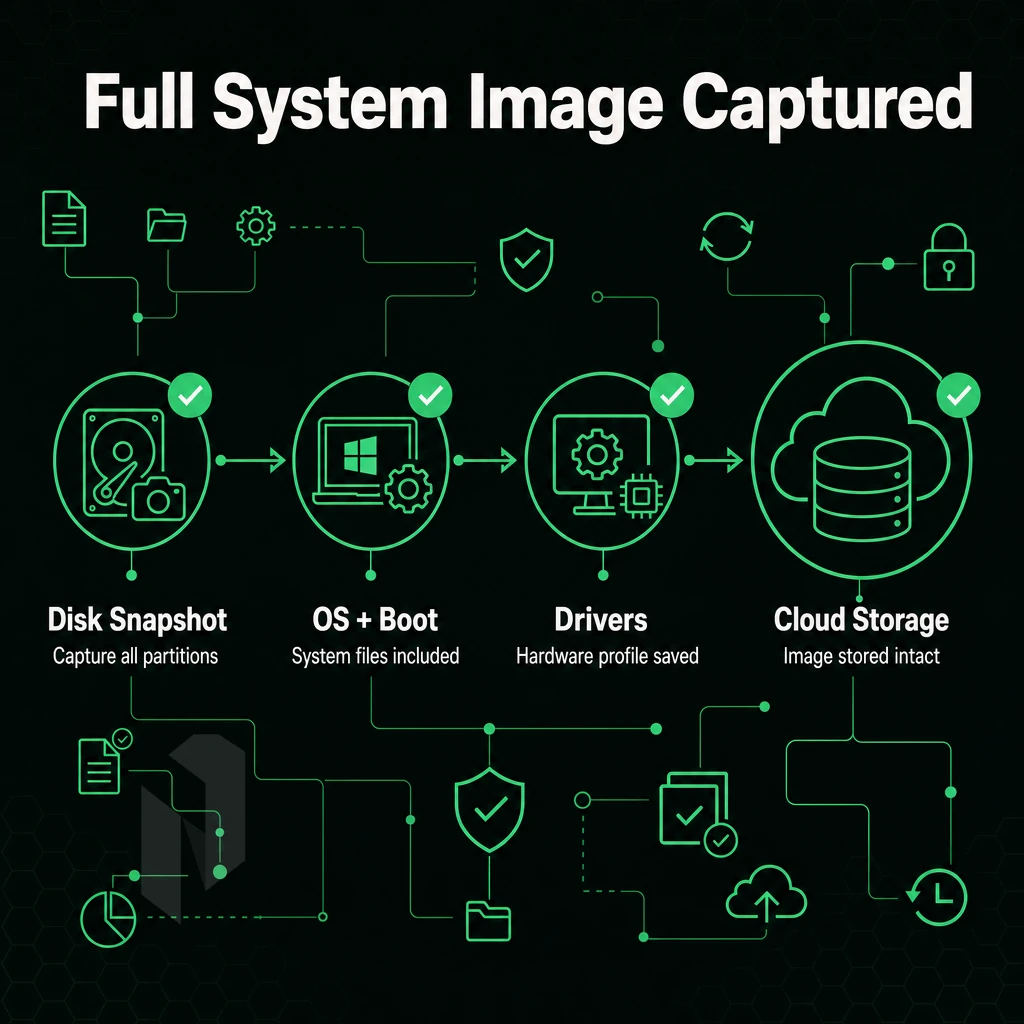
Image-based backups contain the entire environment, including partition tables, OS files, boot files, drivers and even hardware metadata. They are backed up as one portable snapshot. In contrast, file-based backups are just a list of selected files, which are then restored relying on a working OS.
Modern bare metal images capture this complete system state in a single portable file that can be deployed across different hardware platforms with minimal configuration adjustments. Many backup solutions export these snapshots as an iso file format, which provides a standardized container that can be mounted directly or written to bootable media for recovery operations.
Preparation
- Audit the items that need to be protected. List out all of the disks, partitions, and data storage containers on the server (including the system volume and any secondary disks or storage used for application state).
- Storage Target: Choose a location where you would like to save the disk image (e.g. local storage, network share or even off-site object storage). Off-site is strongly recommended because local copies will not survive a physical failure of the machine.
Execution
- Run a full image-based backup first. The agent reads the disk sector-by-sector, capturing all the drivers, the bootloader, and partition layout into one compressed image file. Note: Always enable backup encryption at rest, unencrypted images expose full OS credentials if the storage target is compromised.
- Schedule the first incremental backup to run after the baseline backup. Incremental backups only store the blocks that have changed since the last backup. Thus greatly reducing the amount of time to perform the backup as well as the amount of storage required to hold the backups. Run them frequently to meet a tight Recovery Point Objective.
Verification
- Test your restores on a regular basis. Mount your image in a test environment and verify that a full boot of your system occurs properly. An untested backup is merely an assumption.
What Is the Best Backup and Recovery Software?
The best tool for a bare metal restore can vary greatly from user to user, depending on the operating system, recovery time objective, and whether or not the user is utilizing agent-based or agentless capture. Therefore, it is best to evaluate tools by three main criteria: 1) verified bare metal restore capability, 2) incremental block-level support, and 3) backup encryption (built-in). In addition to the software that you will use for backups, the infrastructure beneath it is just as important.
Evaluating backup solutions requires careful examination of their key features, including support for multiple operating systems, automated scheduling capabilities, and integration with existing monitoring infrastructure. Organizations seeking modern solutions should prioritize platforms that offer comprehensive disaster recovery capabilities and seamless integration with cloud-based storage repositories. Selecting the right restoration software involves assessing compatibility with your hardware environment, verifying support for your specific operating systems, and confirming that recovery procedures align with documented RTO requirements.
Netrouting's bare metal servers support bare metal restore through daily incremental backups, weekly full images retained for 30 days, and geographically distant secondary storage. This gives you a solid recovery foundation before you ever configure a backup job.
Organizations operating distributed infrastructure across multiple data centers benefit from this geographically separated backup architecture, which protects against regional outages and ensures recovery capabilities remain available even during localized disasters. This architecture proves particularly valuable for organizations managing multi cloud environments where workload portability and consistent recovery procedures across diverse infrastructure platforms are essential.
We'd be happy to discuss how this would integrate with your current recovery architecture.
The Bare Metal Restore and Backup Process: Step-by-Step
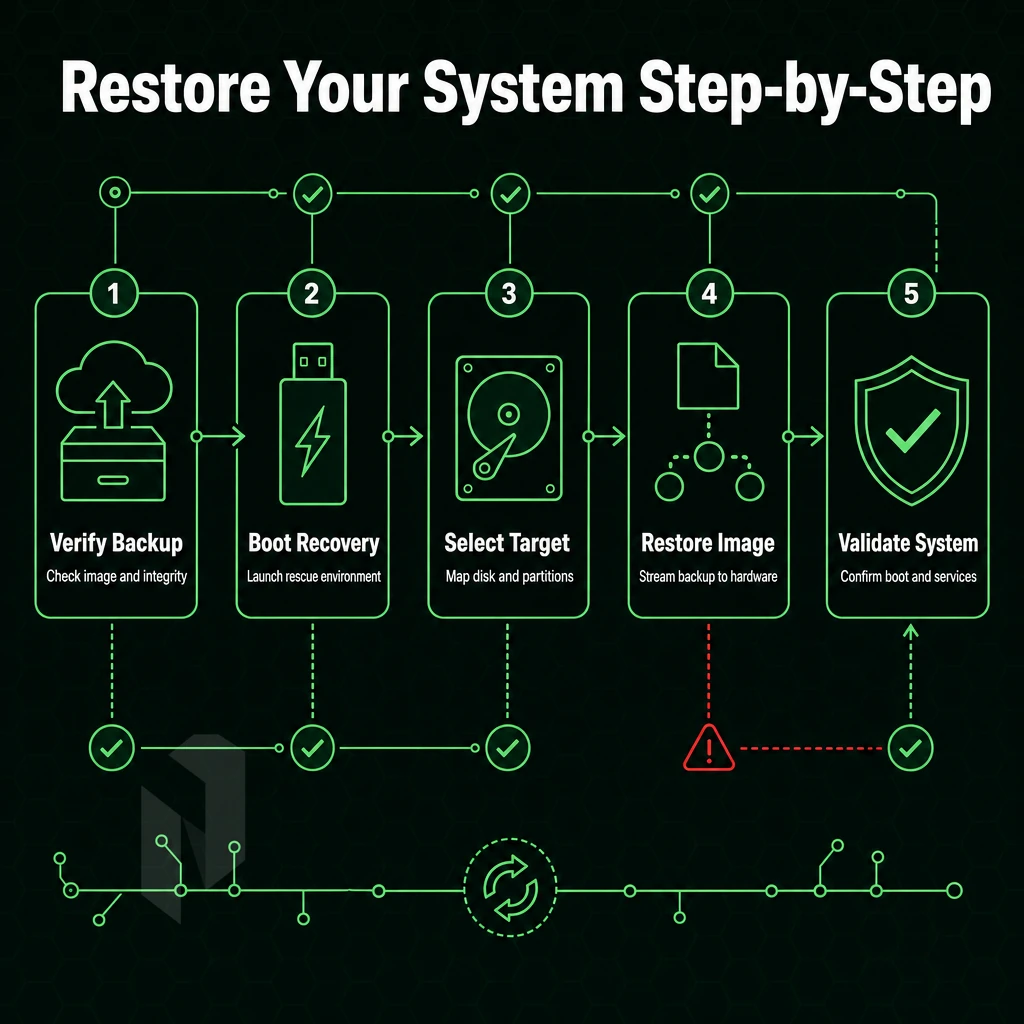
A successful recovery from bare metal backups includes several steps in a certain order. Neglecting some of these steps (not least of all the correct handling of drivers and integrity checks) can compromise a bare metal machine restore and lead to system failures that prevent booting or even cause silent corruption of data.
Each stage of the backup process must be documented and validated to ensure consistency across recovery attempts and minimize human error during critical restoration windows. Validation procedures should include checksums and hash verification to confirm that critical data remains intact throughout the restoration process.
Step 1: Boot from Recovery Media
- Insert your bootable USB or mount your ISO file. Then change your BIOS/UEFI settings to boot from the USB or mounted ISO first. Your recovery software environment will load before you boot to the local disk operating system.
- Choose the target hardware or a new machine where you wish to restore from the image. Make sure the disk on the target has enough capacity to hold the original system image (or larger).
Note: Restoring to dissimilar hardware requires driver injection at this stage. The hardware abstraction layer must be updated so the restored OS can communicate with unfamiliar controllers and network adapters.
Step 2: Load the Image and Recreate Partitions
- Point the tool to your system image which resides on local storage, on a NAS or even in the cloud. Verify the correct backup time before you proceed with the restore.
- Select the system disk and re-create the partitions. Many recovery tools map the partitions for you; make sure the alignment is correct before you write the new configuration.
- Restore network settings to allow the machine to immediately join the correct subnet, obtain the correct DNS servers and default gateway after a reboot. Failure to do so leaves the server to which you connected (to upgrade it) unreachable.
Step 3: Verify and Return to Normal Operations
- Perform a data integrity check (e.g. hash verification or built-in checksum scan) before booting to the restored OS.
- Test boot restored system. Verify all services start correctly. Test application connectivity to storage drivers. Review system event logs for errors.
- Return to normal operations. Record the time required to restore RTO records.
Bare Metal Backup vs System State Backup: Operating System Differences
A system state backup contains OS configuration information (such as registry data, boot files, etc ), including Active Directory information. But it is not a full-disk backup. It cannot be used to boot a new physical machine or to create a new virtual machine.
Bare metal restore contains information about all partitions on the system (including unused ones), the Operating System, all installed Applications and all data. The restore will completely rebuild the system to make it 100% bootable. In contrast, system state restore contains information about individual files and even configuration settings that can be used to roll back to a previous state on the same machine. Bare metal restore is used to completely restore an entire machine that has been destroyed.
Our 24/7 NOC and fast bare metal provisioning means replacement hardware is deployed before your restore job has completed. When comparing bare metal recovery with file-based backup, the differences between the two approaches can be significant and it is worth investigating these prior to an incident requiring a restore. Rapid hardware replacement combined with tested restoration procedures helps organizations minimize downtime and resume critical operations within their defined recovery time objectives.
Bare Metal Backup vs File-Based Backup: Key Differences
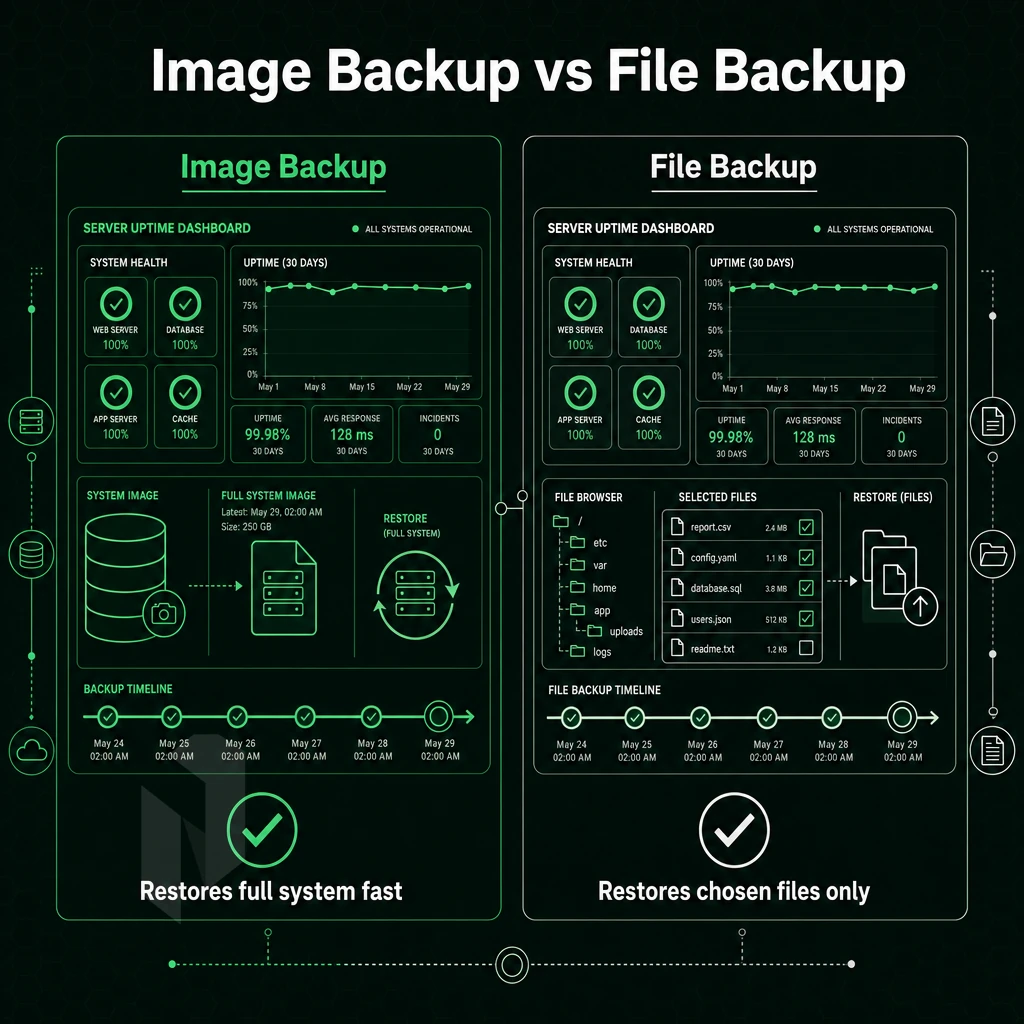
All backup strategies are not created equal. File-based backups can restore individual files and folders. Bare metal restore strategies can restore an entire system, including all partitions, boot records, operating system files and application data. A complete restore of the entire system is possible without having to perform a full re-install of the system.
Disaster Recovery Scope and RTO
Recovery of individual files is granular and very fast. But to recover a failed server from scratch, you must first reinstall the Operating System, manually.
A full system backup contains a complete copy of the system, i.e. all volumes, all drivers and all configurations. For a Disaster Recovery Plan this difference is critical.
System State vs Full Backups and Full Disk Image
System state backup captures the registry hives, boot files and other OS configurations. It does not capture the system disk layout, the partition table or the application binaries.
A bare metal image contains the system volume and everything below it. With a bare metal restore, you can recover to identical hardware or to dissimilar hardware and the server will boot up exactly as it was with no manual configuration and all drivers present.
Use file-based backups in order to have granular recovery capabilities for individual files, databases and even mailboxes. Use bare metal restores when the OS needs to be completely rebuilt from scratch.
Can You Use Bare Metal Recovery to Restore to a Virtual Machine?
Most enterprise class backup tools support some form of physical-to-virtual (P2V) restore. Many organizations use this as a form of DR and simply spin up a virtual standby while the physical servers undergo a bare metal restore.
We support both scenarios at Netrouting. First, bare metal servers can be provisioned within 60 minutes or less. In addition, our cloud compute layer is available in all regions for VM-based failover. In the end, dissimilar hardware restore is meant for replacing servers with different hardware than the ones that failed. Therefore, flexibility here is key.
Dissimilar Hardware Restore: Handling Hardware Changes
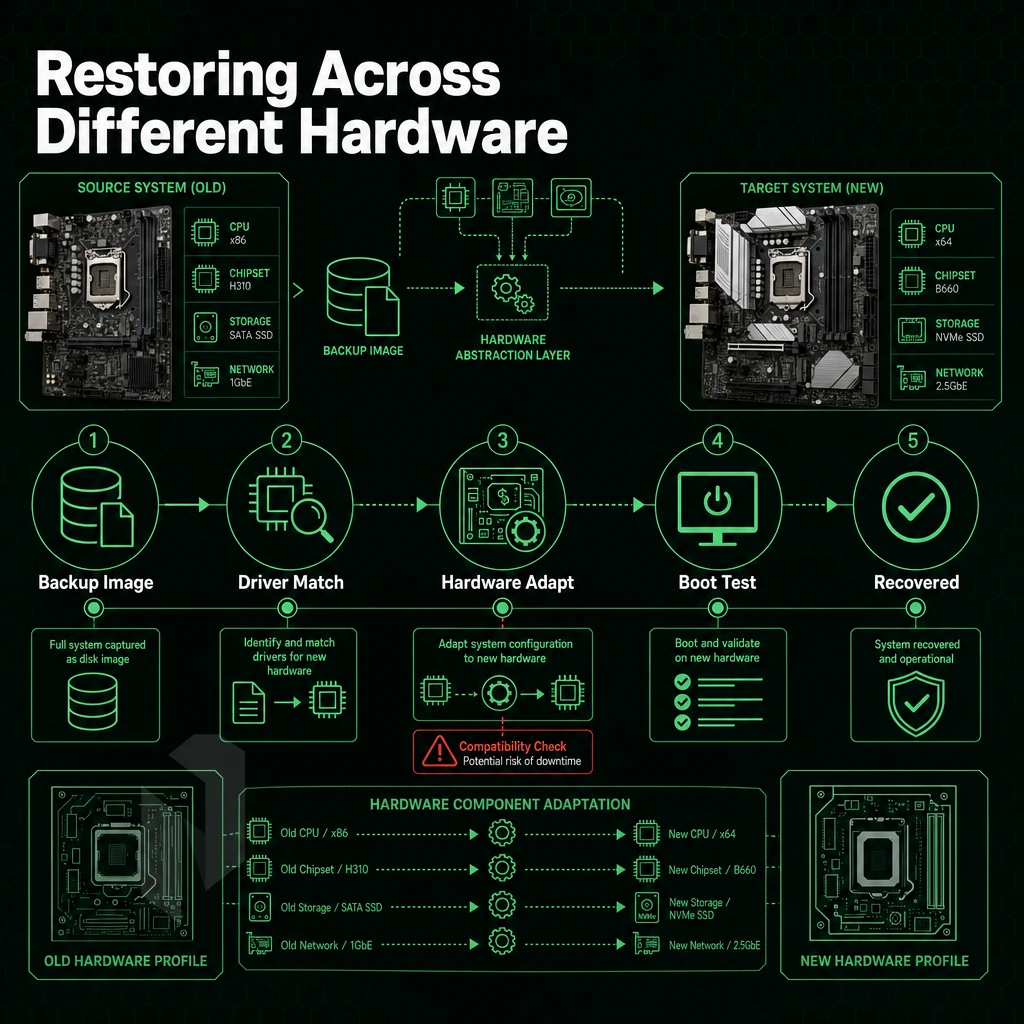
One of the most painfull parts of a bare metal recovery from backups is restoring the system image to the replacement hardware. The main differences are the storage controllers, the network adapters and the different CPUs (chipsets).
What Is Hardware Independent Restore and When Do You Need It?
You need this bare metal restore capability for hardware failures that force you onto a different hardware configuration (crashes, corruption, end-of-life servers that don't have identical spare servers on physical systems).
Resulting in a boot failure or kernel panic before it even gets to the login prompt.
How Driver Injection Works
Modern restoration tools include a hardware abstraction layer (HAL) that forms a compatibility shim which is applied during the restoration process.
A typical workflow looks like this: For community perspectives, see Suggestions for bare metal backup program : r/linuxquestions.
- Boot the target machine from a recovery environment (USB or PXE).
- Connect to the backup repository and select the system image.
- The restore engine scans the hardware on the target and maps out the necessary drivers for it.
- Drivers are injected into the image prior to the OS being written to disk.
Cloud and Virtual Machine Targets Add Complexity
Additional abstraction is introduced when restoring to a virtual machine or cloud instance.
Therefore, it has to be verified whether the corresponding toolchain is able to perform a bare metal restore to the target environment before the hardware fails in production.
Bare Metal Backup and Recovery in Cloud and Hybrid Environments
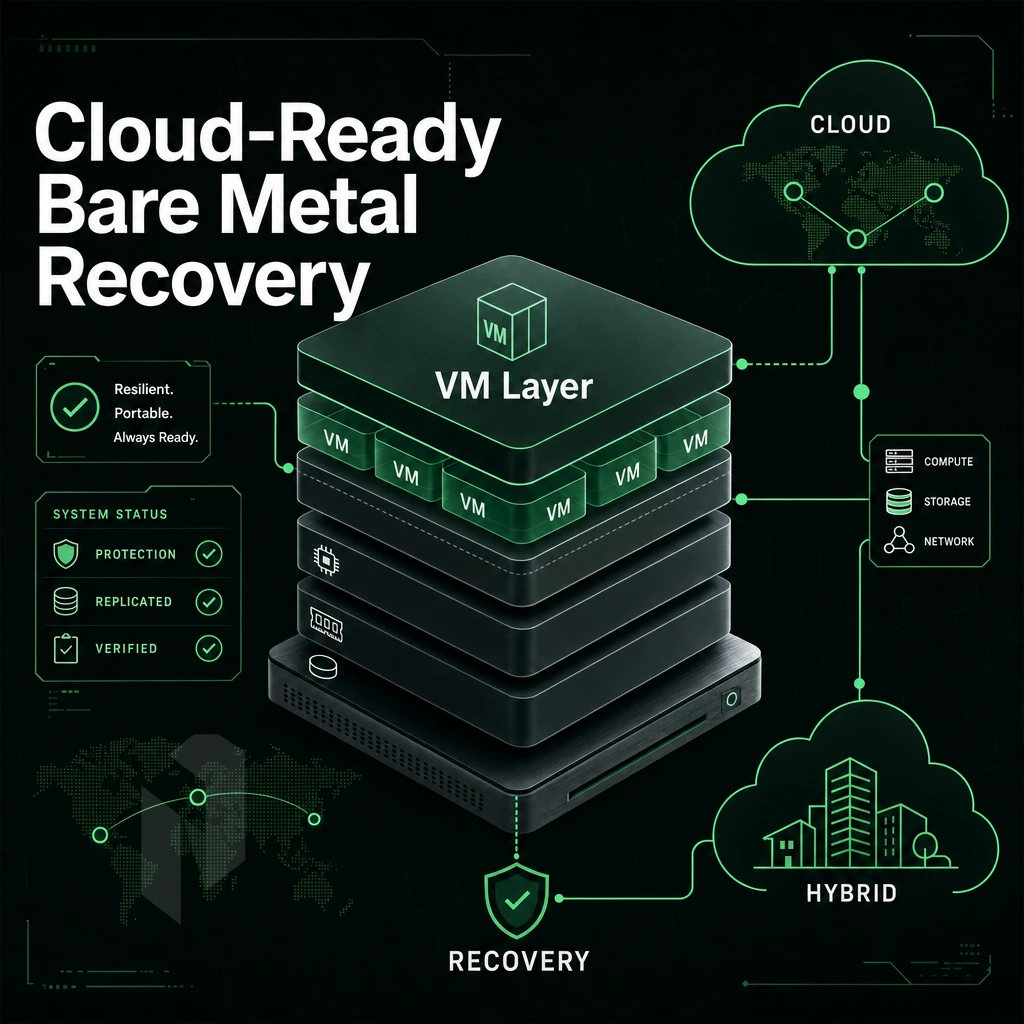
Bare metal recovery goes far beyond simple physical-tophysical restore scenarios. Consequently, each of these scenarios imposes specific restrictions upon the creation, storage, and most importantly, the bare metal restore process used to recover from bare metal backups.
How to Perform Bare Metal Recovery to Virtual Targets
In addition, the boot process of the system needs to be modified.
Organizations can use this functionality to deliberately move physical servers into a virtual environment.
Hybrid and Multi-Cloud Environments
In hybrid architectures, a bare metal machine on premises takes backups and stores them in cloud-based object storage for DR purposes. The backed up data, which supports bare metal restore, automatically sits offsite and thus meets geographic separation requirements without the need for a second physical site.
Deploying across multiple cloud environments is complex.
Cloud Integration and Where Hosting Providers Help
This ensures constant and predictable backup transfer times and excludes surprises by the egress fees of third parties.
Co-locating your bare metal backup storage with your DR provider who controls their own backbone simplifies the DR architecture for hardware failure scenarios, as there are fewer handoffs and thus fewer potential failure points during restore.
Building a Bare Metal Recovery Strategy: Checklist
Creating a good backup strategy takes work. A good data protection strategy includes both bare metal restore and file-level restore capabilities, each of which fills in the gaps left by the other.
Preparation
- Set your RTO and RPO targets first, then choose your recovery tools. Your RTO and RPO targets will drive many subsequent decisions around frequency, media, and retention.
- Choose backup cadence. Full images weekly with daily incrementals suits most workloads. Incrementals cut storage overhead; the weekly full keeps restore chains short. Note: Long incremental chains increase restore time, cap them at six or seven deltas.
- Choose your recovery media. In most cases a USB stick is the fastest way to get a single server up and running again after a hardware change in a remote rack. A bootable ISO on a CD/DVD or a USB stick is suitable for smaller environments. Network boot (PXE) is the preferred method to recover many servers.
- Document the hardware configuration for the piece of hardware that you are taking out. Note down the details of the NIC, RAID controller and the storage drivers that were in use. In dissimilar hardware scenarios, the drivers may need to be injected at restore time and without these notes you will be guessing. This is particularly critical if the replacement hardware is not identical to the original configuration.
Execution
- Encrypted backups with secure storage of the keys. All images at rest are encrypted. The encryption keys are stored in a separate secrets manager and not on the same location as the backups.
- Offsite copies must be maintained. Replicate to cloud storage or another offsite facility. A disaster at the primary location must not, in effect, mean loss of the only means to recover from it.
- Verify integrity after every backup. Run a checksum or even better automate a verify to complete immediately after a backup job completes. Silently corrupted data found at restore time is far worse than a failed backup that you detected early.
Verification
- Test restores on a schedule. A backup you have never restored is a backup you cannot trust. Run a full bare metal recovery test (i.e. full test restore of a complete backup set) every quarter or so after major hardware or OS changes.
- BMR as a single function should be integrated into your overall disaster recovery plan. Map BMR out within the context of your overall DR runbook and clearly define who will initiate recovery, which systems will come online first. Additionally, What the appropriate escalation will be as recovery targets are not met.
For executing a strategy in a Windows Server environment, native tools exist to aid in this process.
Why Bare Metal Recovery Simplifies Server Operations
Bare metal recovery is the cleanest kind of recovery, on hardware you have full control over: no hypervisor, no shared tenants, no abstraction between your system image and the physical disk. When hardware fails, you get to do a bare metal restore to a known piece of hardware: same Dell boxes, same Supermicro cases, same Intel Xeon CPUs, same AMD EPYC CPUs. The bare metal recovery process is then very predictable and works right on the first boot.
It matters for disaster recovery too. When restoring a full system backup onto identical hardware, all drivers and boot-critical devices and even network configuration resolve properly without your having to intervene. Image-based backups therefore "land" cleanly as well, and you can get the entire system up and running faster.
- No hypervisor overhead: direct hardware access eliminates the virtualization layer that complicates bare metal restore on shared infrastructure.
- Known hardware configuration: Dell and Supermicro servers on Intel Xeon and AMD EPYC, consistent across replacements.
- Our standard SLA is serviced with same-business-day hardware replacement to keep recovery efforts on track.
- 24/7 NOC with a one-hour ticket guarantee to support your disaster recovery posture.
- Rapid provisioning of bare metal systems in less than 60 minutes to ensure a new system is up and running before your recovery time window has expired.
If your backup and recovery strategy depends on consistent, low-latency infrastructure, Netrouting's dedicated bare metal servers give your team a solid foundation. Contact sales to discuss the right configuration for your recovery requirements.
Quick Checklist
Use this checklist to verify all critical layers of your bare metal recovery strategy are in place before failure.
- Create image-based backups that capture the entire system (OS, all drivers, all applications, all data) instead of individual files.
- This test verifies that bootable recovery media has been developed, tested and stored apart from the normal running environment.
- This option enables dissimilar hardware restore support. It allows you to restore images to different hardware, such as for replacement or upgraded hardware, without driver issues.
- Schedule regular backup jobs as daily incrementals with weekly full backups and check storage retention periods against recovery objectives.
- Test the full restore process end-to-end at least once per quarter. A backup you have never restored is a backup you cannot trust.
- Document your Target RTO and RPO values. Verify that the frequency of your backups and the time it takes to restore from backups meets your RTO and RPO targets.
- Keep at least one copy of your backup somewhere offsite (e.g. in a separate geographical location) in case a site fails.
- Verify that Confirm cloud and hybrid workloads have bare metal restore paths defined and include documentation of snapshot schedules and cross-region replication as applicable.
- Review your Windows Server Backup configuration or your chosen backup agent software after every major OS update or hardware change.
Bare metal recovery is the fastest way to go from total failure to full operation. Image-based backups allow for very fast bare metal restore of complete systems (OS, configuration, data) in a matter of minutes, not days. And, unlike traditional backups, a recovery image lets you restore to completely dissimilar hardware, eliminating the biggest disaster recovery challenge: waiting for identical replacement hardware to arrive.
So, file-based backups are good for data, bare metal backups are good for the whole system state.
Netrouting backs up customer environments daily with incremental snapshots, weekly full images retained for 30 days, and recovery capabilities that deliver bare metal restore times of 15-45 minutes depending on data size, all on infrastructure built to 99.9% uptime. Talk to our team about how bare metal backup fits your recovery strategy.