
PostgreSQL 16 installs a production Postgres from the PostgreSQL project's own package repository, sets a strong password for the postgres superuser, and starts the service. You never pick that password: it's generated for you and waiting in the machine's credential vault.
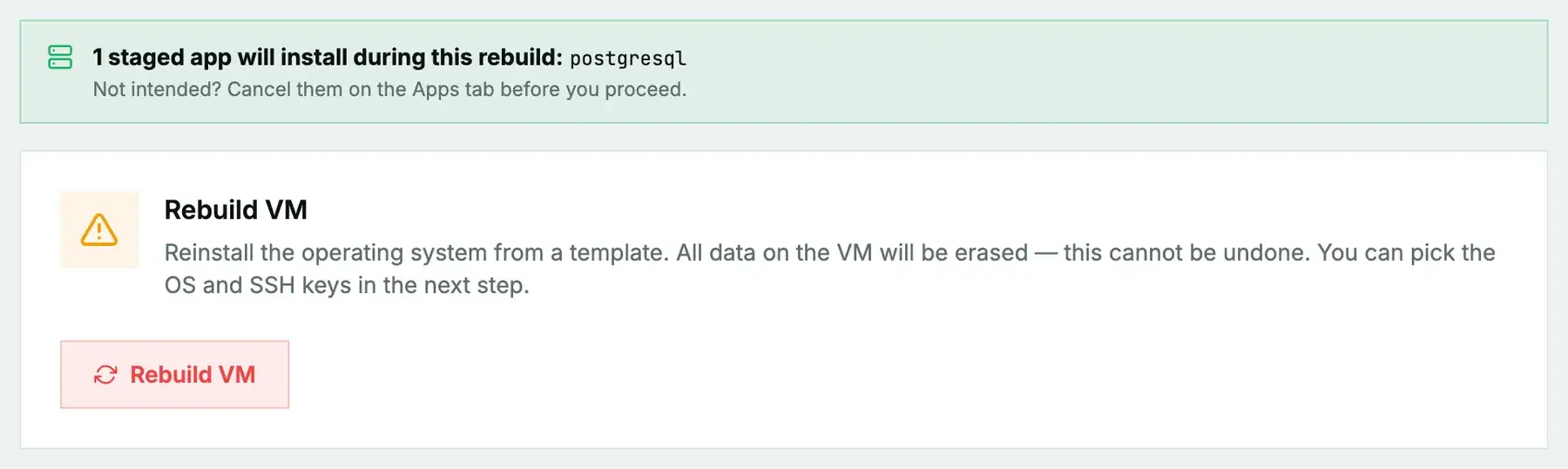
New or rebuilt machines only. PostgreSQL 16 can't be added to a machine you're already running. It installs during the next rebuild (cloud) or reinstall (bare metal), and both erase the disk first, so the machine comes back as a fresh Debian or Ubuntu system with PostgreSQL 16 on top. Use it on a new machine or one you're ready to wipe, and back up anything you want to keep first. To add PostgreSQL 16 to a server that already holds your data, install it by hand instead.
What gets installed
- PostgreSQL 16 from the official PostgreSQL apt repository, enabled at boot.
- A generated password on the
postgresrole, stored in the vault asPostgreSQL 16 — postgres superuser password.
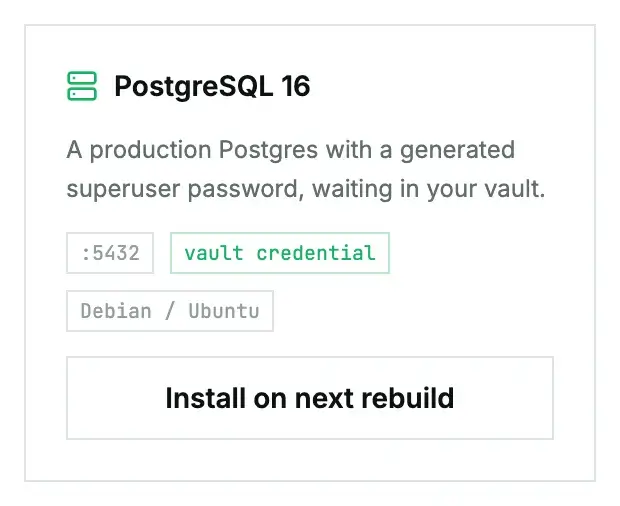
The card lists port 5432, but out of the box PostgreSQL only listens on localhost. Nothing outside the machine can reach it until you decide it should.
Install it
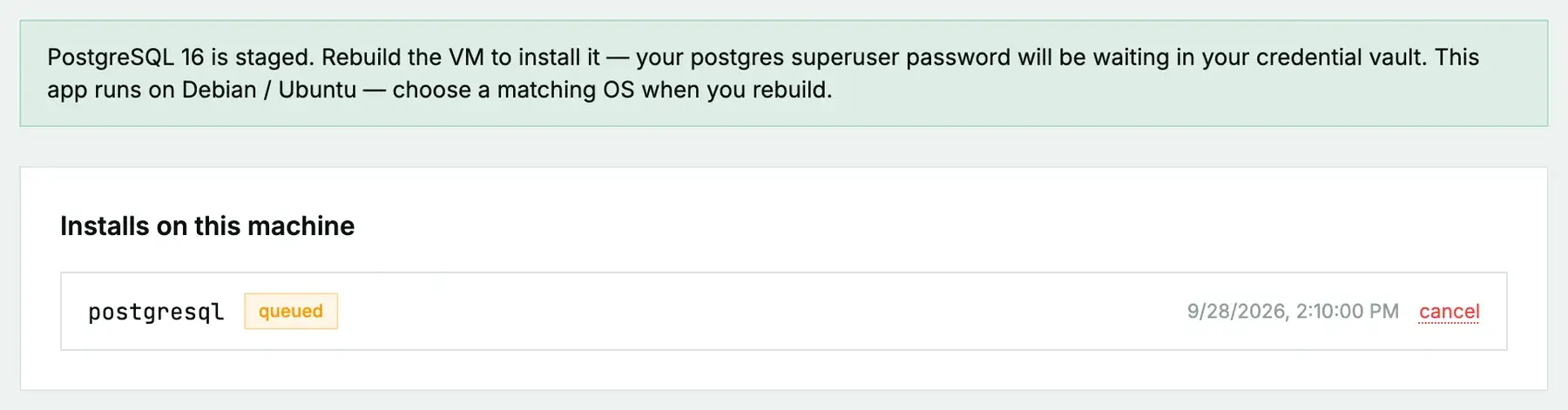
On a cloud instance, open its Apps tab, click Install on next rebuild on the PostgreSQL 16 card, then rebuild with a Debian or Ubuntu image. On a bare-metal server it's Install on next reinstall, then a reinstall with the App: PostgreSQL 16 post-install script ticked. The App Library guide covers the details, the status you'll see, and what to do if it fails.
First steps once it's ready
On the machine itself, you don't need the password at all:
sudo -u postgres psqlCreate a database and a user for your application rather than handing it the superuser:
CREATE USER app WITH PASSWORD 'choose-a-long-one';
CREATE DATABASE app OWNER app;
Allowing remote connections
Only do this if something off the machine really needs the database. Two files, then a restart:
# /etc/postgresql/16/main/postgresql.conf
listen_addresses = '*'

# /etc/postgresql/16/main/pg_hba.conf  (allow one address or range, not everyone)
host    app    app    203.0.113.0/24    scram-sha-256
systemctl restart postgresqlThen open 5432 in the firewall for that same range only. A database open to the whole internet gets found within hours.
Questions we get
- Where's the superuser password? In the Credentials vault on the machine's Apps tab. Click Reveal.
- Can I change it? Yes:
ALTER USER postgres PASSWORD '...';inpsql. The vault won't know, so update your own password manager. - Where is the data? The standard location,
/var/lib/postgresql/16/main.
Still stuck?
Open a support ticket with the machine and paste the install log from the Apps tab if it failed. We can see the install from our side.