
Node.js 20 + PM2 gives you the Node 20 LTS runtime and PM2, a process manager that restarts your app when it crashes and brings it back after a reboot.
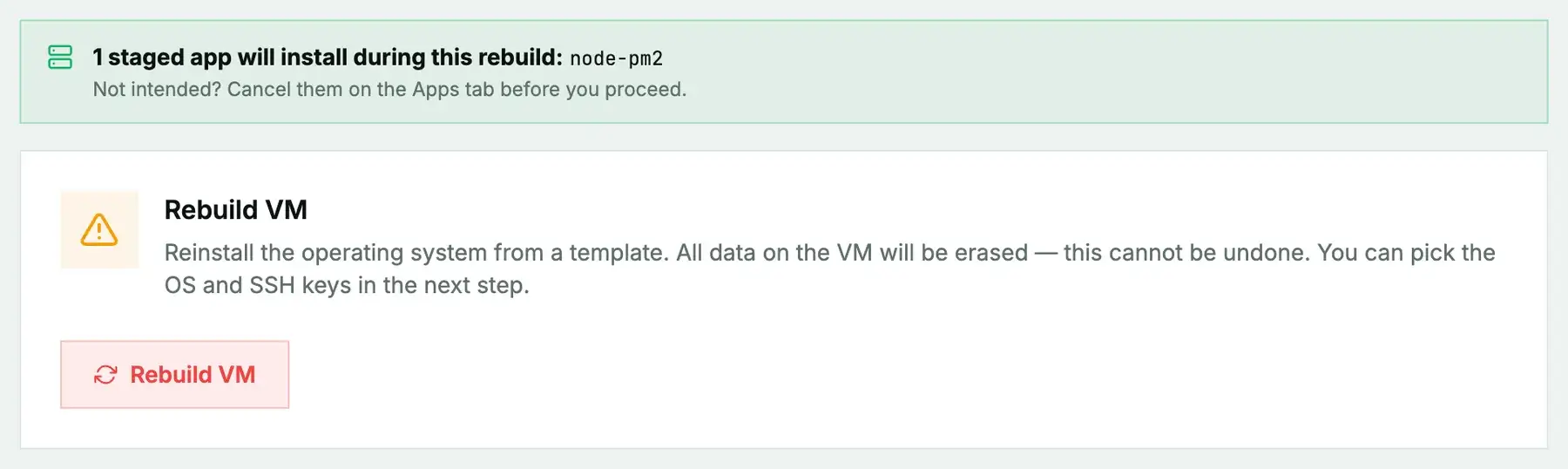
New or rebuilt machines only. Node.js 20 + PM2 can't be added to a machine you're already running. It installs during the next rebuild (cloud) or reinstall (bare metal), and both erase the disk first, so the machine comes back as a fresh Debian or Ubuntu system with Node.js 20 + PM2 on top. Use it on a new machine or one you're ready to wipe, and back up anything you want to keep first. To add Node.js 20 + PM2 to a server that already holds your data, install it by hand instead.
What gets installed
- Node.js 20 and
npmfrom the NodeSource repository. - PM2, installed globally, with its boot service set up for
root.
No ports are opened; your app decides that. No password is generated.
Install it
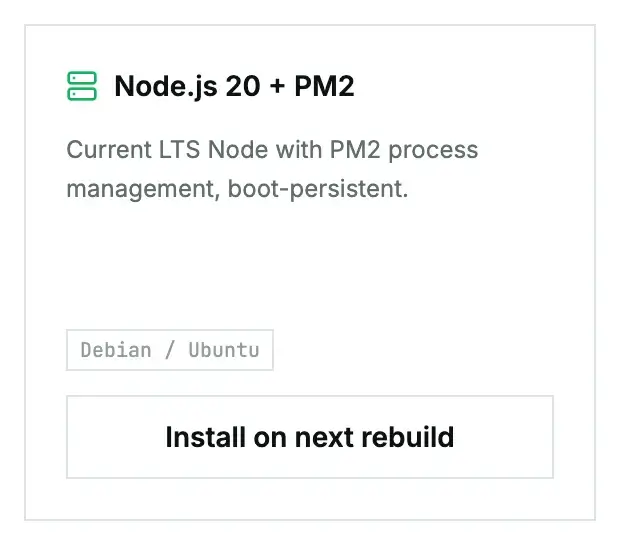
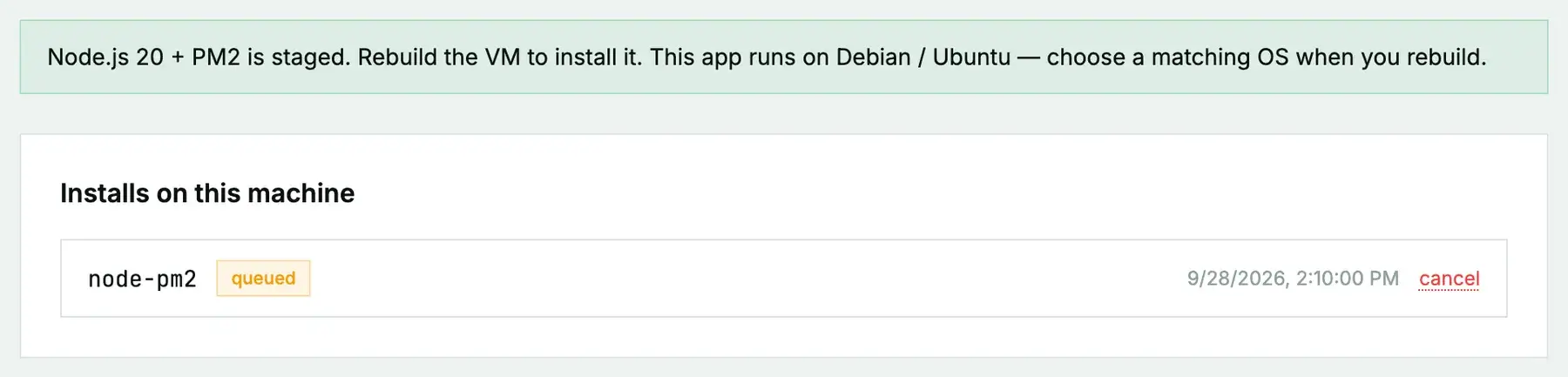
On a cloud instance, open its Apps tab, click Install on next rebuild on the Node.js 20 + PM2 card, then rebuild with a Debian or Ubuntu image. On a bare-metal server it's Install on next reinstall, then a reinstall with the App: Node.js 20 + PM2 post-install script ticked. The App Library guide covers the details, the status you'll see, and what to do if it fails.
First steps once it's ready
node --version
pm2 start server.js --name api
pm2 save
Don't skip pm2 save. The boot service brings back whatever list of processes was last saved, so an app you started but never saved won't come back after a reboot.
pm2 status
pm2 logs api
pm2 restart api
Put Nginx in front for a domain and HTTPS if the app faces the internet, and open only the ports you actually serve in the firewall.
Questions we get
- Does it run as root? The PM2 boot service is set up for root. For a production app, consider a dedicated user and
pm2 startupas that user. - Can I switch Node versions later? Yes. Tools like
nvmwork fine alongside it, or install a different NodeSource version.
Still stuck?
Open a support ticket with the machine and paste the install log from the Apps tab if it failed. We can see the install from our side.