
The WordPress app builds a complete WordPress site: Apache, MySQL, PHP and the latest WordPress, already connected to its own database. All that's left is the five-minute setup screen in your browser.
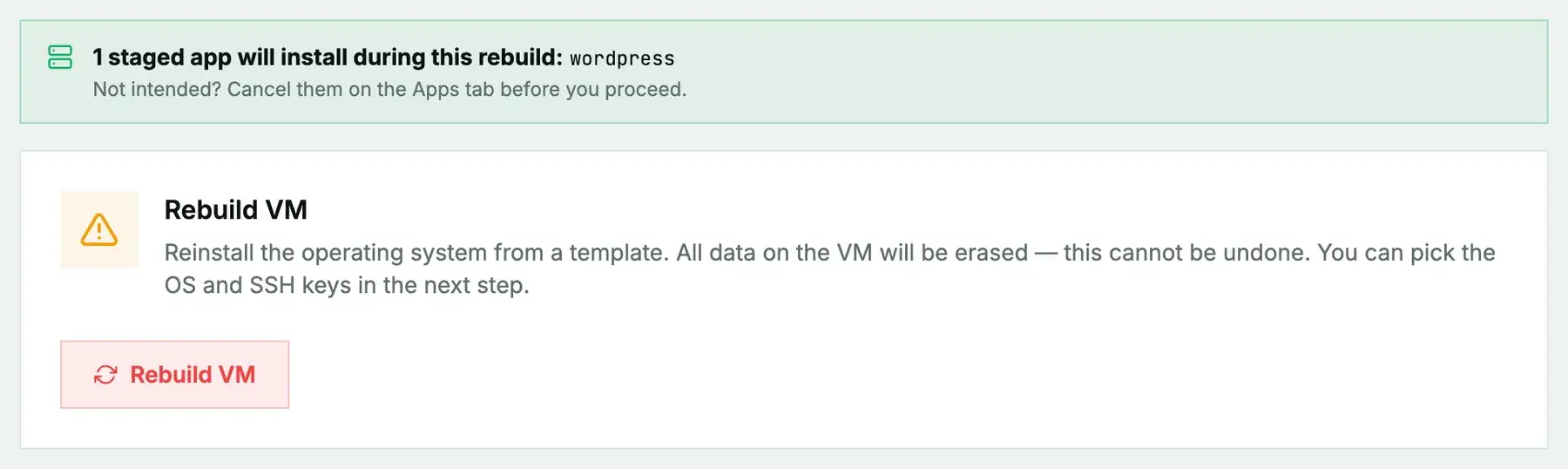
New or rebuilt machines only. WordPress can't be added to a machine you're already running. It installs during the next rebuild (cloud) or reinstall (bare metal), and both erase the disk first, so the machine comes back as a fresh Ubuntu system with WordPress on top. Use it on a new machine or one you're ready to wipe, and back up anything you want to keep first. To add WordPress to a server that already holds your data, install it by hand instead.
What gets installed
- Apache, MySQL and PHP with the extensions WordPress needs.
- A
wordpressdatabase and awordpressdatabase user, with a generated password stored asWordPress — WordPress database password. - The latest WordPress in
/var/www/html, withwp-config.phpfilled in and fresh security keys.
Rebuild or reinstall with Ubuntu. The installer uses the mysql-server package, which Ubuntu provides.
Install it
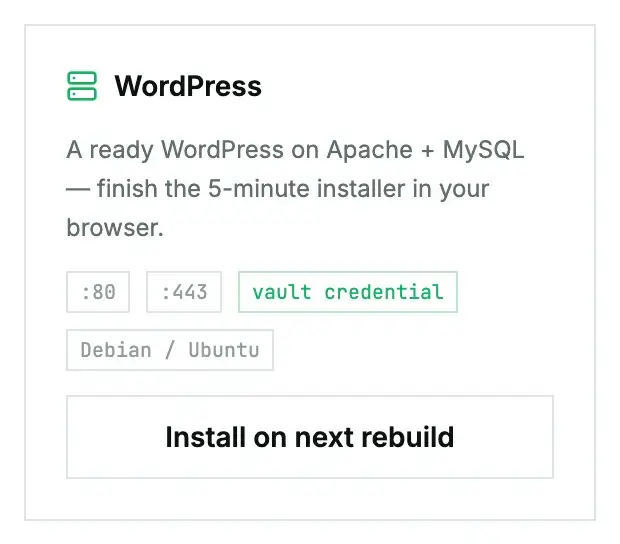
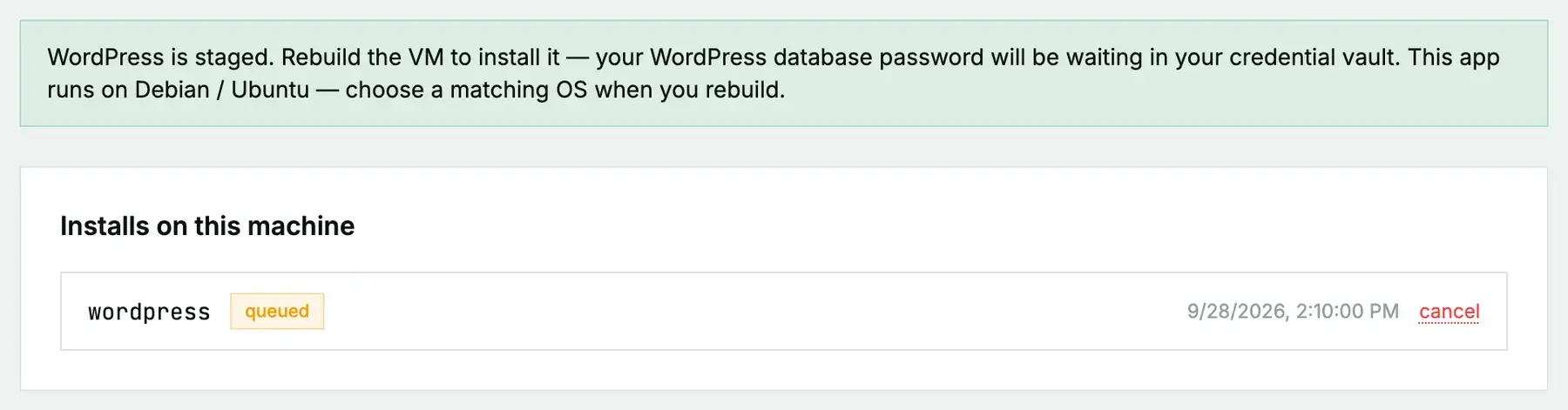
On a cloud instance, open its Apps tab, click Install on next rebuild on the WordPress card, then rebuild with an Ubuntu image. On a bare-metal server it's Install on next reinstall, then a reinstall with the App: WordPress post-install script ticked. The App Library guide covers the details, the status you'll see, and what to do if it fails.
Finish the setup straight away
Once the install shows ready, open http://your-server-ip/ and complete the WordPress setup screen: site title, admin user, password.
Do this right away. Until someone completes that screen, whoever opens the address first gets to create the admin account. Don't stage WordPress and leave it for the weekend.
Add your domain and HTTPS
Point your domain's DNS at the server, then get a certificate:
apt install certbot python3-certbot-apache
certbot --apache -d example.com -d www.example.com
Finally, in the WordPress admin under Settings → General, change both addresses to https://example.com.
Questions we get
- Do I need the database password? Rarely; WordPress already has it in
wp-config.php. It's in the vault for when you move the site or connect a backup tool. - Where are the files?
/var/www/html, owned bywww-data. - What about the firewall? Allow 80 and 443 in the firewall. Nothing else needs to be public.
Still stuck?
Open a support ticket with the machine and paste the install log from the Apps tab if it failed. We can see the install from our side.