
Rescue mode boots your bare-metal server into a small, temporary Linux system loaded over the network. The installed operating system and every disk stay exactly as they are; nothing is erased, nothing is mounted until you mount it. From there you can run a filesystem check, repair a boot loader or fstab, reset a forgotten root password, or copy data off a system that will not start.
What it costs you: the server reboots to enter rescue mode and reboots again to leave it, so running services are interrupted while you work. Rescue mode is for when the installed system is broken; for a system that still boots, fix it in place over SSH.
Cloud instances do not have a rescue button; they mount a rescue image instead. That flow is documented separately once it is available in the portal.
Method 1 — In the portal
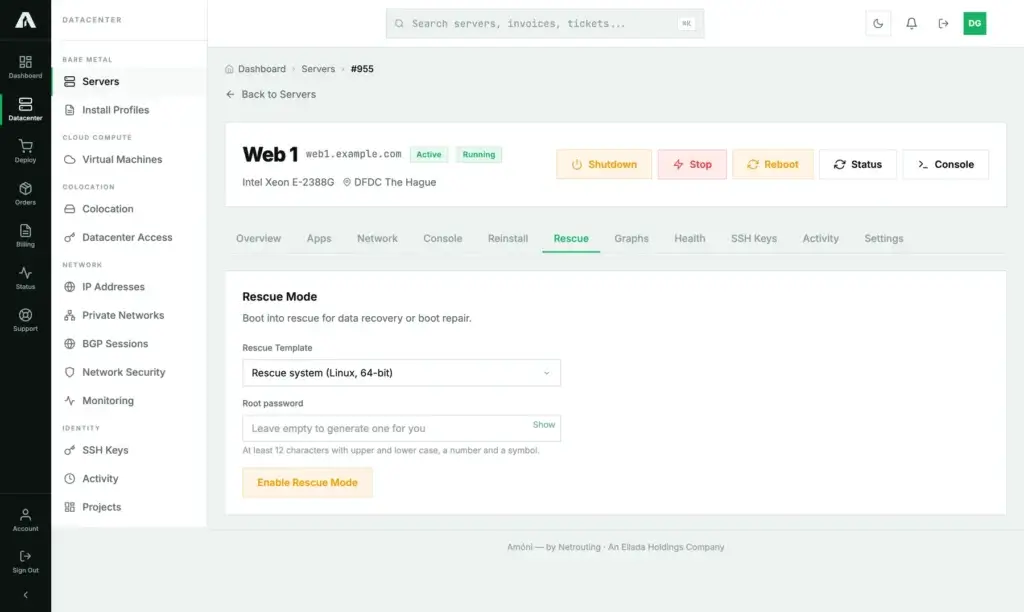
- Log in at amoni.app, open Servers, click the server, then the Rescue tab.
- Rescue Template — leave the default Linux rescue system unless you need a different one (a Windows recovery environment is offered where it applies).
- Root password — leave empty and one is generated for you. If you set your own, it needs at least 12 characters with upper and lower case, a number and a symbol.
- Click Enable Rescue Mode.
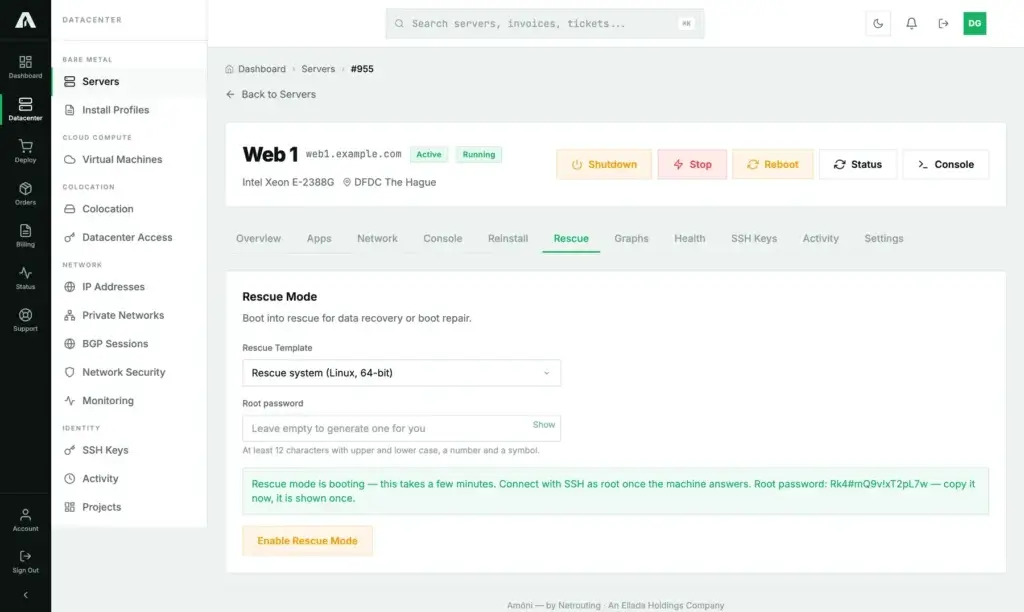
- The green message confirms the boot has started and, if generated, shows the root password once. Copy it now.
- Wait two to five minutes for the machine to reboot into the rescue system, then connect over SSH to the server's primary IP as
rootwith that password. The remote console also works and shows the boot itself.
Leaving rescue mode: reboot the server from the header (Reboot) once you are done. The rescue system is a one-time network boot; the next start comes up from the installed disk. There is no separate “stop” button because there is nothing to stop once the rescue system is running.
Method 2 — With the API
You need a key with the Servers scope (servers.write). Reference: api.amoni.app/v1/docs.
1. Optional: list the rescue templates. They are the utility entries of the server's profiles:
curl -s https://api.amoni.app/v1/servers/955/profiles \
  -H "Authorization: Bearer nr_live_..." | jq '.data.utility'
[ { "id": 90, "name": "Rescue system (Linux, 64-bit)" } ]2. Boot into rescue. Both fields are optional; omit profile_id for the default template, omit password to have one generated.
curl -s -X POST https://api.amoni.app/v1/servers/955/rescue \
  -H "Authorization: Bearer nr_live_..." \
  -H "Content-Type: application/json" \
  -d '{"profile_id": 90}'
{
"success": true,
"data": {
"message": "Rescue mode is booting — this takes a few minutes.",
"generated": true,
"password": "Rk4#mQ9v!xT2pL7w"
}
}The password is returned in this response only; it is not held afterwards. Store it before doing anything else.
3. Wait for SSH. The call returns when the boot is queued, not when the rescue system is up:
until nc -z -w 3 203.0.113.10 22; do sleep 10; done
ssh root@203.0.113.10
4. Leave rescue mode with a power cycle once the repair is done:
curl -s -X POST https://api.amoni.app/v1/servers/955/power \
  -H "Authorization: Bearer nr_live_..." \
  -H "Content-Type: application/json" \
  -d '{"action": "powercycle"}'
POST /v1/servers/955/rescue/stop exists for one case only: cancelling a rescue boot that has been requested but has not started yet. Once the rescue system is running it answers 409 with code: no_active_rescue, and the power cycle above is the way back.
What the API will tell you
| Status | Meaning |
|---|---|
| 200 | Rescue boot queued; password present when generated is true. |
| 401 / 403 | Bad key, a key without servers.write, or a managed-infrastructure server on which rescue is disabled. |
| 404 | No such server on your account. Body: {"success": false, "error": "Not found"}. |
| 409 | no_active_rescue on /rescue/stop: the rescue system already booted. Reboot instead. |
| 422 | Rescue is not available for this server, the template id is not one it offers, or the password does not meet the rules. |
| 500 | The installer platform did not answer: “The action could not be completed right now. Please try again shortly or contact support.” Retry once; then open a ticket. |
Inside the rescue system: the common repairs
The rescue system is a standard Linux with the usual tools (fdisk, lsblk, fsck, mdadm, lvm, mount, chroot, rsync). Nothing from your disks is mounted at login. Find your disks first:
lsblk -fCheck and repair a filesystem (unmounted, so this is the place to do it):
fsck -f /dev/sda2Get a shell inside the installed system to fix fstab, reinstall the boot loader, or change a password. Mount the root filesystem, then the pieces the installed system expects. A software RAID root appears as /dev/md0, an LVM root as /dev/mapper/<vg>-root; adjust the first line.
mount /dev/sda2 /mnt
mount /dev/sda1 /mnt/boot            # if /boot is separate
mount --bind /dev  /mnt/dev
mount --bind /proc /mnt/proc
mount --bind /sys  /mnt/sys
chroot /mnt /bin/bash
Now you are “in” the installed system. For example:
passwd root                          # reset a lost root password
nano /etc/fstab                      # fix a bad mount entry
grub-install /dev/sda && update-grub  # reinstall the boot loader (Debian/Ubuntu)
exit
Copy data off a system you would rather rebuild:
mount -o ro /dev/sda2 /mnt
rsync -a /mnt/var/www/ user@backup.example.com:/backup/web1/
Unmount cleanly before rebooting (umount -R /mnt), then reboot from the portal or with reboot.
Troubleshooting
- SSH still reaches the old system, or times out, after enabling rescue. The boot takes a few minutes. If it does not change after five, open the remote console: a machine that skipped the network boot is visible there, and a Reboot from the header usually gets it into rescue on the second try.
- SSH refuses the connection with a host-key warning. Expected: the rescue system has its own host key. Remove the stored one (
ssh-keygen -R 203.0.113.10) and connect again. You will see the warning once more when the installed system is back. - I lost the generated password. It is not held anywhere. Reboot the server and enable rescue mode again; a new password is generated.
- “Rescue mode is not available for this server.” This machine is not connected to the automated installer. Open a ticket; we boot it into rescue for you.
- The server keeps booting into rescue. It should not; the rescue boot is one-time. If it happens, open a ticket with the time so we can clear the boot flag.
- I need Windows recovery. Pick the Windows recovery template where offered; otherwise the remote console with a Windows installation image through management interface access is the route.
Still stuck?
Open a support ticket from the portal with the server selected in the “related server” field, what you see on the console, and what you have tried. If data recovery is the goal, say so; we can advise before anything is written to disk.