
“The referenced account is currently locked out and may not be logged on to” and “Your account has been locked because of too many failed sign-in attempts” on a Windows server almost always come down to one thing. Remote Desktop (TCP 3389) is reachable from the entire internet, and bots are guessing passwords against it. After enough failures the Windows Account Lockout Policy kicks in and locks the account.
The part people miss: as long as the guessing goes on, the account locks itself again. Waiting won't fix it. Neither will the console, since the lockout covers every way of signing in. You have to stop the inbound attempts first, and only then let the lockout timer run out. A common Windows default is 5 failures, a 30-minute lockout and a 30-minute reset window, though your image may be set differently.
Step 1: Stop the attack (portal)
Cloud instances: the VM firewall
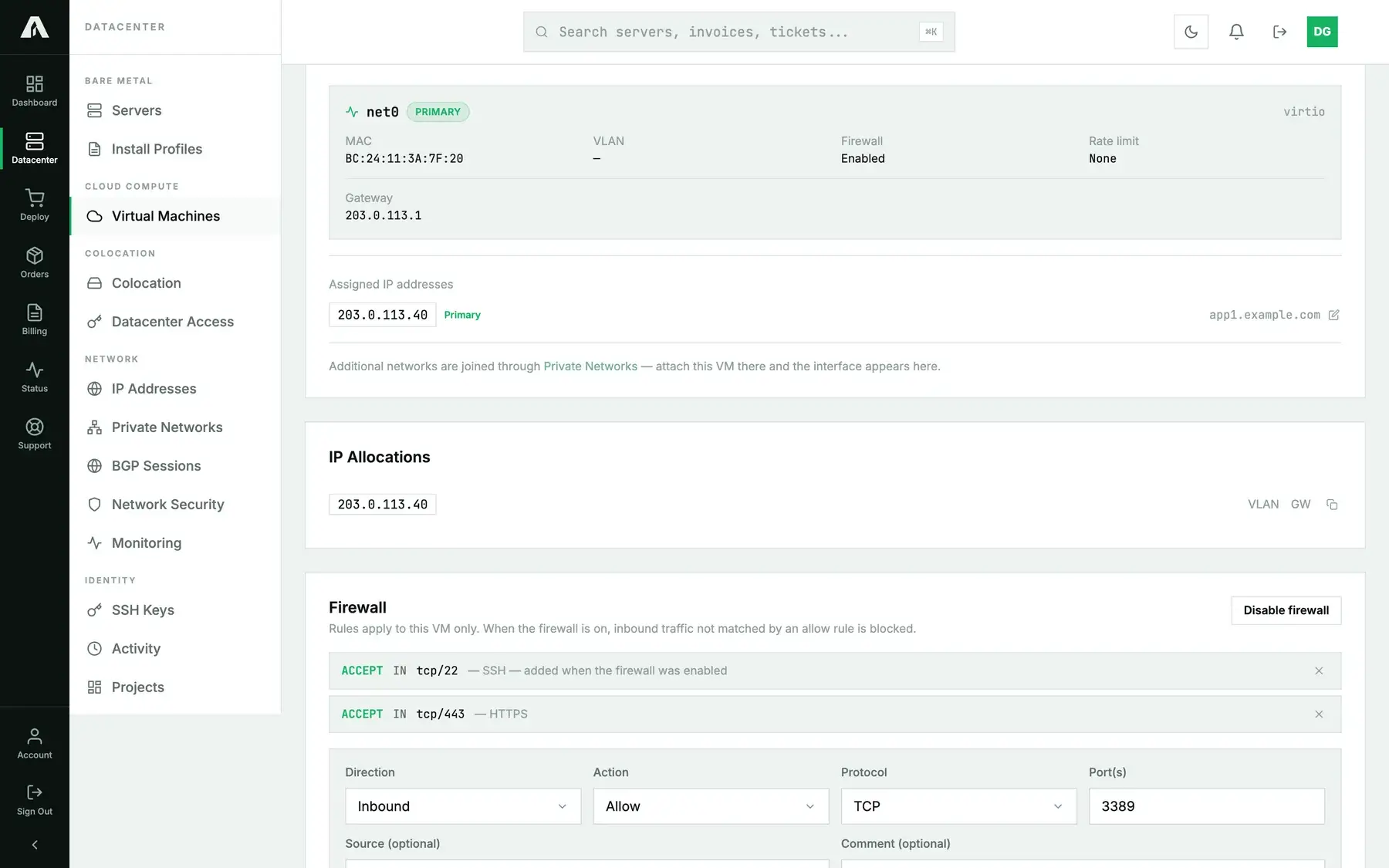
- Log in at amoni.app, open Virtual Machines, click the instance, go to the Network tab and scroll down to Firewall.
- If the firewall is off, click Enable firewall. Right away, any inbound connection that doesn't match an allow rule gets dropped, and that includes RDP. The firewall adds an SSH allow rule by itself, which keeps you from locking yourself out of a Linux session. On Windows the rule does no harm.
- If the firewall is already on and you see an allow rule for port 3389 with no source, delete it using the × on that row.
- In both cases, then add the rule you actually want: Add Rule → Direction Inbound, Action Allow, Protocol TCP, Port
3389, Source your own public address or network (for example198.51.100.0/24), a comment, and Add Rule. From now on RDP only answers your network, and the bots run into a closed port.
Bare-metal servers: close the port from the console
Nothing sits in front of a bare-metal server as a firewall, so you block the port on the machine itself. You can do that even with the account locked, because the remote console doesn't go through RDP:
- Open the server's remote console from the Console tab. What you see is the machine's own screen.
- Sign in with a different local administrator account, one the bots aren't targeting. Or wait at the console and sign in with the locked account the moment the lockout lifts, before the bots lock it again.
- Start PowerShell as Administrator and limit RDP to your own network. Swap in your office or VPN range as the source:
Set-NetFirewallRule -DisplayGroup "Remote Desktop" -Enabled True -Profile Any -RemoteAddress 198.51.100.0/24Prefer to shut RDP off completely while you work? Disable the rule group instead:
Disable-NetFirewallRule -DisplayGroup "Remote Desktop". Either way, the console still works. - Keep an eye on the Security event log for a minute (event 4625, failed logons). Once new failures stop showing up, the guesses are no longer getting through to the service.
That's most of the permanent fix done already. Step 4 covers what's left.
Step 1: Stop the attack (API)
Cloud instances: you can drive the VM firewall through the API with the VMs scope (vms.write). Reference: api.amoni.app/v1/docs.
Turn the firewall on (all unmatched inbound is blocked immediately, and an SSH allow is added for you):
curl -s -X PUT https://api.amoni.app/v1/vms/990204/411/firewall/enable \
  -H "Authorization: Bearer nr_live_..." \
  -H "Content-Type: application/json" \
  -d '{"enabled": true}'
See the rules, then delete any open RDP allow by its position:
curl -s https://api.amoni.app/v1/vms/990204/411/firewall -H "Authorization: Bearer nr_live_..."{ "success": true, "data": { "enabled": true, "rules": [
{ "pos": 0, "direction": "in", "action": "ACCEPT", "proto": "tcp", "port": "22", "source": null, "comment": "SSH", "enabled": true },
{ "pos": 1, "direction": "in", "action": "ACCEPT", "proto": "tcp", "port": "3389", "source": null, "comment": "RDP", "enabled": true } ] } }curl -s -X DELETE https://api.amoni.app/v1/vms/990204/411/firewall/1 -H "Authorization: Bearer nr_live_..."Allow RDP from your network only:
curl -s -X POST https://api.amoni.app/v1/vms/990204/411/firewall \
  -H "Authorization: Bearer nr_live_..." \
  -H "Content-Type: application/json" \
  -d '{"direction": "in", "action": "ACCEPT", "proto": "tcp", "port": "3389", "source": "198.51.100.0/24", "comment": "RDP from the office only"}'
action is ACCEPT, DROP or REJECT; proto is tcp, udp, icmp, or leave it out to match any. port accepts a single port, a range (8000:8100) or a comma-separated list. New rules go after the ones already there. An invalid value gets 422 in the framework shape ({"message": "The selected action is invalid.", "errors": {…}}). If the hypervisor can't be reached, the calls return 500 with “Firewall state is unavailable right now. Please retry.” or “The rule could not be added. Please retry.”
Bare metal: the API has no per-port rule at the edge. /v1/blackhole is meant for something else entirely, a volumetric attack where the whole address has to go dark. It drops all traffic to the address, which makes it the wrong tool for an RDP brute-force. Close the port on the machine, the way the portal section describes.
Step 2: Wait out the lockout
Now that failed attempts have stopped coming in, the lockout can actually run its course. Give it the full period, about 30 minutes by default. Don't keep trying to sign in while you wait, because once it lifts, every wrong password counts toward locking it again.
Step 3: Sign in over the console
Open the remote console from the machine's page and sign in there. Because the console is the machine's own screen, it works with RDP blocked. It won't get you past the lockout. What it gives you, once the timer has run out, is a way in the attackers can't reach.
Step 4: Make sure it cannot happen again
The lockout was only the symptom. The cause was RDP sitting open to the internet. Before you open anything up again:
- Restrict RDP to your own addresses. Cloud: the firewall rule with a Source you added in Step 1 already handles this, so leave it in place. Bare metal: limit the scope of the inbound Remote Desktop rule in Windows Defender Firewall to your addresses (Windows Defender Firewall with Advanced Security → Inbound Rules → Remote Desktop (TCP-In) → Scope → Remote IP address), or move RDP behind a VPN. This single change is what makes the problem go away.
- Enable Network Level Authentication for Remote Desktop.
- Strong, unique passwords on every account that can sign in. Keep the built-in
Administratoraccount off RDP. - Optional: move RDP off port 3389. That cuts down the noise, but it doesn't replace the source restriction.
- Optional: adjust the lockout policy (
secpol.msc→ Account Policies → Account Lockout Policy). Relax it only once RDP is restricted. Before that, you'd just be taking away a brute-force defense.
Bare metal: after Windows Firewall is scoped to your networks, the block you set from the console in Step 1 is your permanent rule. Leave it there.
Last resort: reinstall
Still locked out after all that? reinstall Windows from the machine's page. If the machine allows it, copy your data off first with rescue mode, since a reinstall wipes the disks. Then apply Step 4 straight away.
Troubleshooting
- The account locks again right after unlocking. Attempts are still getting through. Check the firewall rules (cloud) or the Windows Firewall scope on the machine (bare metal), and make sure no other allow rule for 3389 is left over.
- I enabled the VM firewall and now my own service is unreachable. That's how it's meant to work: inbound traffic without a matching rule is dropped. Add allow rules for the ports you serve (80, 443 and so on). SSH is allowed out of the box.
- My public address changes. Either allow your provider's entire range, or connect through a VPN with a fixed exit address and allow just that one.
- I cannot find the attack in the Network Security telemetry. A password brute-force is too low in volume to register as a DDoS. Your evidence is the lockout events in the Windows Security log (Event ID 4740).
Still stuck?
Open a support ticket and select the server. We can check whether RDP attempts are still reaching the server, and get you onto a console.