
We do not keep your passwords. When a machine is installed, rebuilt or has its password reset, the generated password is shown to you once and held for 48 hours so you can come back for it; after that it is gone from our side. So “I lost the root password” has three answers, depending on how long ago it was issued and what kind of machine it is:
| Situation | What to do |
|---|---|
| Issued less than 48 hours ago (install, rebuild or reset) | Read it back from the machine's Access card, or from the API. |
| Cloud instance, older than that | Reset it: a new one is generated and, on most instances, active immediately. |
| Bare-metal server, older than that | Boot into single-user mode from the console and set a new one (fastest), or boot rescue mode if the system will not start, or reinstall. |
If you deployed SSH keys to the machine, root password login over SSH is switched off by design. The password still matters for the remote console, and it is the way in when a key is lost.
Method 1 — In the portal
Read back a recently issued password
- Log in at amoni.app and open the server (Servers) or instance (Virtual Machines).
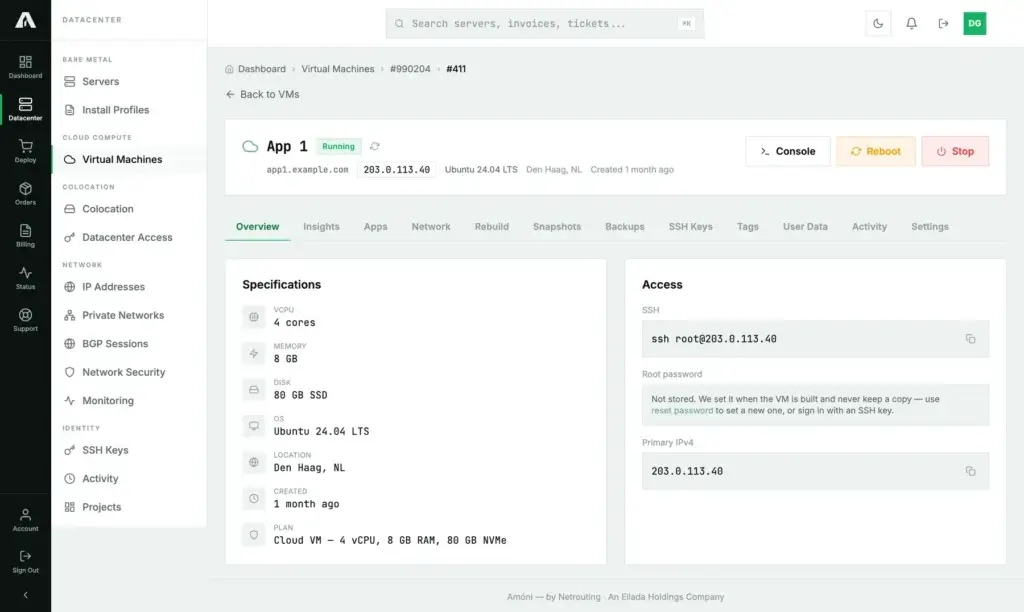
- On the Overview tab, the Access card shows Root password (issued at reinstall) or (issued at reset) while we still hold one, with Show and Copy and how long it stays available.
If the card only says the password is not stored, it was issued more than 48 hours ago (or never generated because you set your own). Move on to a reset.
Cloud instances: reset the password
- On the instance's Overview tab, in the Access card, click reset password. (The Settings tab has the same button under Root Password.)
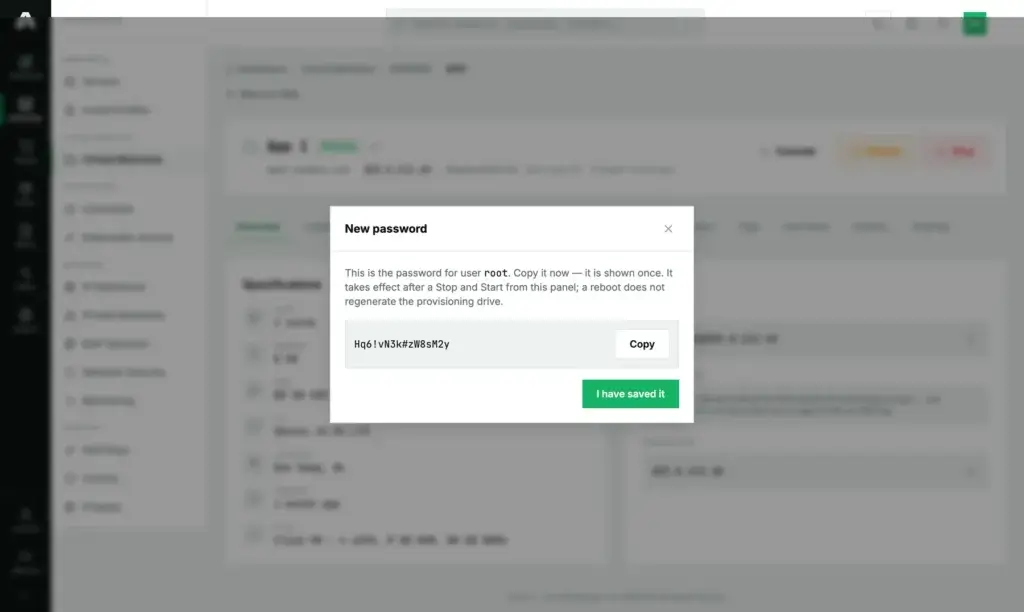
- Confirm. A new strong password is generated for the machine's administrative user:
rooton Linux,Administratoron Windows. The dialog names the user. - Copy it from the New password dialog. It is shown once here and then held under Access for 48 hours. Click I have saved it.
When does it take effect? The confirmation message tells you which of two things happened:
- “Password updated … and active now” — the running system accepted it through its guest agent. Log in straight away. No reboot needed.
- “Password stored … but it is NOT active yet” — this instance has no responding guest agent. The password is saved for the next rebuild; a reboot will not apply it. To get in now, use the remote console and change the password from inside, or boot a rescue image.
Bare-metal servers: set a new password from rescue mode
There is no reset button for bare metal, because nothing on our side can change a password inside your installed system. Instead:
- Boot the server into rescue mode and connect over SSH with the rescue password.
- Mount the installed system and enter it:
mount /dev/sda2 /mnt # your root filesystem; check with lsblk -f mount --bind /dev /mnt/dev; mount --bind /proc /mnt/proc; mount --bind /sys /mnt/sys chroot /mnt /bin/bash passwd root exit umount -R /mnt - Reboot from the server header. The installed system comes up with the new password.
For Windows, the equivalent is the Windows recovery template in rescue mode, or a reinstall if the data can be lost.
Method 2 — With the API
Password endpoints need a write scope even to read (servers.write or vms.write): the scope reflects what the value is, not the HTTP verb. Reference: api.amoni.app/v1/docs.
Read back a held password
curl -s https://api.amoni.app/v1/servers/955/root-password \
  -H "Authorization: Bearer nr_live_..."
# or, for an instance:
curl -s https://api.amoni.app/v1/vms/990204/411/root-password \
  -H "Authorization: Bearer nr_live_..."
{ "success": true, "data": { "password": "Vq7#kL2m!pX9rT4w", "expires_in": 158400 } }404 with code: root_password_unavailable means it expired or was never generated; the two are deliberately indistinguishable. Once stored on your side, discard it early with DELETE on the same path.
Cloud instances: reset
Send an empty body to have a password generated, or your own password (12 to 128 characters). A password you supply is never echoed back and never stored.
curl -s -X PUT https://api.amoni.app/v1/vms/990204/411/password \
  -H "Authorization: Bearer nr_live_..." \
  -H "Content-Type: application/json" \
  -d '{}'
{
"success": true,
"data": {
"password": "Hq6!vN3k#zW8sM2y",
"generated": true,
"username": "root",
"applied": "agent",
"message": "Password updated for user \"root\" and active now — no reboot needed."
}
}Branch on applied: agent means the running guest has it now; pending_rebuild means it is stored for the next rebuild and the console is the way in meanwhile.
What the API will tell you
| Status | Meaning |
|---|---|
| 200 | Password read back, or reset accepted. |
| 401 / 403 | Bad key, or a key without servers.write / vms.write. |
| 404 | No such machine on your account ({"success": false, "error": "Not found"}), or code: root_password_unavailable when nothing is held. |
| 422 | Your own password is shorter than 12 characters (framework shape: {"message": "…", "errors": {"password": ["…"]}}). |
| 500 | The instance does not support automated configuration. Open a ticket. |
Troubleshooting
- The new password is refused over SSH. Either SSH keys are deployed (password login for root is then off; use the key or the console), or the reset landed as pending rebuild on an instance without a guest agent. The confirmation message and the API's
appliedfield say which. - The Access card has no password and it has been more than two days. Expected. Reset (cloud) or use rescue mode (bare metal).
- I set my own password during reinstall and forgot it. We never held it. Same recovery: reset or rescue mode.
- Windows: which user?
Administrator. The reset dialog and the API'susernamefield name the account the password belongs to. - I want to stop you holding the password.
DELETEthe root-password endpoint, or simply change the password on the machine; what we hold is then wrong and harmless.
Still stuck?
Open a support ticket with the machine selected in the “related server” field. We cannot tell you a password we do not hold, but we can get you to a console and a rescue system quickly.