
Your SSH public keys live in one store on your account. Add a key once and it is offered everywhere a machine gets a system: a bare-metal reinstall, a cloud rebuild, and a live update of a running instance. When a machine is installed with keys, root logs in with those keys only; password login over SSH is switched off.
Only the public half ever leaves your computer. If you do not have a key pair yet:
ssh-keygen -t ed25519 -C "you@laptop"
cat ~/.ssh/id_ed25519.pub
The second command prints the line you will paste: it starts with ssh-ed25519 (or ssh-rsa, ecdsa-).
Method 1 — In the portal
Store a key
- Log in at amoni.app and open SSH Keys in the left-hand menu.
- Under Add a key, give it a name you will recognise later (work laptop, ci-runner) and paste the contents of the
.pubfile. - Click Add key. The key appears in the list with its fingerprint. A pasted line that is not an OpenSSH public key is refused with a message saying what a valid one starts with; a key you already stored is refused by name.
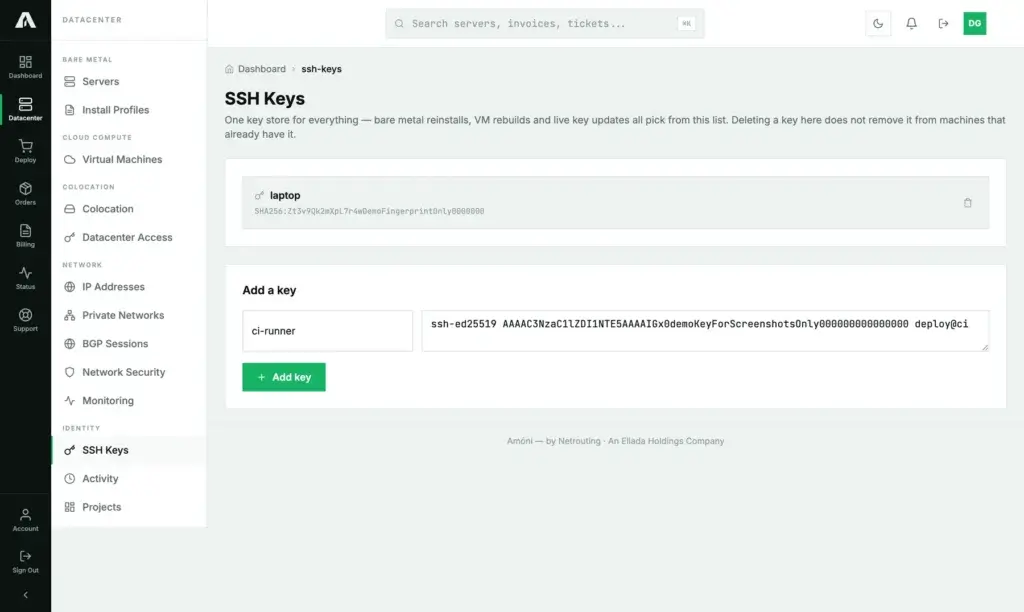
Deleting a key here (the bin icon) removes it from the list only. Machines that already have it keep it until their next reinstall or rebuild; remove it from a running machine by editing ~/.ssh/authorized_keys there, or with the live update below.
Use keys on a fresh system
- Bare metal: on the server's Reinstall tab, tick the stored keys under SSH Keys, or paste extra ones. See reinstall the operating system.
- Cloud: in the Rebuild VM dialog, tick keys under SSH keys for the new system. See rebuild.
The server's own SSH Keys tab is a read-only view of the same list, there so you can check what will be offered at reinstall.
Apply keys to a running cloud instance
- Open the instance and its SSH Keys tab.
- Tick the keys that should be on the machine. The button counts them: Apply to VM (1).
- Click Apply to VM. The selected set is written to the machine's provisioning drive; it replaces what was applied that way before.
- Do a Stop and then a Start from the instance header. That regenerates the provisioning drive; a plain reboot does not, so the keys would not land.
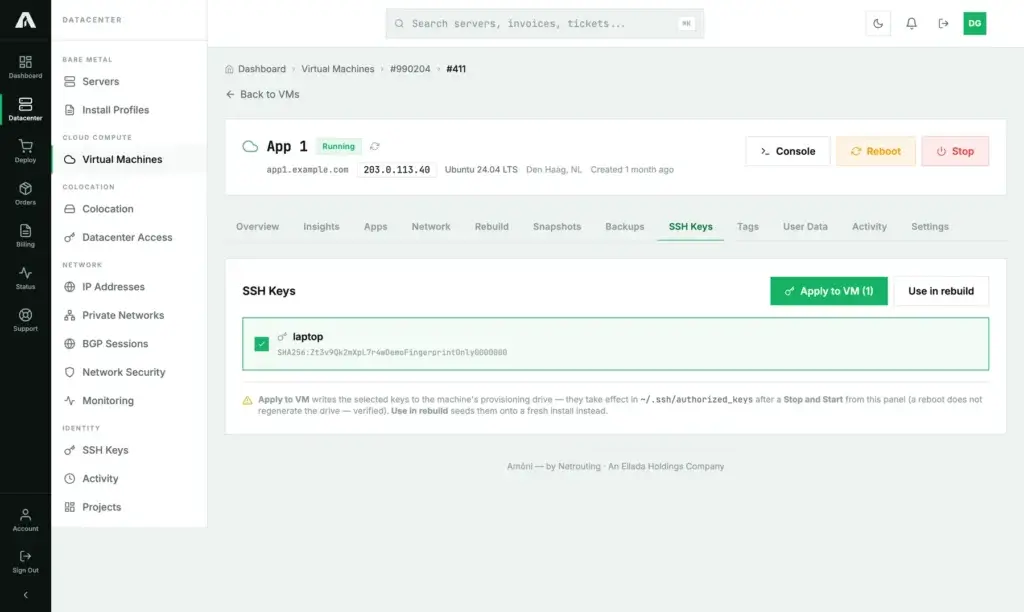
Use in rebuild on the same tab jumps to the rebuild dialog with the keys pre-selected, for when a fresh system is what you want anyway.
Method 2 — With the API
The key store needs the SSH Keys scope (sshkeys.write) to change and read to list; applying to an instance needs vms.write. Reference: api.amoni.app/v1/docs.
Store a key
curl -s -X POST https://api.amoni.app/v1/ssh-keys \
  -H "Authorization: Bearer nr_live_..." \
  -H "Content-Type: application/json" \
  -d "{\"name\": \"ci-runner\", \"public_key\": \"$(cat ~/.ssh/id_ed25519.pub)\"}"
{ "success": true, "data": { "id": 42, "fingerprint": "SHA256:Zt3v9Qk2mXpL7r4w...", "key_type": "ssh-ed25519" } }List and delete
curl -s https://api.amoni.app/v1/ssh-keys -H "Authorization: Bearer nr_live_..."{ "success": true, "data": [ { "id": 42, "name": "ci-runner", "public_key": "ssh-ed25519 AAAA...", "key": "ssh-ed25519 AAAA...",
"fingerprint": "SHA256:...", "key_type": "ssh-ed25519", "created_at": "2026-09-15 10:12:00" } ] }key repeats public_key; both are kept for older clients.
curl -s -X DELETE https://api.amoni.app/v1/ssh-keys/42 -H "Authorization: Bearer nr_live_..."Use the ids everywhere else
Pass stored key ids as ssh_key_ids to POST /v1/servers/{id}/reinstall and POST /v1/vms/{accountId}/{vpsId}/rebuild; pass raw keys, one per line, as sshkeys. Both fields may be combined.
Apply to a running instance
curl -s -X PUT https://api.amoni.app/v1/vms/990204/411/ssh-keys \
  -H "Authorization: Bearer nr_live_..." \
  -H "Content-Type: application/json" \
  -d '{"ssh_key_ids": [42]}'
{
"success": true,
"data": {
"username": "root",
"applied": [ { "name": "ci-runner", "fingerprint": "SHA256:..." } ],
"pasted_key_count": 0,
"message": "Keys saved to the machine's provisioning drive. ..."
}
}Then stop and start the instance (POST .../power with stop, then start) so the drive is regenerated. Container-type instances have no provisioning drive; the call answers 422 for them and keys land only at creation.
What the API will tell you
| Status | code |
Meaning |
|---|---|---|
| 201 / 200 | — | Key stored / applied. |
| 401 / 403 | insufficient_scope |
Bad key, or missing sshkeys.write / vms.write. |
| 404 | — | No such key id or instance on your account. Body: {"success": false, "error": "Not found"}. |
| 422 | invalid_key |
Not an OpenSSH public key. Paste the .pub contents. |
| 422 | duplicate_key |
Already stored; the error names it. |
| 422 | no_keys |
Apply called with nothing selected or pasted. |
| 500 | — | “The keys could not be applied to this VM. It may not support automated configuration — contact support.” |
Troubleshooting
- “Permission denied (publickey)”. The machine has keys, and the one you are offering is not among them. Check with
ssh -vwhich key is tried; point at the right one with-i. If none of your keys is on the machine, the password (console) or a reinstall with the right key is the way back. - I applied keys to a running instance and they do not work. Did you stop and start? A reboot is not enough. Also note the set replaces the previous applied set.
- The portal refuses my key. Paste the one line from the
.pubfile, not the private key and not a PuTTY-format block. PuTTY users: export the OpenSSH public key from PuTTYgen (“Public key for pasting into OpenSSH authorized_keys file”). - I deleted a key but it still logs in. Deleting from the store does not touch machines. Remove the line from
~/.ssh/authorized_keyson each machine, or apply a new set to the instance. - Keys for a Windows server? Windows images do not use the key store; log in with the password over the console or RDP.
Still stuck?
Open a support ticket with the machine selected and the fingerprint of the key you expect to work (ssh-keygen -lf ~/.ssh/id_ed25519.pub). Never send us the private key.