
Seeing “The referenced account is currently locked out and may not be logged on to” or “Your account has been locked because of too many failed sign-in attempts” on your Windows server? Almost always this means Remote Desktop (TCP 3389) is open to the whole internet and bots are guessing passwords against it. Enough failures trip the Windows Account Lockout Policy, and the account locks.
The part people miss: while the guessing continues, the account keeps re-locking. Waiting does nothing, and the console does not help either, because the lockout applies to every sign-in method. You have to stop the inbound attempts first, then let the lockout timer run out. A common Windows default is 5 failures, a 30-minute lockout, and a 30-minute reset window; your image may differ.
Step 1 — Stop the attack (portal)
Cloud instances: the VM firewall
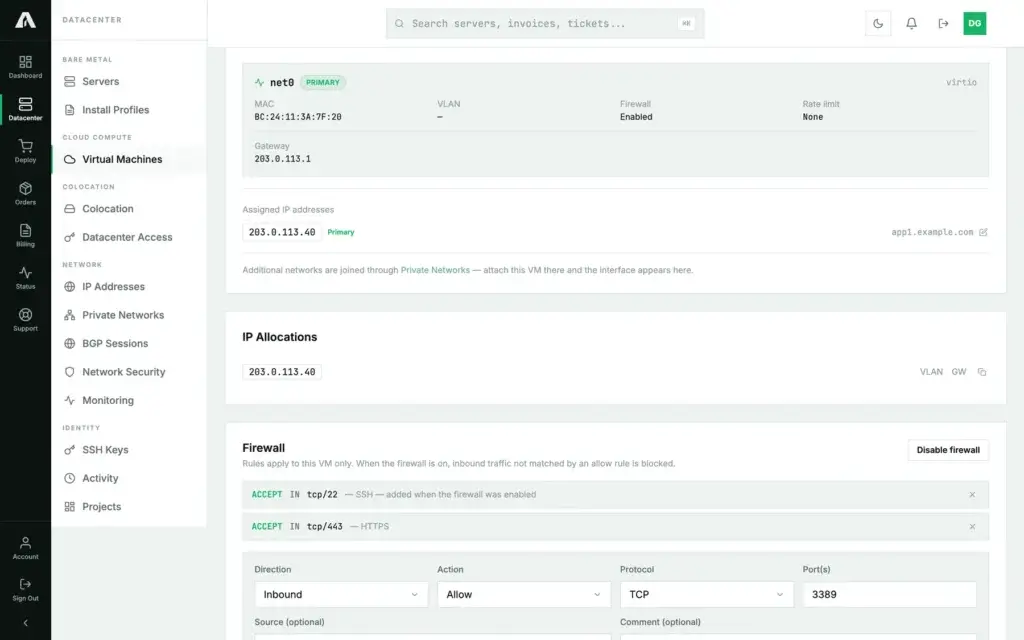
- Log in at amoni.app, open Virtual Machines, click the instance, then the Network tab and scroll to Firewall.
- If the firewall is off, click Enable firewall. From that moment every inbound connection not matched by an allow rule is dropped, RDP included. An SSH allow rule is added automatically so you cannot lock yourself out of a Linux session; for Windows that rule is harmless.
- If the firewall is already on and there is an allow rule for port 3389 without a source, remove it with the × on its row.
- Either way, add the rule you will want later: Add Rule → Direction Inbound, Action Allow, Protocol TCP, Port
3389, Source your own public address or network (for example198.51.100.0/24), a comment, then Add Rule. RDP now answers your network only; the bots hit a closed port.
Bare-metal servers: a FlowSpec rule at the network edge
A bare-metal server has no firewall in front of it by default, but you can drop specific traffic at our edge routers before it reaches the machine:
- Open Network Security in the left-hand menu and, under FlowSpec Rules, click New Rule.
- Destination IP: the server's address. Action: Discard (drop). Protocol: TCP. Dest port:
3389. Leave Source prefix empty to drop RDP from everywhere. - Auto-withdraw after: pick a window long enough to sit out the lockout and do the hardening below, up to 24 hours. The rule removes itself when it runs out; you can also withdraw it by hand.
- Click Create Rule. It is active on the edge within a minute.
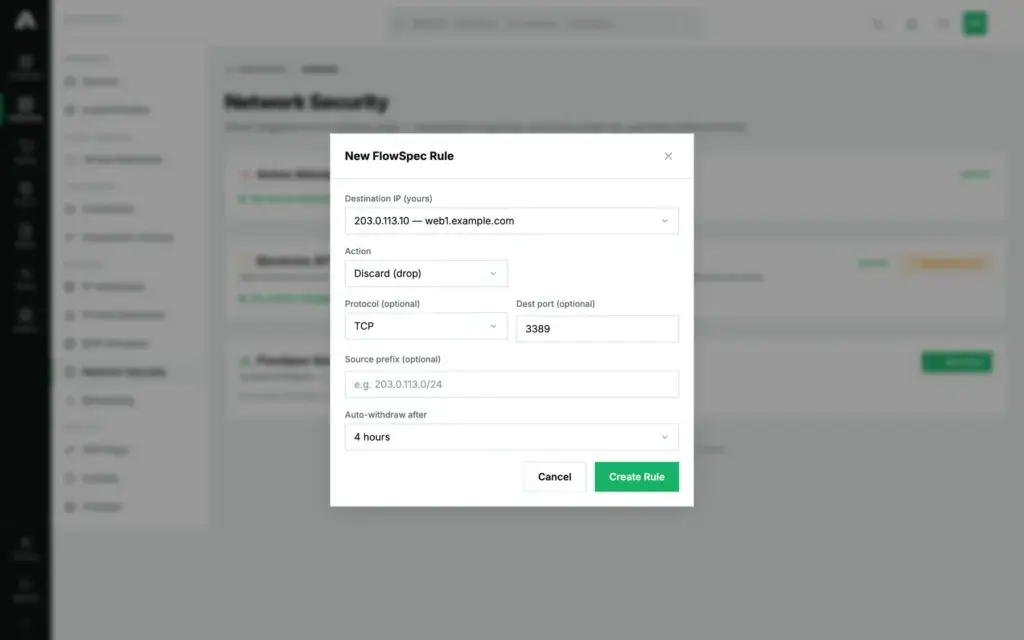
Because FlowSpec rules are temporary, they buy you time; the permanent fix for bare metal is in Step 4.
Step 1 — Stop the attack (API)
Cloud instances: the VM firewall is fully available in the API with the VMs scope (vms.write). Reference: api.amoni.app/v1/docs.
Turn the firewall on (blocks all unmatched inbound at once; an SSH allow is seeded):
curl -s -X PUT https://api.amoni.app/v1/vms/990204/411/firewall/enable \
  -H "Authorization: Bearer nr_live_..." \
  -H "Content-Type: application/json" \
  -d '{"enabled": true}'
See the rules and remove any open RDP allow by its position:
curl -s https://api.amoni.app/v1/vms/990204/411/firewall -H "Authorization: Bearer nr_live_..."{ "success": true, "data": { "enabled": true, "rules": [
{ "pos": 0, "direction": "in", "action": "ACCEPT", "proto": "tcp", "port": "22", "source": null, "comment": "SSH", "enabled": true },
{ "pos": 1, "direction": "in", "action": "ACCEPT", "proto": "tcp", "port": "3389", "source": null, "comment": "RDP", "enabled": true } ] } }curl -s -X DELETE https://api.amoni.app/v1/vms/990204/411/firewall/1 -H "Authorization: Bearer nr_live_..."Allow RDP from your network only:
curl -s -X POST https://api.amoni.app/v1/vms/990204/411/firewall \
  -H "Authorization: Bearer nr_live_..." \
  -H "Content-Type: application/json" \
  -d '{"direction": "in", "action": "ACCEPT", "proto": "tcp", "port": "3389", "source": "198.51.100.0/24", "comment": "RDP from the office only"}'
action is ACCEPT, DROP or REJECT; proto is tcp, udp, icmp or omitted for any; port takes a single port, a range (8000:8100) or a comma-separated list. New rules are appended after the existing ones. A wrong value answers 422 in the framework shape ({"message": "The selected action is invalid.", "errors": {…}}); when the hypervisor cannot be reached the calls answer 500 with “Firewall state is unavailable right now. Please retry.” or “The rule could not be added. Please retry.”
Bare metal: FlowSpec rules are created in the portal for now. The API's /v1/blackhole endpoint exists for a different situation, a volumetric attack where the whole address must go dark; it drops all traffic to the address, so it is not the tool for an RDP brute-force.
Step 2 — Wait out the lockout
With no new failed attempts arriving, the lockout duration actually elapses. Wait the period, by default about 30 minutes. Do not keep trying to sign in meanwhile; each failure restarts the counter.
Step 3 — Sign in over the console
Open the remote console from the machine's page and sign in there. The console is the machine's own screen, so it works while RDP is blocked. It does not bypass the lockout; it only gives you a way in the attackers cannot reach, once the timer has expired.
Step 4 — Make sure it cannot happen again
The lockout was the symptom; RDP open to the internet was the cause. Before you open anything back up:
- Restrict RDP to your own addresses. Cloud: the firewall rule with a Source from Step 1 already does this; leave it. Bare metal: scope the inbound Remote Desktop rule in Windows Defender Firewall to your addresses (Windows Defender Firewall with Advanced Security → Inbound Rules → Remote Desktop (TCP-In) → Scope → Remote IP address), or put RDP behind a VPN. This one change ends the problem.
- Enable Network Level Authentication for Remote Desktop.
- Strong, unique passwords for every account that can sign in, and do not expose the built-in
Administratoraccount to RDP. - Optional: change the RDP port from 3389. It reduces noise; it is not a substitute for the source restriction.
- Optional: adjust the lockout policy (
secpol.msc→ Account Policies → Account Lockout Policy). Only relax it after RDP is restricted; otherwise you are removing a brute-force protection.
Bare metal: once Windows Firewall is scoped, let the FlowSpec rule expire or withdraw it on the Network Security page.
Last resort: reinstall
If you still cannot get in, reinstall Windows from the machine's page. Copy data off first with rescue mode where the machine allows it; a reinstall erases the disks. Apply Step 4 immediately after.
Troubleshooting
- The account locks again right after unlocking. The attempts are still arriving. Check the firewall rules (cloud) or that the FlowSpec rule is active (bare metal, Network Security page), and that no other allow rule for 3389 remains.
- I enabled the VM firewall and now my own service is unreachable. Expected: unmatched inbound is dropped. Add allow rules for the ports you serve (80, 443 and so on). SSH is allowed by default.
- My public address changes. Allow your provider's whole range, or use a VPN with a fixed exit address and allow only that.
- I cannot find the attack in the Network Security telemetry. A password brute-force is low volume; it does not register as a DDoS. The lockout events in Windows' Security log (Event ID 4740) are the evidence.
Still stuck?
Open a support ticket with the server selected. We can confirm inbound 3389 is dropped at the edge and get you to a console.