
Single-user mode (on modern systems, rescue or emergency mode) boots your Linux server into a root shell before any service starts and, if you choose, before the root password is even asked. You reach it from the remote console by editing the boot entry for one boot only; nothing is written to the boot configuration. It is the quickest way to reset a lost root password, fix an /etc/fstab that stops the system booting, disable a service that hangs startup, or run a filesystem check.
When to use it, and when not. Single-user mode needs a boot loader that still loads and a kernel that still starts. If the screen never gets to a GRUB menu, or the kernel panics, use rescue mode instead: it boots a separate system over the network and leaves your disks untouched until you mount them. Both need the console; neither needs SSH.
Everything below happens in the remote console of the machine. Open it first (bare metal: the server's Console button; cloud: the instance's Console button), then trigger a reboot from the portal header and watch the console during power-on.
Step 1 — Get to the boot menu
- Cloud instances show the GRUB menu on the serial console for a few seconds. Press any arrow key while it is on screen to stop the countdown.
- Bare metal usually hides the menu. Hold Shift (BIOS boot) or press Esc repeatedly (UEFI boot) as soon as the firmware screen disappears. If the system boots past it, reboot and try again; the window is short.
- A system that failed to boot three times in a row (Ubuntu and Debian) shows the menu by itself.
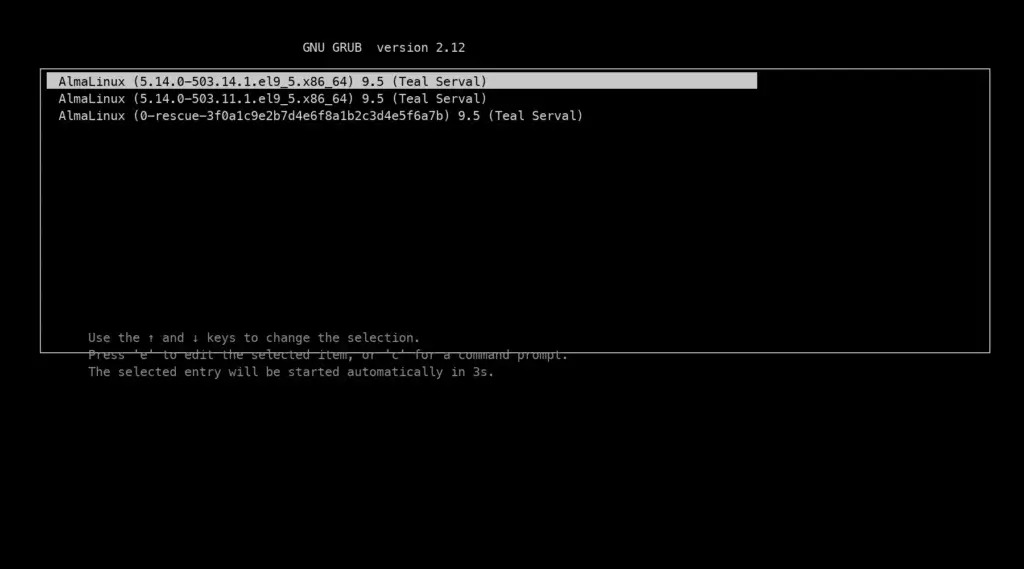
Step 2 — Edit the entry for this boot only
With the normal entry highlighted, press e. Use the arrow keys to reach the line that starts with linux (it is long and may wrap), go to its end, and add one option. Then press Ctrl+X (or F10) to boot with it. The change lasts for this boot only.
| System | Add to the linux line |
What you get |
|---|---|---|
| Ubuntu, Debian | systemd.unit=rescue.target |
A root shell after the root password (if root has one). Filesystems mounted, network down. |
| Ubuntu, Debian (no root password, or it is the one you lost) | init=/bin/bash |
A root shell with no password asked. Root filesystem read-only until you remount it (Step 3). |
| AlmaLinux, Rocky, RHEL, CentOS Stream | rd.break |
A shell in the early boot environment, no password asked. Your system is under /sysroot. |
| Any systemd system, disk trouble | systemd.unit=emergency.target |
The most minimal shell: root mounted read-only, nothing else mounted. For fstab and fsck work. |
Remove quiet and splash from the same line if you want to see boot messages; useful when the point is to find out where boot stops.
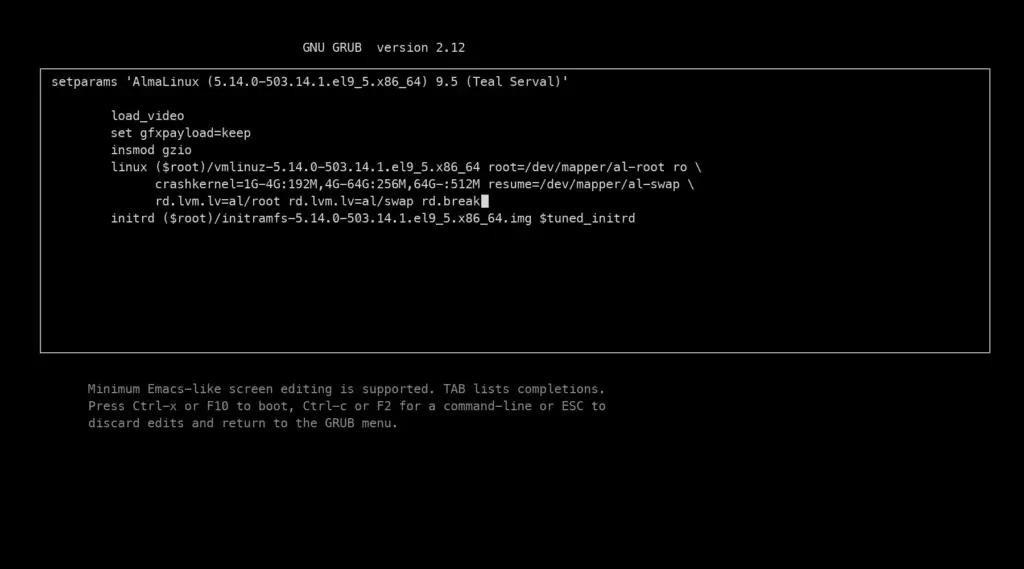
linux line.Step 3 — Make the filesystem writable
Whatever route you took, the root filesystem is read-only at this point. Remount it before changing anything:
# Ubuntu / Debian (rescue.target or init=/bin/bash)
mount -o remount,rw /

# AlmaLinux / Rocky (rd.break) — the system lives under /sysroot
mount -o remount,rw /sysroot
chroot /sysroot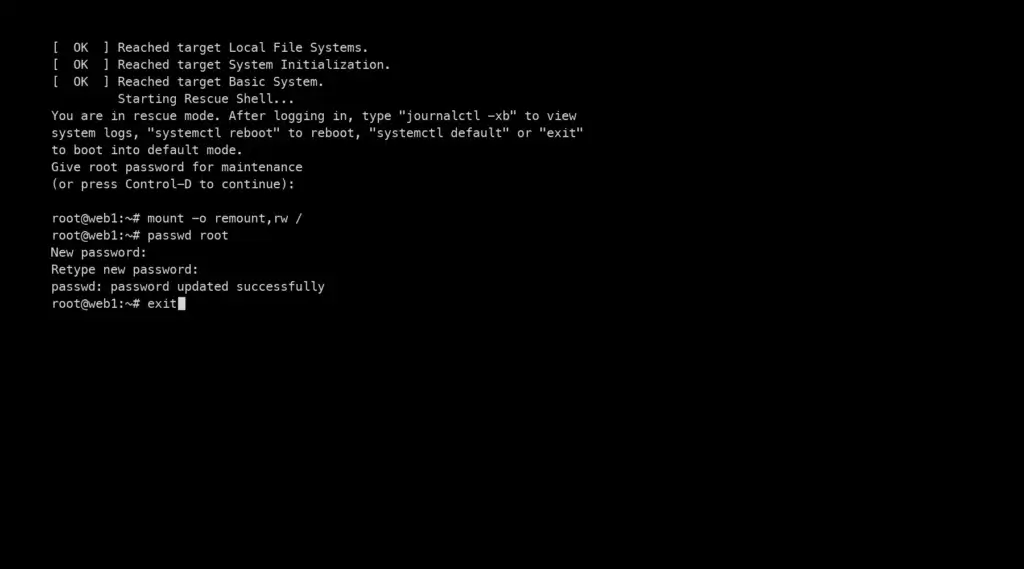
Step 4 — Do the repair
Reset the root password:
passwd rootOn AlmaLinux, Rocky and other SELinux systems, also run this before leaving so the changed file gets its security label back; without it, the new password is refused at login:
touch /.autorelabelFix a bad /etc/fstab (the classic “emergency mode” cause: a disk that was removed or renamed):
nano /etc/fstab      # comment out or correct the offending line
mount -a             # no output means every entry mounts
Stop a service from starting (for instance one that hangs or fills the disk on startup):
systemctl disable --now my-service.serviceCheck a filesystem that is not the root one (unmount it first, or use emergency mode where nothing else is mounted):
umount /data
fsck -f /dev/sdb1
Regain SSH access when a firewall rule locked you out:
ufw disable                         # Ubuntu
systemctl disable --now firewalld   # AlmaLinux / Rocky
# then fix the rules from a normal login and re-enable
Step 5 — Reboot into the normal system
# AlmaLinux / Rocky: leave the chroot first
exit
# then, on every system:
exit          # or: reboot -f
Leaving the shell continues the normal boot on most systems; if it does not, reboot -f or a Reboot from the portal header does it. The edited GRUB line is gone; the next boot is a normal one.
Windows: the equivalent
Windows has no single-user mode. The nearest tools are Safe Mode and the Windows Recovery Environment. From the console, interrupt boot twice in a row (power off at the Windows logo) and Windows starts the recovery environment on the third boot: Troubleshoot → Advanced options gives you Startup Settings (Safe Mode), Command Prompt and Startup Repair. A lost Administrator password is reset from there only with a recovery image; for the account-lockout case see Windows account locked, and for a lost password on a cloud instance the portal's password reset is the direct route.
Troubleshooting
- I never see the GRUB menu. Bare metal hides it and the window is a second or two. Reboot from the portal with the console already open and hold Shift from the moment the firmware screen clears. If it still will not show, use rescue mode.
- Rescue mode asks for a password I do not have. Reboot and use
init=/bin/bash(Ubuntu, Debian) orrd.break(AlmaLinux, Rocky) instead; those do not ask. - “Read-only file system” when I run passwd. You skipped Step 3. Remount read-write and try again.
- The new password is refused after reboot (AlmaLinux, Rocky). The SELinux relabel was skipped. Boot into
rd.breakagain,touch /sysroot/.autorelabel, reboot; the relabel runs once and takes a few minutes. - The keyboard does nothing in the console. Click inside the console window first, and use its virtual keyboard for Ctrl+X if your browser catches the shortcut.
- The GRUB edit screen shows a different layout. Cloud images and some distributions use a small
linuxline plus aninitrdline; the option still goes at the end of thelinuxline, before pressing Ctrl+X.
Still stuck?
Open a support ticket with the machine selected and say what the console shows. If the boot loader itself is broken, rescue mode is the next step and we can walk you through it.