
A reinstall doesn't have to leave you with default partitioning and a bare machine. Install profiles are two things you save once and then reuse from any server's Reinstall form: a disk layout that decides how the disks get partitioned, and a post-install script that runs after the OS is on the disk. Both belong to your account rather than to a machine, so any of your servers can use any of them.
The two kinds
- Disk layouts decide the partitioning: software RAID, LVM, ZFS, partition sizes, a separate
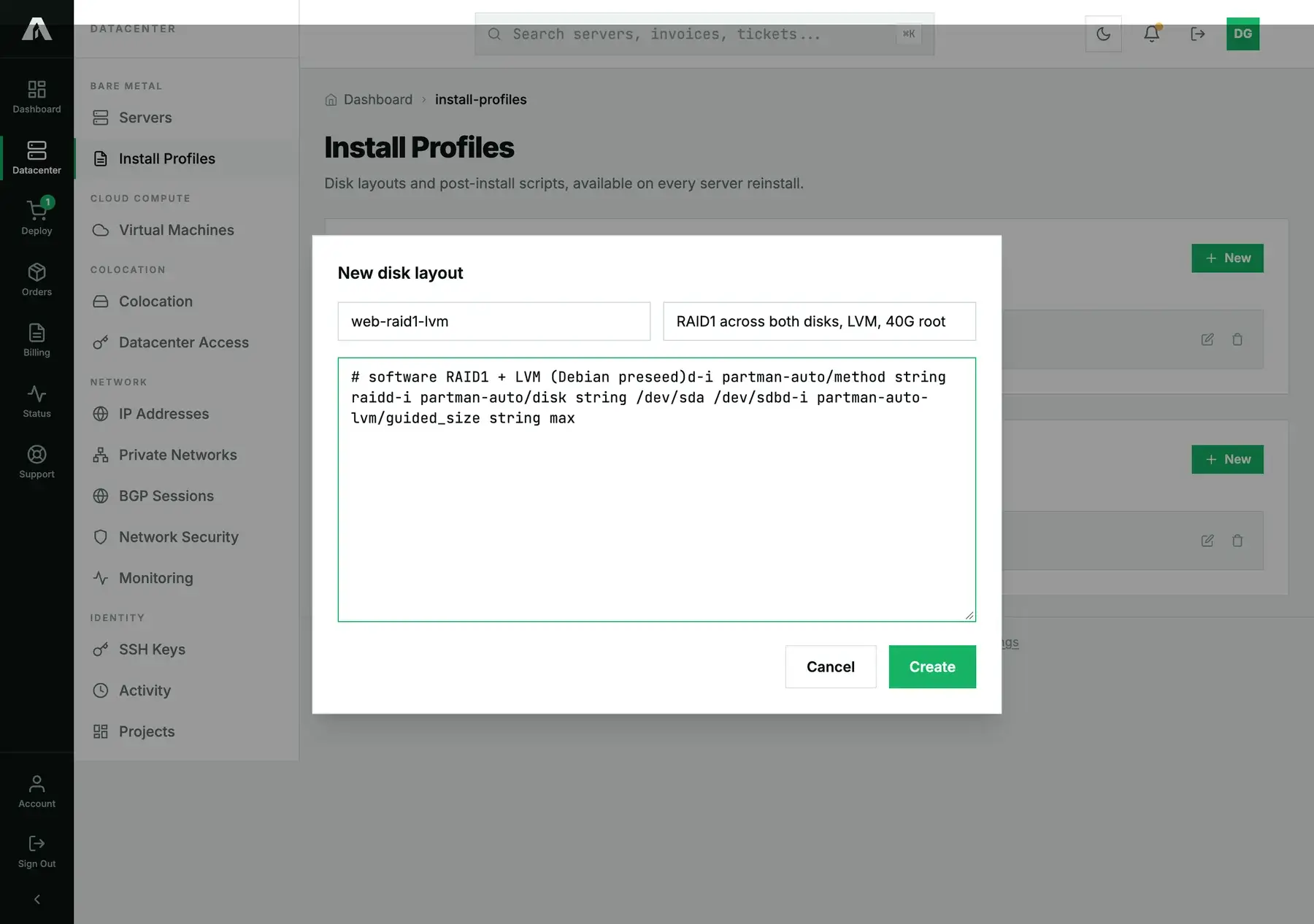
/varor/data. You write them in the installer's own language (a Debian/Ubuntu preseed or autoinstall, a Red Hat kickstart), because that's what the installer applies during the reinstall. - Post-install scripts run once the operating system is installed, before the machine is handed back to you. Typical jobs: create a deploy user, turn off password logins, open a firewall, or pull in your configuration management and let it take over.
Next to your own, the Reinstall form also lists our standard layouts (RAID 0/1/5/10, single disk, ZFS). You can pick those, but you can't read or edit them. This page is where your own layouts and scripts get written and stored.
Create one
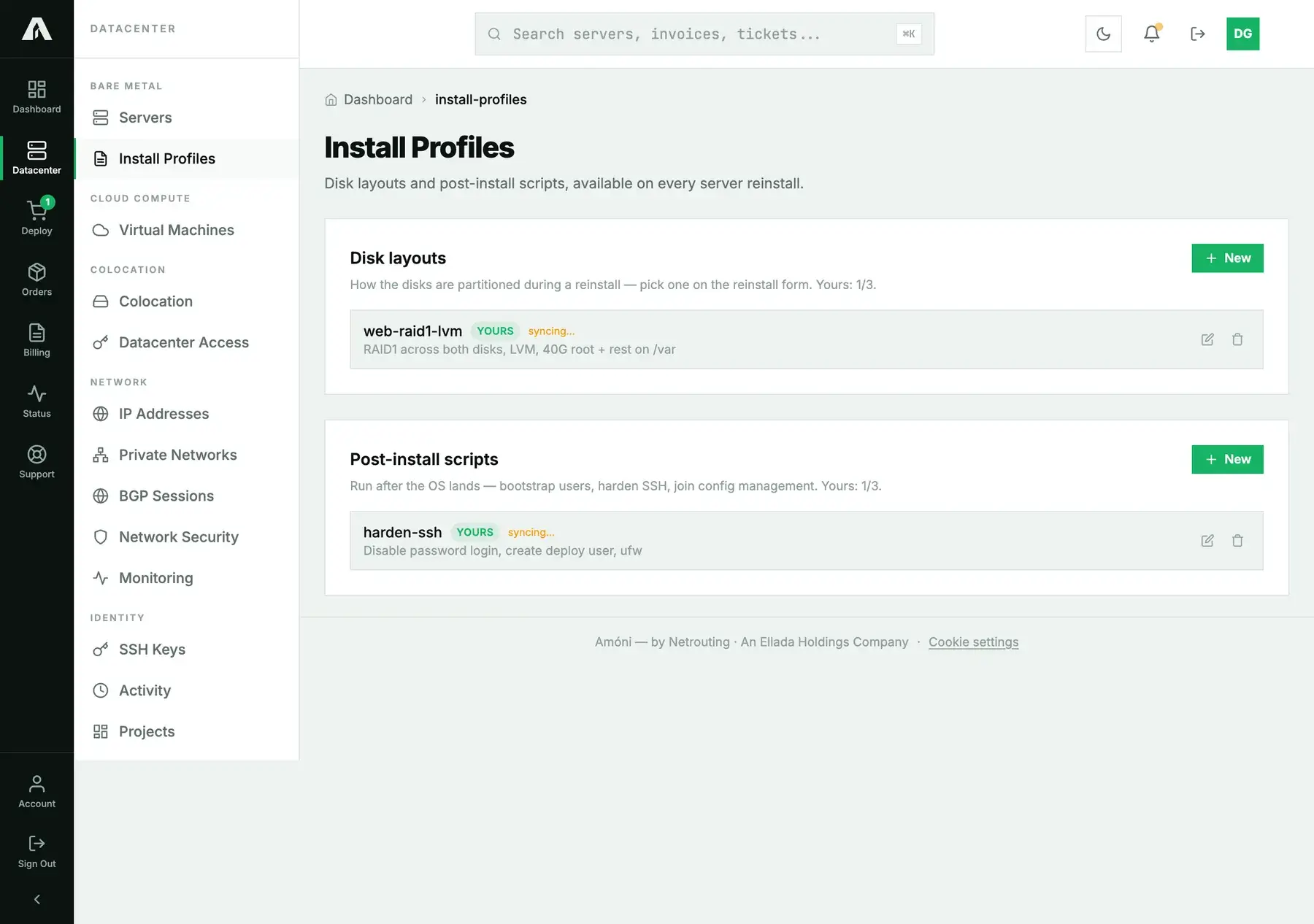
- Open Install Profiles in the left-hand menu (it sits under Bare Metal).
- Click New on Disk layouts or Post-install scripts.
- Enter a name and, if you like, a description, then paste in the content and save. You can keep three of each, and the header shows how many you've used.
A new one needs activating first
A custom layout or script is stored the moment you save it, but it isn't live yet. The page marks it syncing, and it won't run on any reinstall until we've added it to the provisioning platform. That's a safety step: a layout that would brick a machine gets looked at once, before any server can boot it. It's usually quick. If a profile is still syncing after more than a business day, open a ticket. Later edits don't affect reinstalls that already used a profile.
Use it on a reinstall
On a server's Reinstall tab, the Disk Layout select lists your active layouts under Your layouts (below the standard ones). Your active scripts show up under Post-install scripts as tick boxes. Choose a layout, tick whichever scripts you want, and reinstall the way you normally would. Leave the layout blank and you get the image's own default partitioning.
With the API
A key with read lists them. Creating, editing or deleting one needs a key with servers.write, or a portal session. GET /v1/install-profiles gives you both kinds in a single response:
{
  "success": true,
  "data": {
    "quota": 3,
    "disk_layouts": [
      {
        "id": 1, "name": "web-raid1-lvm",
        "description": "RAID1 across both disks, LVM, 40G root + rest on /var",
        "scope": "client", "mine": true, "editable": true, "active": false,
        "content": "# software RAID1 + LVM\nd-i partman-auto/method string raid\n..."
      }
    ],
    "scripts": [ { "id": 1, "name": "harden-ssh", "active": false, "...": "..." } ],
    "disk_layouts_used": 1,
    "scripts_used": 1
  }
}
Our standard layouts come back with scope: "global" and no content (you can select them, not read them). To create, edit and delete, use POST /v1/install-profiles/disk-layouts, PATCH …/disk-layouts/{id}, DELETE …/disk-layouts/{id}, and the matching /scripts routes. A create returns the row, plus a reminder that it isn't active yet:
{ "success": true, "data": { "id": 1, "active": false,
  "message": "Saved, but it is not active yet — support has been notified. It will not run on a reinstall until it is." } }
Questions we get
- Can I use one layout on several servers? Yes. A profile belongs to the account, not to any one machine.
- What language does a disk layout use? Whatever the installer speaks: a preseed or autoinstall for Debian and Ubuntu, a kickstart for AlmaLinux, Rocky and the other enterprise Linux images.
- My script did not run. Check that it's active (not still syncing) and that you ticked it on the reinstall form. A script runs once, after the OS install, and if it fails the install is not rolled back.
- Can I store more than three? The limit is three disk layouts and three scripts. Delete one you've stopped using, or open a ticket if you really do need more.
- Do these work on cloud instances? No, they're only for bare-metal reinstalls. Cloud instances use rebuild and cloud-init.
Still stuck?
Open a support ticket and include the profile name. We can see why a profile isn't activating, and we can help with preseed or kickstart syntax.