
One login per person: that's the whole point of the Contacts tab. Rather than giving a colleague your password, you link them to the account with a role. They sign in with their own Amóni login, and everything they do is logged under their name. When they leave, you delete one line and nothing else has to change.
Two lists, two purposes
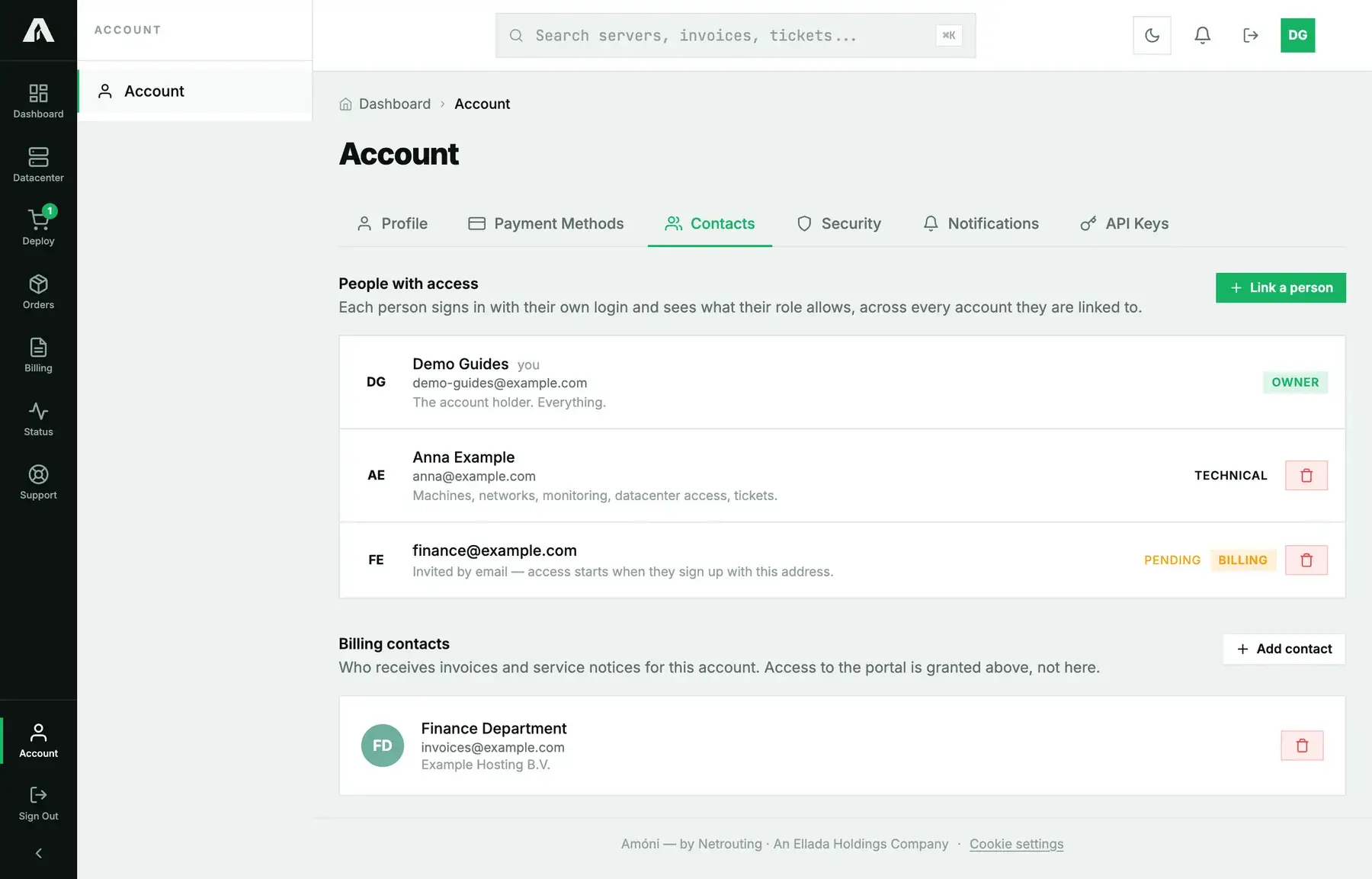
The Contacts tab has two sections, and they're easy to mix up.
- People with access are logins. These people sign in to the portal and see whatever their role allows.
- Billing contacts are email addresses that get invoices and service notices. Nobody signs in with them. This is where your accounts-payable mailbox goes.
Someone can be on both lists. Still, a billing contact gets no access, and a person linked with a role doesn't get invoices.
The roles
| Role | What it can do |
|---|---|
| Owner | The account holder. Can do everything, the account's identity and its people included. |
| Admin | Everything apart from the account's identity and its people. |
| Technical | Machines, networks, monitoring, datacenter access, tickets. |
| Billing | Invoices, payments, cards, orders, cancellations, tickets. |
| Viewer | Can see machines and networks and open tickets, but can't change anything. |
Give each person the smallest role that covers their job. An engineer who reboots servers has no reason to see invoices, and your bookkeeper has no use for the reinstall button. Roles are set per account, so someone linked to two of your companies can hold a different role on each.
Give someone access
- Open Account → Contacts and click Link a person. Only the owner can do this step.
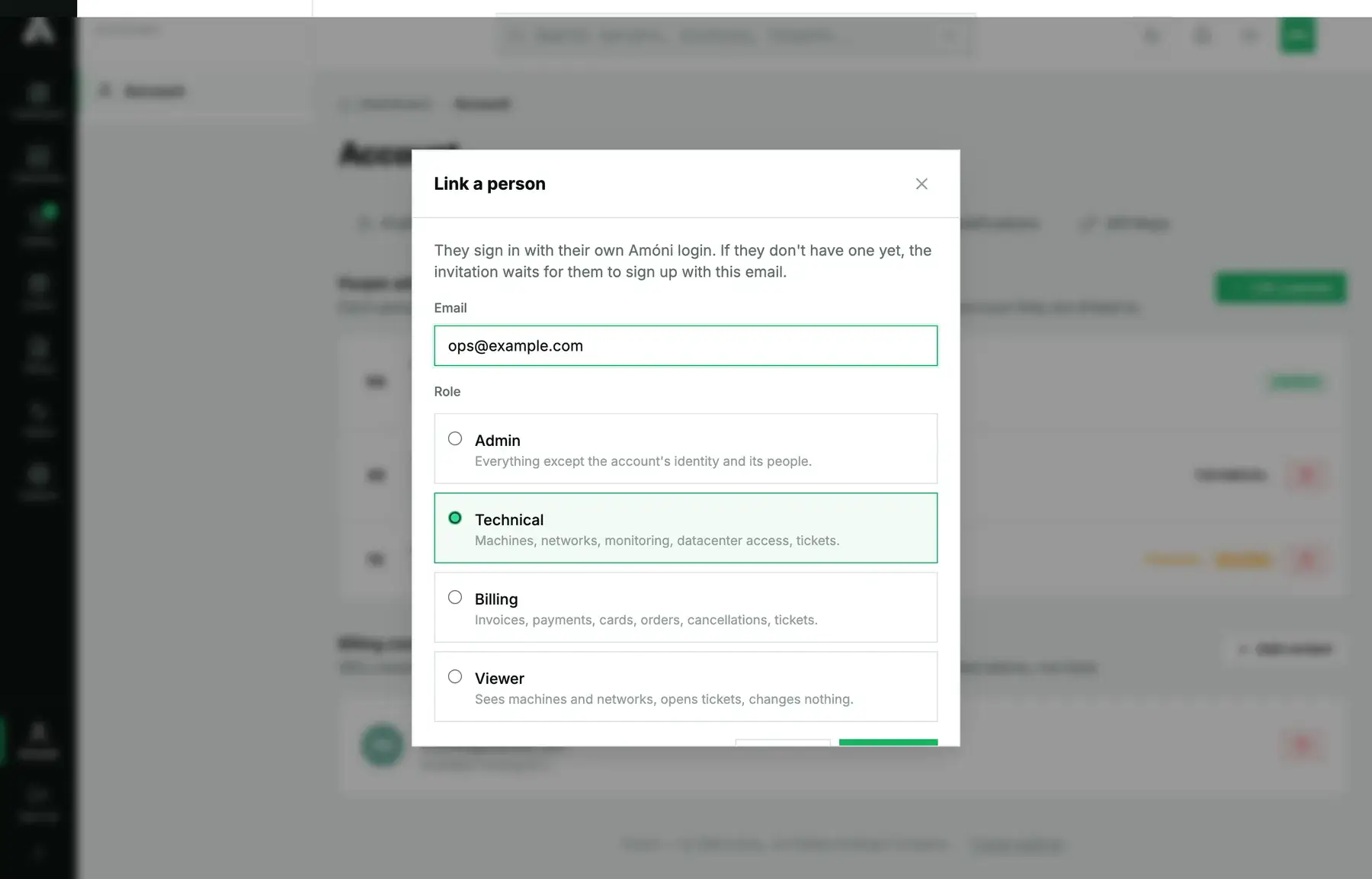
- Enter their email address and pick the role. If you have more than one account, choose which one the role applies to.
- Click Link. What happens next depends on whether they already have a login:
- If they already have an Amóni login with that address, they get an email, and the link is active the moment they sign in and accept.
- If they don't have a login yet, the invitation waits for them. Access starts once they sign up with that exact address.
- The line reads pending until they accept. To resend the email, link them again; to withdraw the invitation, click the bin icon.
What the invited person sees
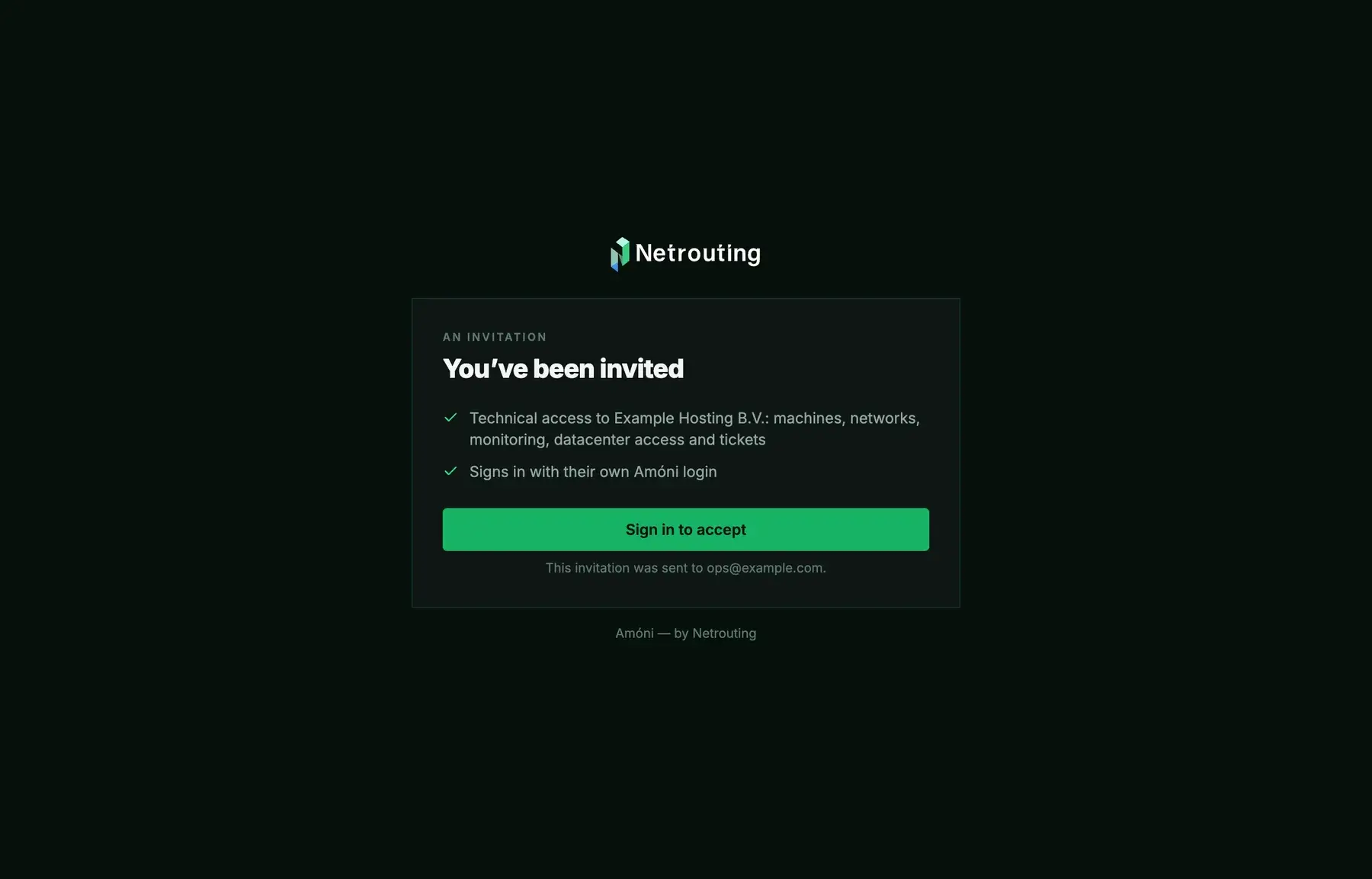
The email links to an invitation page. It shows what's being granted and nothing else about your account. If they're already signed in, one click accepts it. Otherwise they sign in, or create a login with the invited address, and then accept. From that point your account shows up in their portal next to any others they're linked to.
Remove access
Click the bin icon on the person's line and confirm. Their login still exists, but your account vanishes from it straight away. Do it on the day someone leaves. You don't need to change your password afterwards, because they never had it.
Add a billing contact
Under Billing contacts, click Add contact and enter a name and email, plus company and phone if you want them. Starting with the next one, invoices and notices go to that address. If there's no billing contact, they go only to the account holder.
Troubleshooting
- The invitation email did not arrive. Check the address for typos and ask them to look in their spam folder. Then link them again to resend it.
- They signed up but still see nothing. They signed up with a different address from the one you invited. Withdraw the invitation and link the address they really used.
- I cannot see the Link a person button. Managing people is up to the owner alone, so ask the account holder.
- A person needs to pay invoices and reboot servers. Give them Admin. Billing and Technical are kept apart on purpose.
- A contact from before Amóni signs in with a billing-contact login. Those logins still work, and their line is marked with a note. What they can reach depends on the role you set here, not on the old contact permissions.
Still stuck?
Open a support ticket from the account holder's login, listing which address should get which role. We can link people for you once we've checked with the owner.