
Your Amóni account can reboot servers, reinstall them and change who has access, so a password on its own shouldn't be enough to get in. Two-factor authentication adds a six-digit code, from an app on your phone, to every sign-in. Setup takes two minutes. Do it before the account holds anything worth protecting, which comes sooner than most people think.
What you need
Just an authenticator app on your phone: Google Authenticator, Microsoft Authenticator, Authy, 1Password, Bitwarden or any other app that speaks the TOTP standard. We don't send codes by SMS.
Turn it on
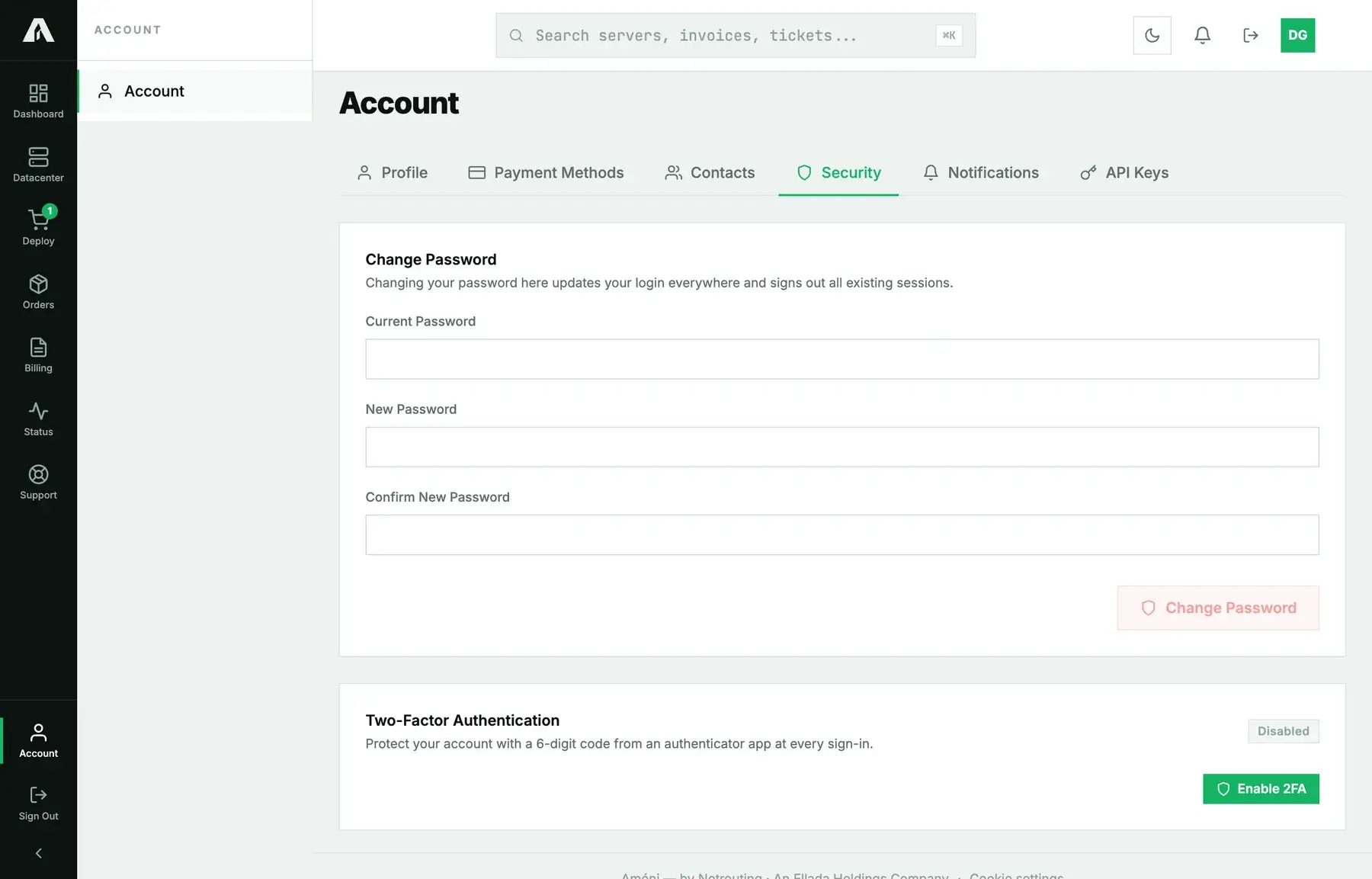
- Open Account in the sidebar and click the Security tab. The Two-Factor Authentication box reads Disabled.
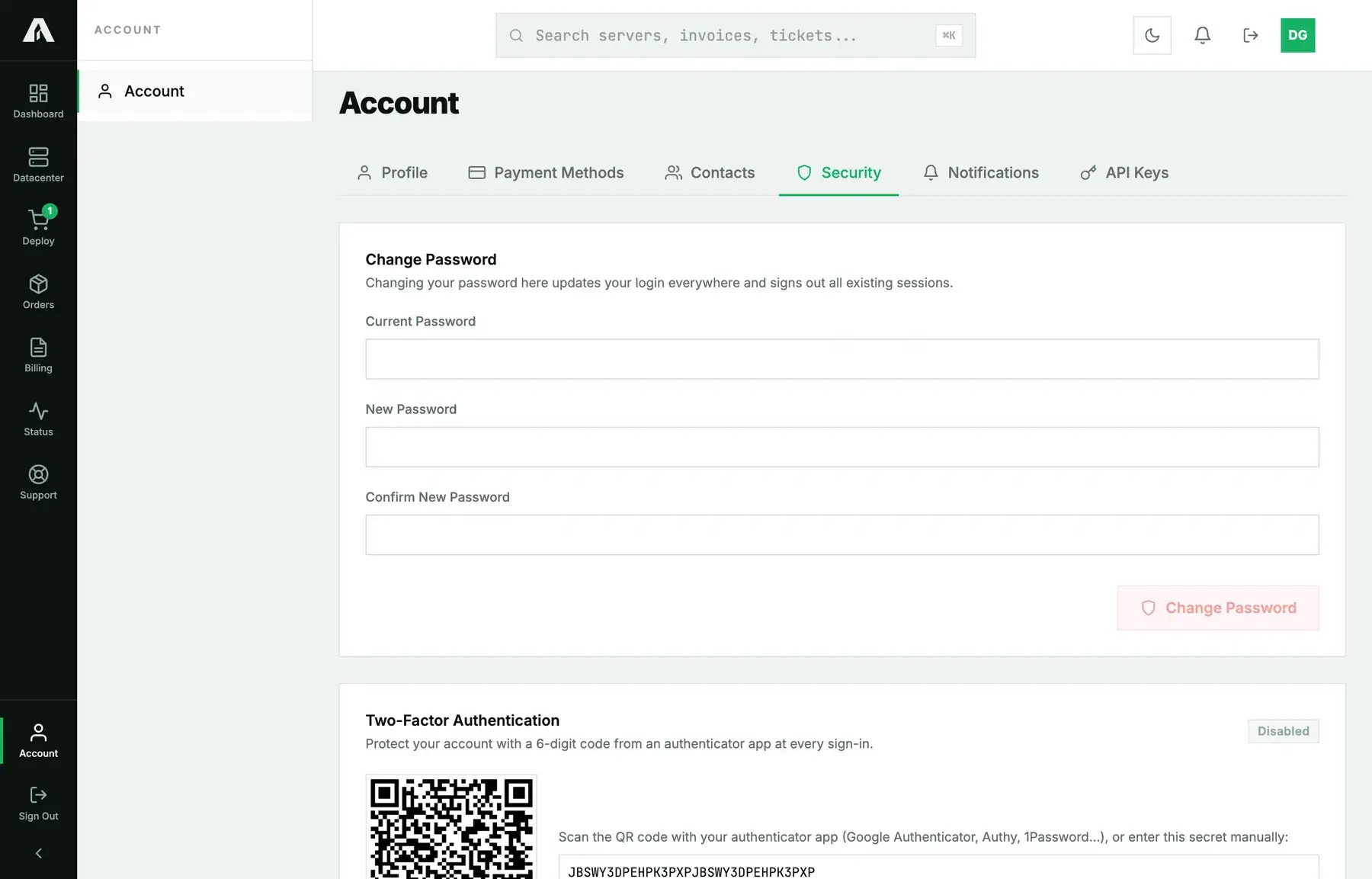
- Click Enable 2FA. A QR code appears, and next to it the secret in text, for apps that can't scan.
- In your authenticator app, add an account and scan the code. From then on the app shows a six-digit number that changes every 30 seconds.
- Type the current number into the Enter the 6-digit code to confirm field and click Enable 2FA. That proves the app works before we ever ask you for a code at sign-in.
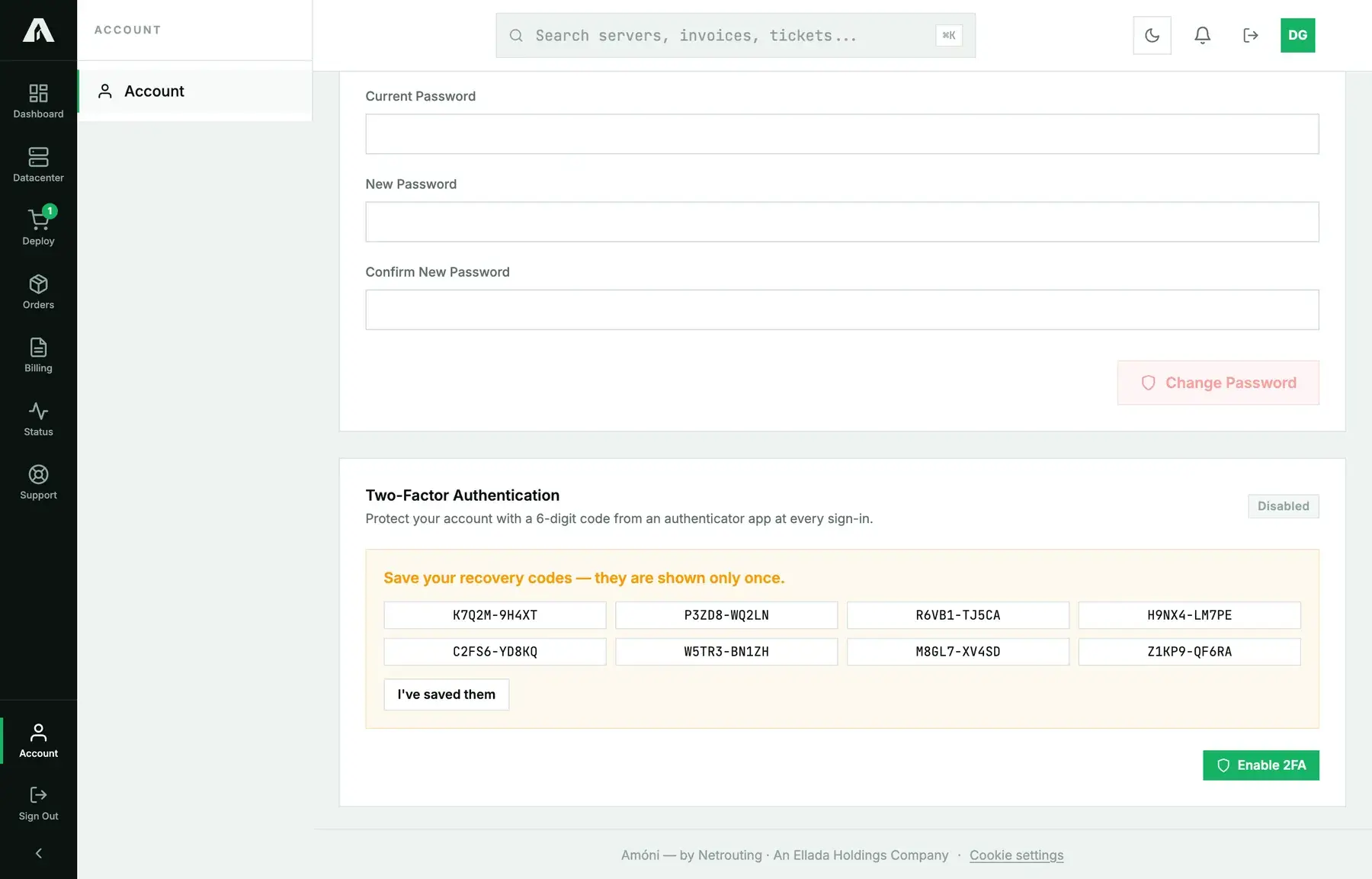
- Eight recovery codes appear, and you only see them once. Copy them somewhere safe now (the next section explains why).
Keep the recovery codes
A recovery code gets you in when the phone is gone: lost, wiped, replaced, or sitting in a drawer at home while you're at the datacenter. Each code works once. Keep them wherever your other secrets live (a password manager entry, or a printed sheet somewhere safe), and never in a note on the same phone that runs the authenticator. If you run out, disable two-factor authentication and turn it back on for a fresh set.
What signing in looks like now
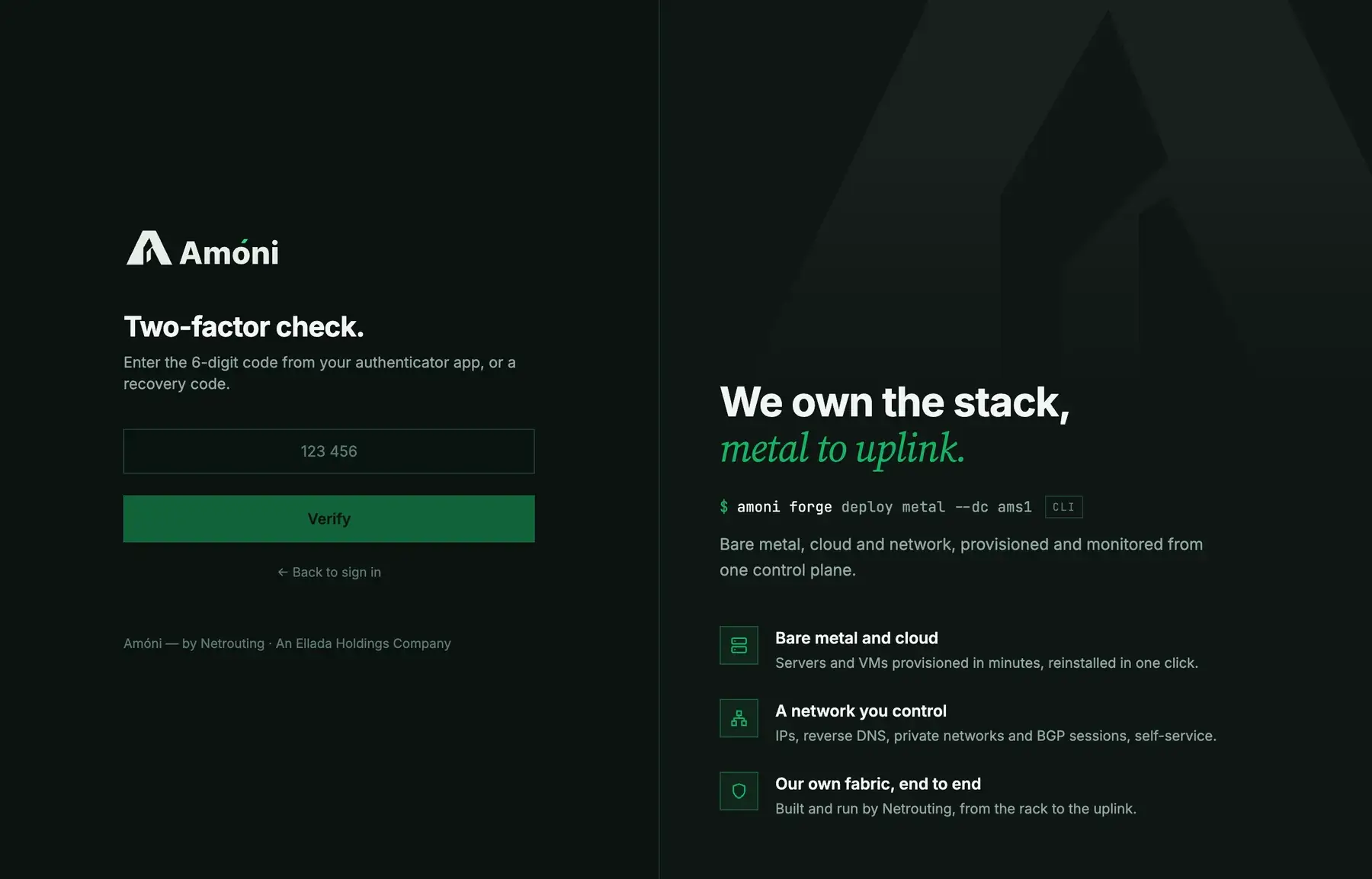
After your password, the sign-in page asks for the code from your app, and a recovery code works in that same field. Nothing else changes. Pages inside the portal have no extra step, and API keys aren't affected, because they never sign in.
There's a separate check, too: signing in from a browser we haven't seen before may ask for a code sent to your email. That happens whether or not two-factor authentication is on. On a computer you use regularly, tick Trust this device for 60 days and it won't ask again for that period.
Turn it off, or move it to a new phone
On the Security tab, click Disable 2FA. You'll be asked for your account password and a current code (a recovery code works too). Moving to a new phone is two steps: disable with a code from the old phone or a recovery code, then enable again and scan with the new one. Do it before you hand the old phone in.
Troubleshooting
- “That code did not match.” Codes depend on the clock, so check that the phone sets its time automatically, then wait for the next code and try again. If it keeps failing during setup, scan the QR code once more. Some apps create a duplicate entry on a second scan of the same code; delete the first one.
- I lost the phone and the recovery codes. Contact support from the account's email address. Once we've verified who you are, we reset two-factor authentication on the account and you set it up again. It takes longer than a recovery code would have.
- A colleague needs to sign in too. Don't share your login or your codes. Link them under Account → Contacts with a login and role of their own; see invite your team.
- I want two-factor authentication for a script. Scripts use API keys instead. They're scoped, and they never ask for a code. You create them under Account → API Keys.
Still stuck?
Open a support ticket or email support@netrouting.com from the address on the account. If you're locked out, say so in the subject line and we'll prioritize it.