
Ordering a server at Netrouting happens in a shop, not on a sales call. You configure the machine at shop.netrouting.com, check out (an existing account is optional), pay the invoice, then follow the install from the portal. You aren't charged anything before you pay, and setup starts the moment you do. Below is the whole path once, plus what's useful to know before you click.
Before you start: what can be configured, and where
The three product lines don't behave the same way at checkout.
- Bare metal is where you get to configure things: memory, disks, RAID layout, operating system, bandwidth, IP blocks, DDoS tier and a set of tick-box addons. What's on offer depends on the server's port speed (see the table below).
- Cloud Compute and Optimized Cloud instances come in fixed sizes. At checkout you pick the OS template and can add disk (10 to 2000 GB at €0.10 per GB per month), and Optimized Cloud also takes backup slots. One IPv4 address and the plan's transfer are included. The order form has no bandwidth or IP option to change.
- Colocation is priced purely by the options you pick: location, term, rack units, power, IP block, and metered or unmetered bandwidth.
On bare metal, the port a server is built with decides which network options you get:
| Line | Port and included transfer | Unmetered options | IPv4 blocks | Addons |
|---|---|---|---|---|
| Express / Instant (E3-1230 v3) | 1G, 17 TB outbound | none | 1 address, or a /29 | none |
| Edge (E3-1270 v6, Ryzen 7 3700X) | 1G, 100 TB outbound | 1G or 2G unmetered | 1 address, /29 to /26 | full set |
| Edge Pro and up (Ryzen 9, EPYC 4545P, Bandwidth, Compute, Accelerator, Pro, Memory) | 10G, 100 TB outbound | 1G, 2G, 5G, 10G or 20G unmetered, or internal network only | 1 address, /29 to /26 | full set |
Metered plans only count outbound traffic. Inbound is free. On Edge and above, the addons are IPv6 /64, private network (VLAN), bring your own IP space, bring your own ASN, and the two managed-service options. DDoS protection at 20 Gbps comes with every bare-metal server; the 50 Gbps premium tier costs €50 more.
You'll run into two more choices on bare metal:
- Instant or custom build. Instant means a machine with that spec is already in stock at that location, and it's yours within minutes of payment. Custom means our engineers assemble it to your specification; the product page gives the lead time (typically three to five business days). The same page shows, per location, how many are available for instant deployment.
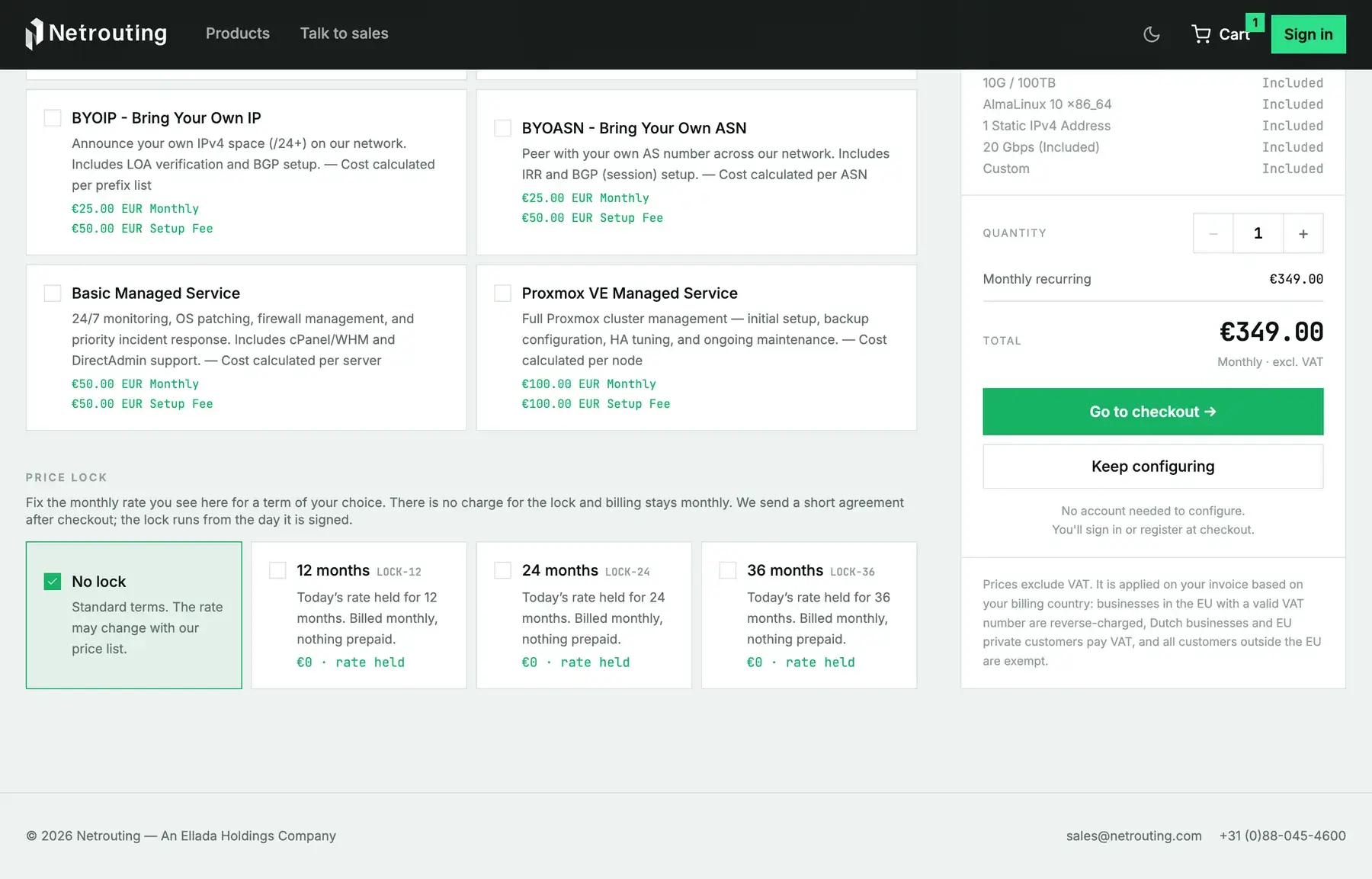
- Price lock. Where a plan offers it, you can fix the monthly rate for 12, 24 or 36 months. The lock itself costs nothing, and you're still billed monthly. It takes a short agreement after checkout, and the lock runs from the day you sign it.
Step 1: Configure the server
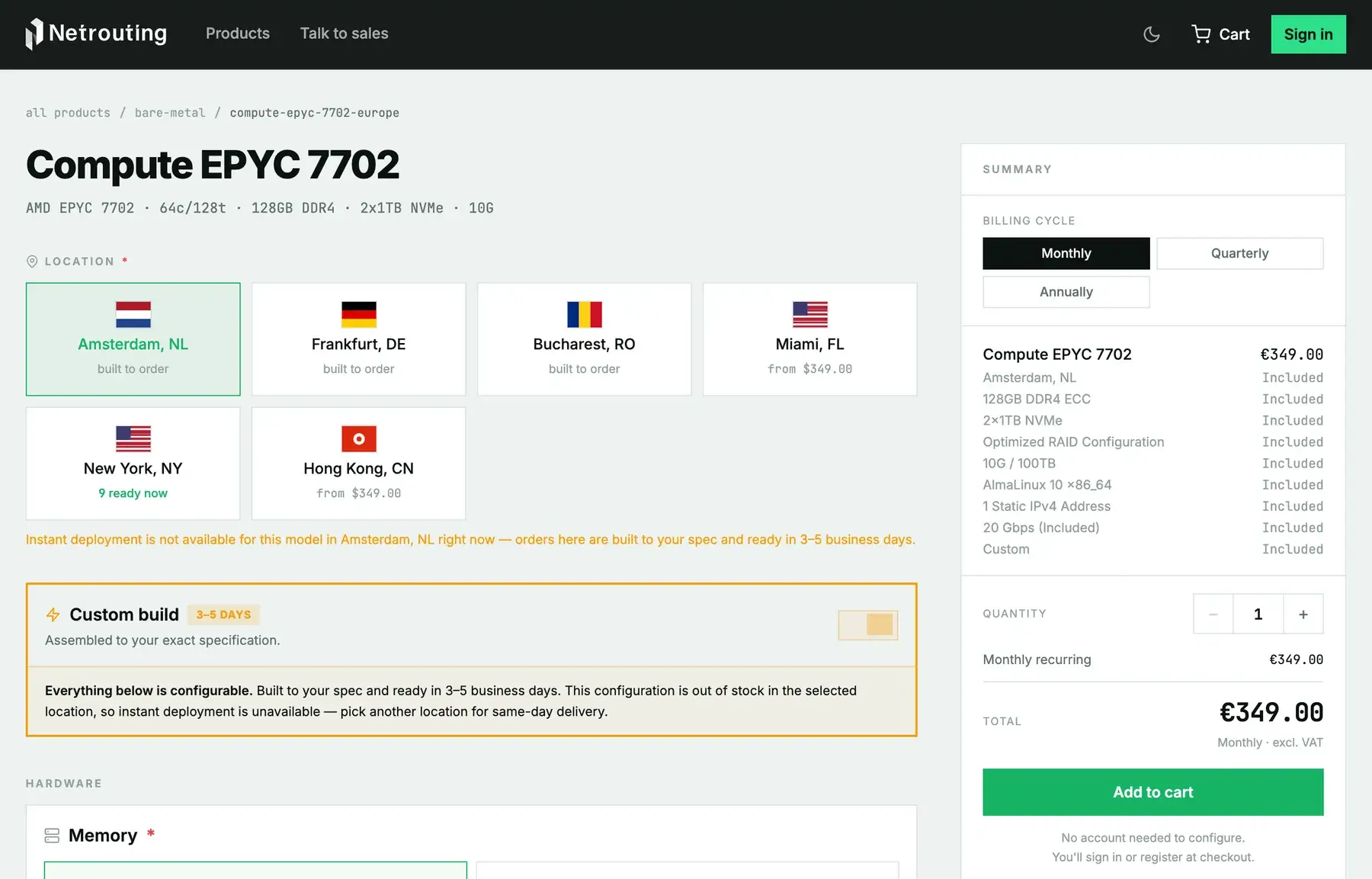
- Open shop.netrouting.com, pick a category and, if you already know where the machine should live, filter by location. Each card shows the base price and whether there's instant stock at that location.
- Click Configure on a plan. The page is laid out the way you'd think about a server anyway: Location and billing cycle at the top, then Hardware (memory, primary disks, secondary disks, RAID), Software (operating system, SSH key), and Network (bandwidth, IPv4, DDoS).
- Choose the billing cycle. Monthly is the default. Bare metal also offers quarterly and annual.
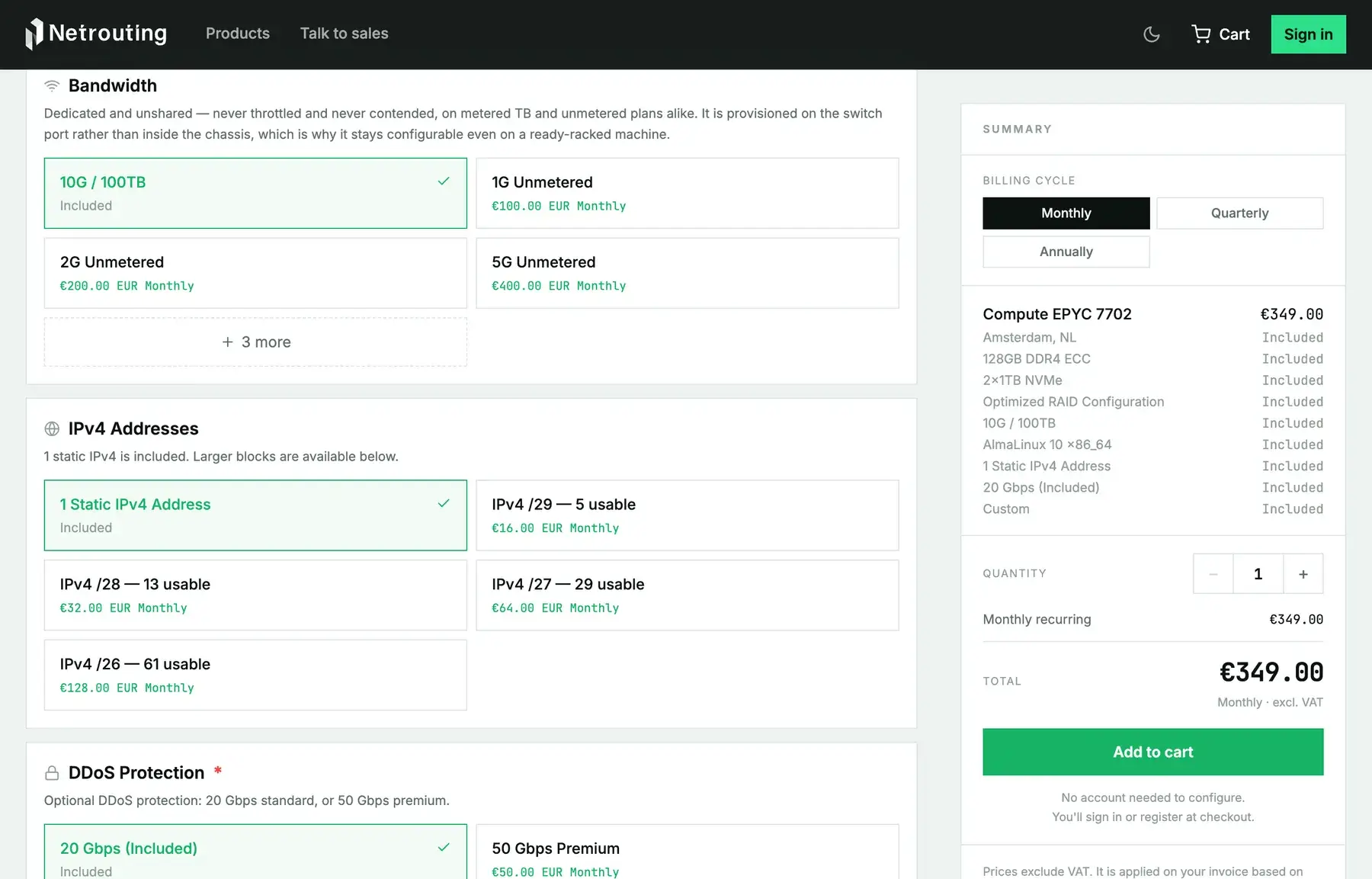
- Set the bandwidth. The included metered allowance is already selected, and next to it sits the unmetered ladder for that line, each step with its monthly price.
- Set IPv4 addresses if a single address won't do. Blocks run from /29 (5 usable) to /26 (61 usable). The guide on IP addresses on Netrouting servers explains what usable means. On Edge and above, IPv6 is a free addon further down the page.
- Tick any addons you need. Managed services aren't priced on the page; they're quoted on the invoice.
- Set the quantity when you want several identical machines. Every one of them gets its own hostname at checkout.
- Click Add to cart. The cart badge in the header counts the new line. From there, configure another plan or head to checkout.
Step 2: Check out
Browsing and configuring don't need an account. Checkout asks for the details any invoice needs and creates the account from those.
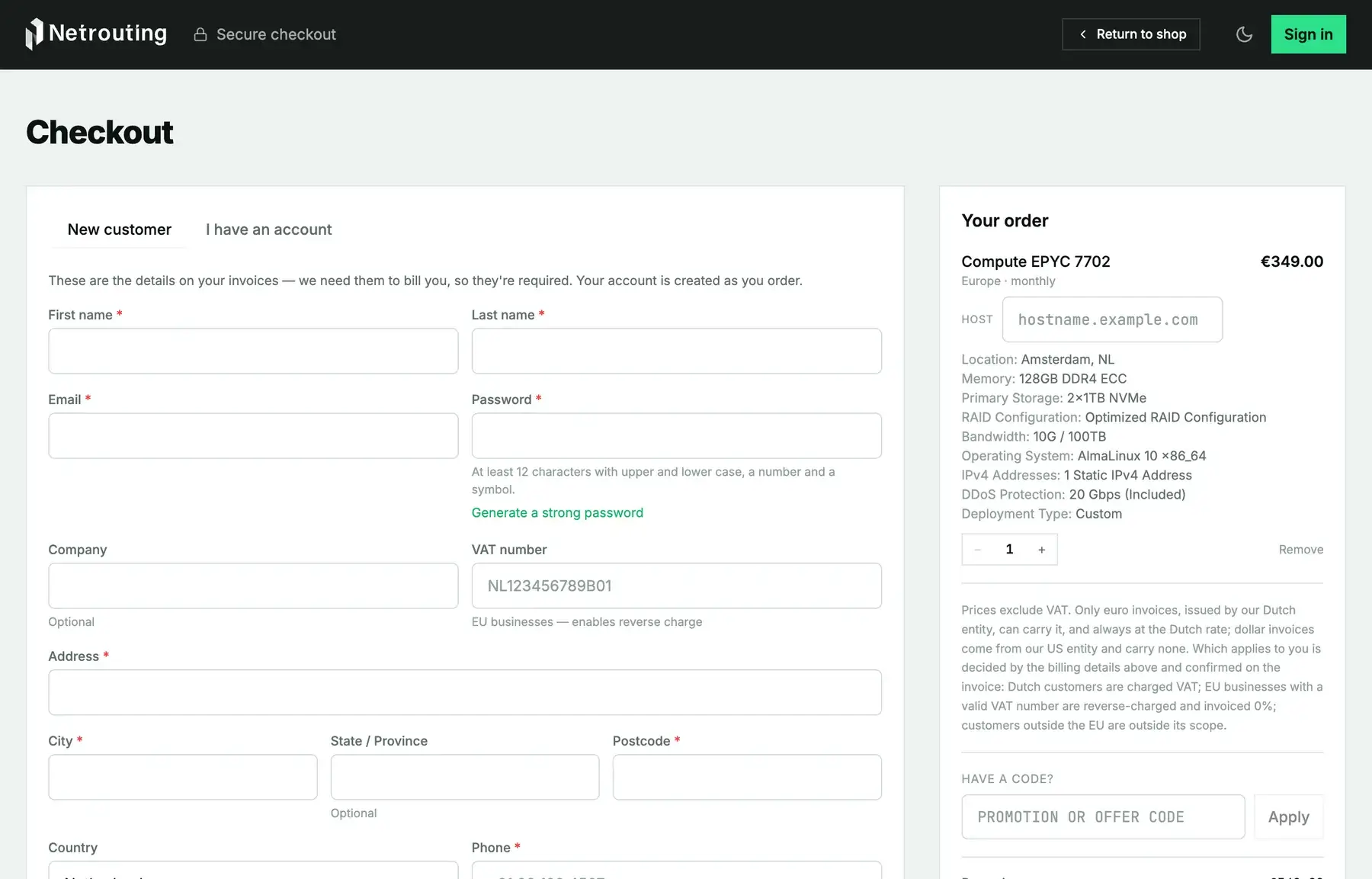
- Open the cart and click Checkout. Every machine in the cart comes with a proposed hostname. If you'd rather have something else, change it now.
- Choose New customer or I have an account. If you're already a customer, sign in with your Amóni email and password. With two-factor on, sign in through the portal first; your cart is kept.
- New customers enter a name, email and password, plus the billing details: company (if you're a business), VAT number for EU businesses, address and phone. They're required because they go on the invoice.
- If you have a promotion or offer code, apply it in the summary panel.
- Check the total, which is shown excluding VAT. Dutch customers pay Dutch VAT. EU businesses with a valid VAT number are reverse-charged. Customers outside the EU, and anyone buying from our US entity, fall outside its scope. Your invoice confirms which case applies.
- Click Create account & order (it reads Confirm order if you're signed in).
Step 3: The two checks on a first order
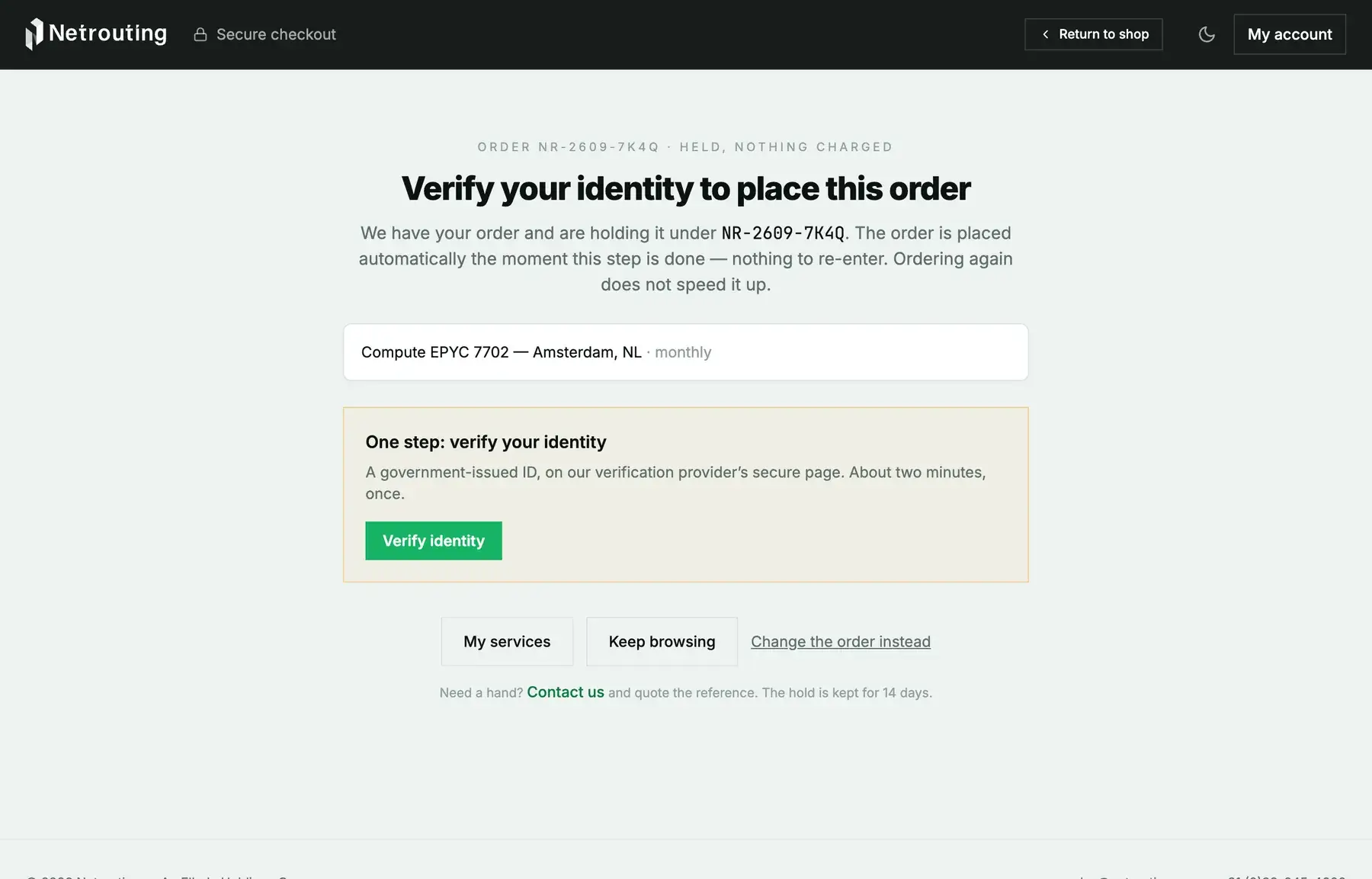
Your first order is held until two things are done. You aren't charged while it waits, and the order goes through by itself the moment the last step is complete, so there's nothing to re-enter. Placing the order again won't speed it up. We keep the hold for 14 days.
- Confirm your email. The activation email has your order reference in its subject line. Click the link in it and the order goes through.
- Verify your identity (individuals) or your business (companies). A single button on the hold page opens our verification provider's secure page. With a government ID it takes about two minutes; a company registration check takes a few. Details are in verify your account.
You do both checks once per account, and every later order skips this step.
Step 4: Pay the invoice
The invoice comes by email and also sits under Billing in the portal. Pay it by card from the invoice page. If you save the card and switch on auto-pay, later invoices settle themselves. Other ways to pay are listed on the invoice itself. As soon as the payment registers, setup begins.
Step 5: Watch the setup
Once you've paid, the portal takes you to the setup page (you'll also find it under Orders). It lists every machine on the order with its state, next to a terminal narrating what our systems are doing. Each line in that terminal comes from a real event. None of it is invented.
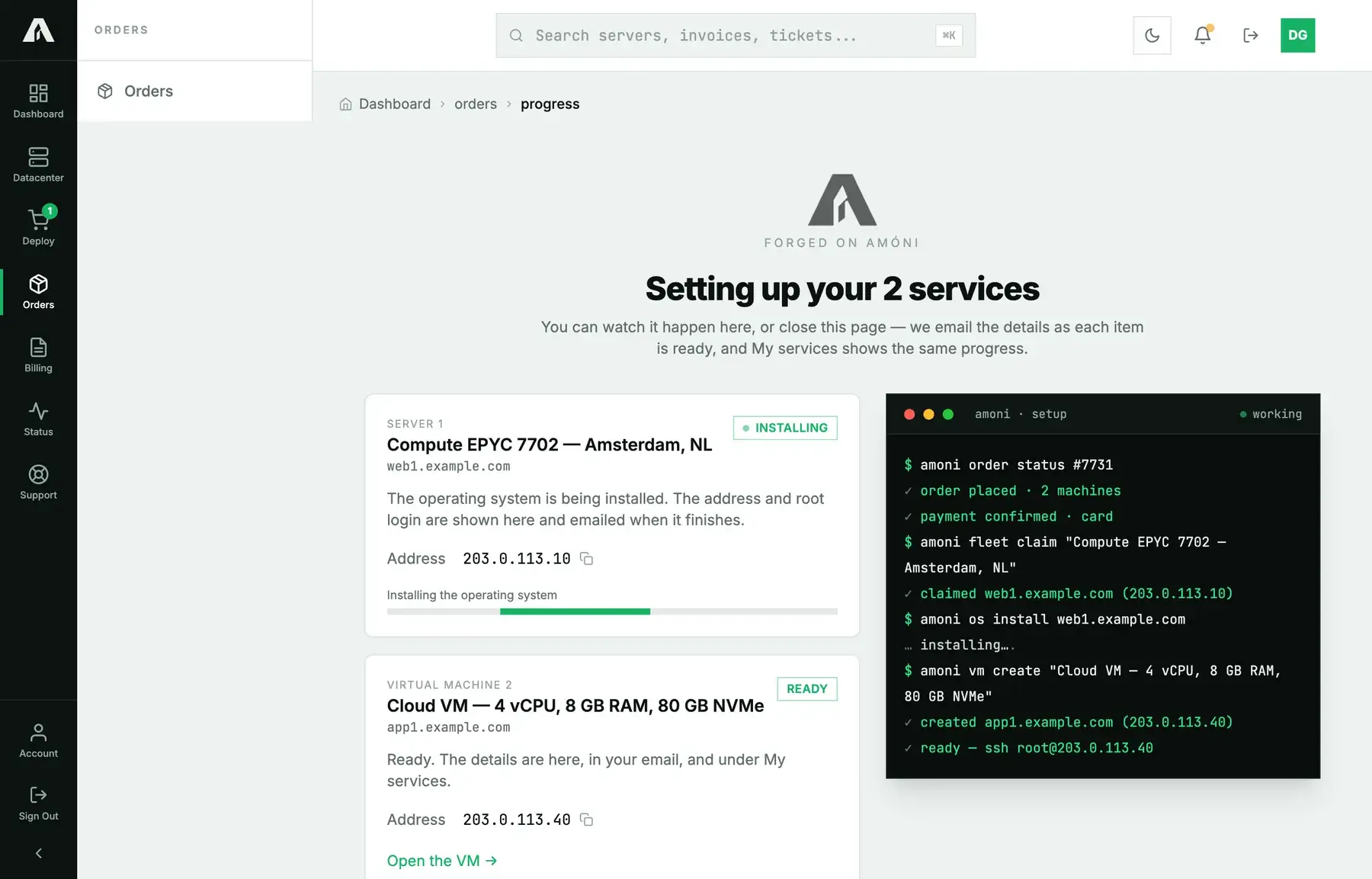
The states you'll run into:
| State | Meaning |
|---|---|
| Awaiting payment | The invoice is still open. Setup starts once it's paid. |
| Registering, Finding a machine | We're registering the service and matching it to stock. This usually takes minutes. |
| Installing, Creating | The operating system is being installed (bare metal) or the instance created (cloud). The IP address shows up here the moment it exists. |
| Ready | Done. You'll find the address and root login on this page, in your email and under Orders. |
| Custom build | Our engineers are assembling your machine. We email you when it's ready, within the lead time shown at checkout. |
| With our team | People, not automation, handle colocation, network and license orders. Expect the details by email, usually within one business day. |
| Needs our attention | Something went wrong on our side. We've already been alerted, and there's nothing you need to do. |
This page shows the root password once, and it's also sent to your email. An SSH key you stored before ordering is already installed; see SSH keys on Netrouting.
After it is ready
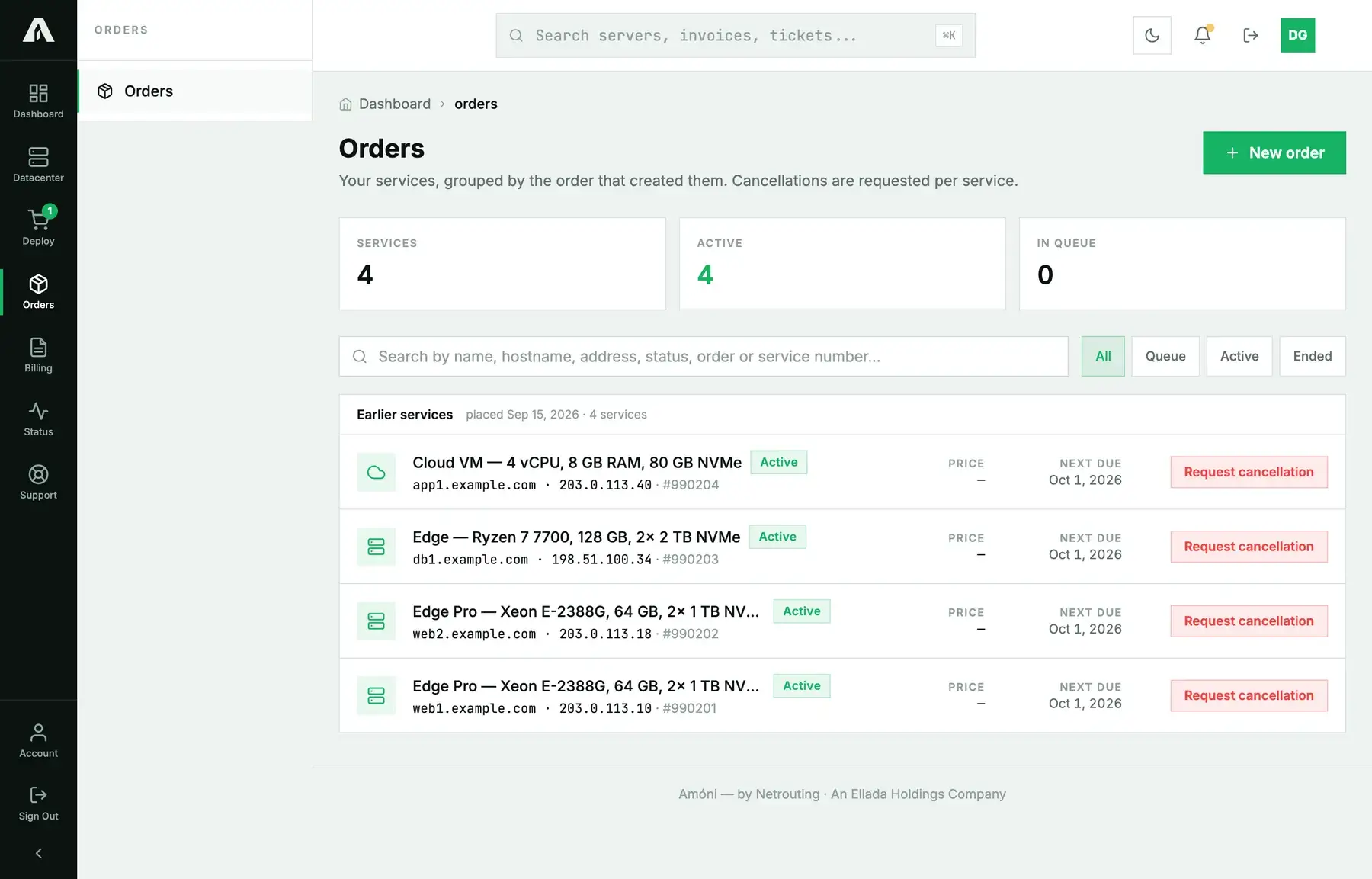
The server appears under Servers (or Virtual Machines), with tabs for power controls, console, reinstall and rescue. Most people start with three things: set reverse DNS for the address, open the remote console once so you know your way around it before you actually need it, and check the bandwidth graphs after the first day of traffic.
Troubleshooting
- I want to change the configuration but the order is held. Use Change the order instead on the hold page. Your new checkout replaces the held order.
- I paid but the page still says awaiting payment. Card payments register within a minute; a bank transfer only counts once it's booked. If your bank shows a card payment as paid and this page still doesn't after fifteen minutes, open a ticket with the invoice number.
- The product page says the configuration is out of stock at my location. Instant stock is counted per location. Choose another location to get a machine the same day, or stay where you are and accept the custom-build lead time.
- I cannot add more IPs or unmetered bandwidth. That's by design on the Express and Instant line, where a /29 is the largest block and the port is metered only. For bigger blocks and unmetered options, pick an Edge or Edge Pro plan.
- The order shows Needs our attention. Our team already got an automatic alert. If a few hours go by without word from us, open a ticket quoting the order reference.
- I ordered the wrong thing. If you haven't paid, nothing has happened yet: let the hold expire, or contact sales with the reference. If you have paid, open a ticket the same day.
Still stuck?
Email sales@netrouting.com with the order reference, or open a support ticket from the portal once you're signed in. With the reference in hand we can see exactly where the order stands.