
Invoices live under Billing in the portal, and you can pay any of them by card in a few clicks. Save the card once and your invoices can pay themselves before they're due. Both are covered below, along with the one email from us that tends to puzzle people: your bank asking you to confirm a payment.
Where your invoices are
Open Billing in the sidebar. You'll see every invoice with its date, due date, amount and status (Unpaid or Paid), and the outstanding total sits at the top. You can search by invoice number or amount, or show only unpaid ones. Each new invoice is also emailed the moment it's issued, to the account email and to any billing contacts you've added.
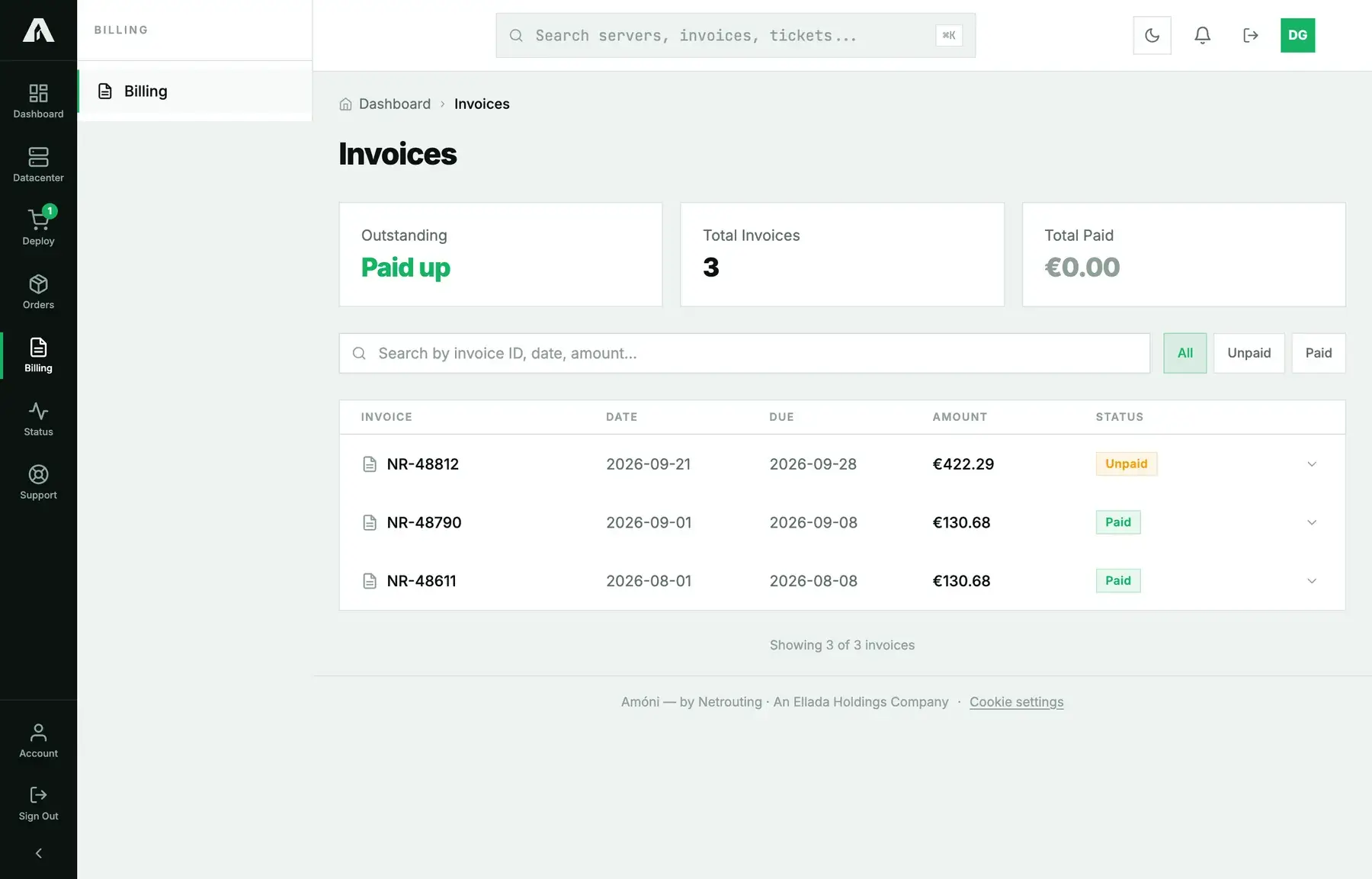
Pay an invoice by card
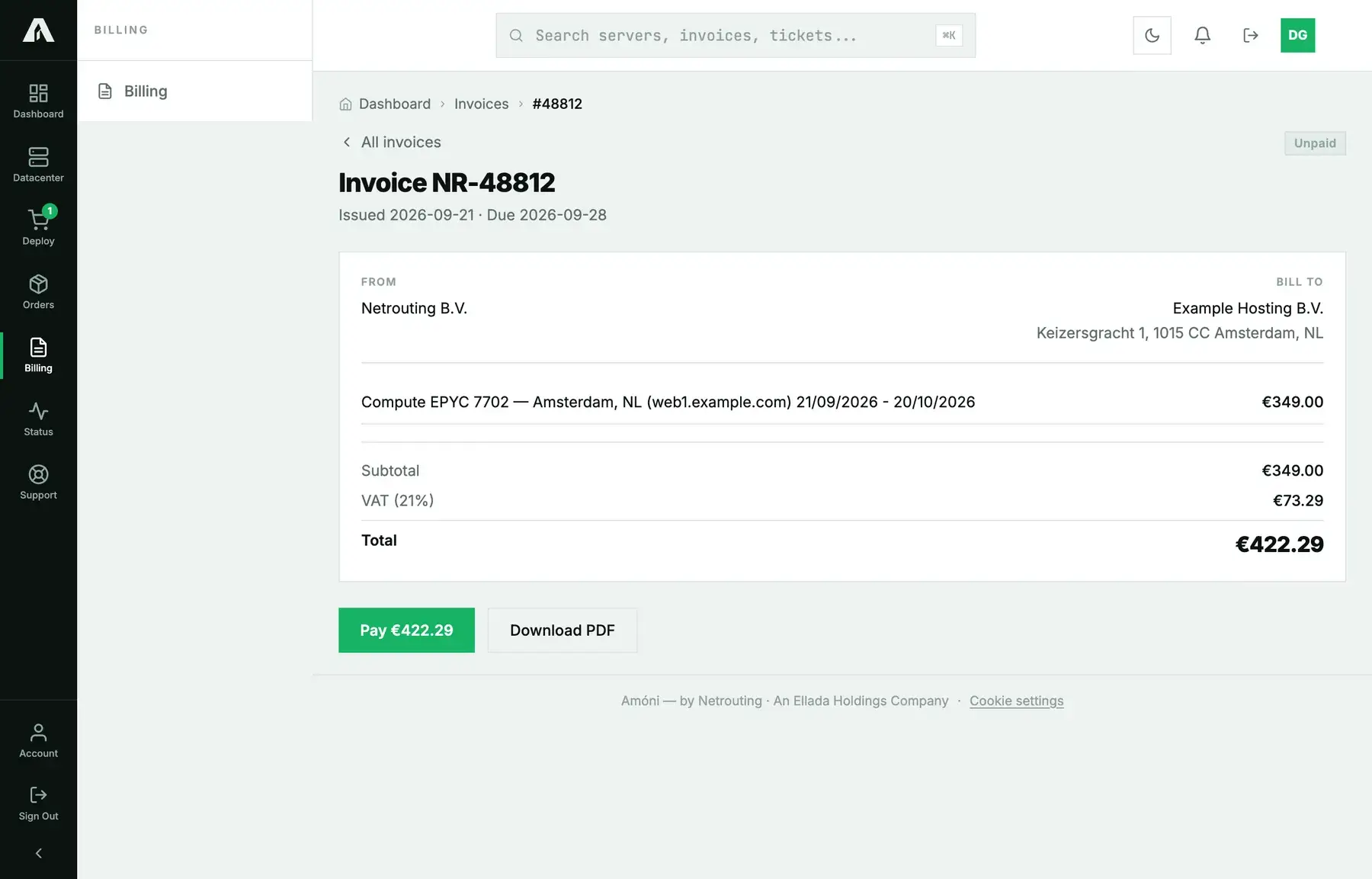
- Click the invoice. Its detail page shows the seller (Netrouting B.V. for euro invoices, Netrouting, Inc. for dollar invoices), your billing address, the line items, VAT and the total. Download PDF gets you a copy for your records.
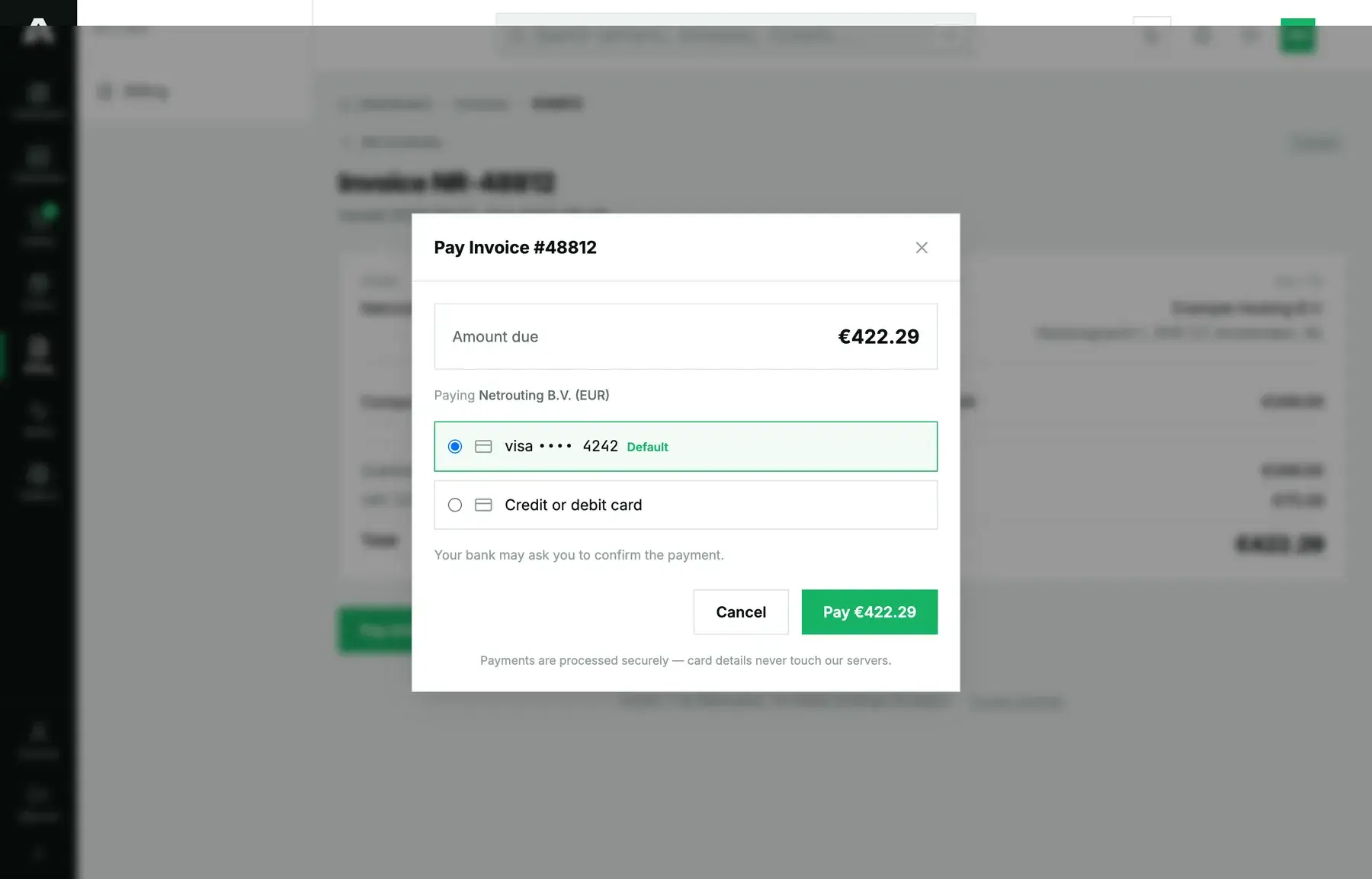
- Click Pay. A dialog opens with the amount due and your options: a card you already have on file, or a new one.
- With a saved card, click Pay again and that's it. For a new card, type the number, expiry and CVC into the secure form. That form belongs to our payment processor, so the card number never reaches Netrouting.
- If your bank wants to confirm the payment (3-D Secure), its prompt opens right inside the same dialog. Approve it in your banking app and the payment goes through.
- The invoice flips to Paid and the receipt follows by email. If a server was ordered on that invoice, its setup starts now.
Other payment options, a bank transfer for instance, are printed on the invoice PDF. A transfer only counts once it's booked, and that matters when the invoice is holding up a server order.
Save a card and let invoices pay themselves
Open Account and go to the Payment Methods tab.
- Click Add card and fill in the secure form. Your bank might ask you to confirm the card once, on the spot.
- The card shows up with its brand, last four digits and expiry. Whichever card you save first becomes the default. Once you have several, you choose which one is the default.
- Tick Pay invoices automatically with the default card. From then on, each new invoice is charged to that card a few days before its due date (the page says exactly how many). Untick it and your cards stay saved, but only for one-click payments.
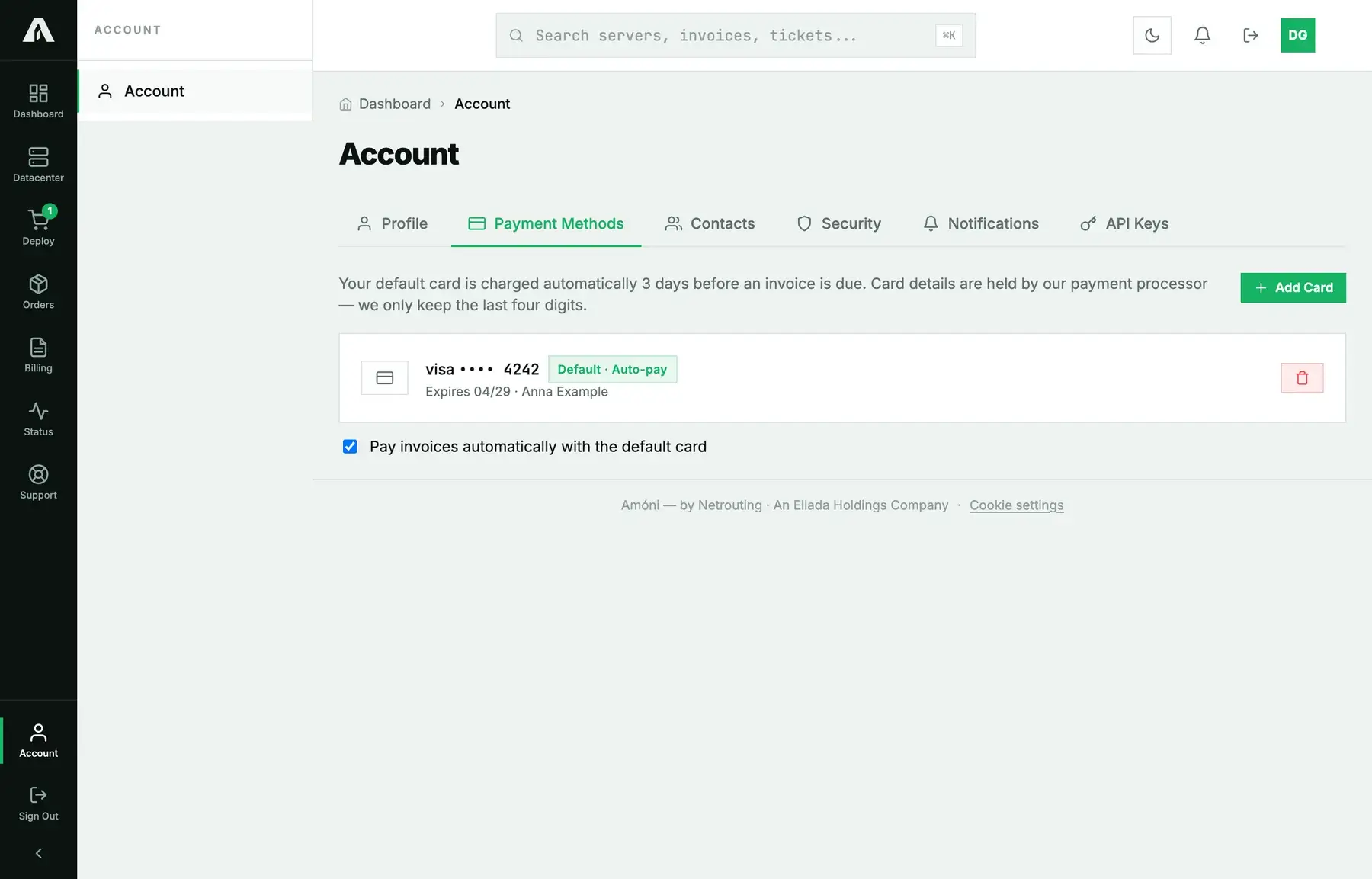
With services at both our Dutch and our US company, you'll see two card lists, one for each. They're separate businesses with separate payment processors, so a card saved with one can't pay the other's invoices. Save it in both places.
“Your bank asked you to confirm a payment”
Now and then a bank won't charge a saved card without asking, and wants the cardholder to approve it first. If that happens to an automatic payment, we email you a link straight to the invoice, and the same notice shows on the Payment Methods tab. Open the link, click Pay, approve the bank's prompt and the invoice is settled. Nothing else changes, and auto-pay stays on for the next one.
Troubleshooting
- The card is declined. The dialog shows whatever reason the bank gave. Most often it's a daily limit, a card that isn't enabled for online use, or a bank that wants the confirmation step. Try once more, and if it fails again, use another card.
- I paid but the invoice still says Unpaid. Card payments register within a minute, so reload the page. A bank transfer shows as paid only once our billing books it.
- Auto-pay did not run. Make sure the card hasn't expired (the page marks expired cards) and that auto-pay is ticked for the company that issued the invoice.
- “Saving cards is not available for this billing account yet.” Card saving is turned on per billing account. Contact billing and we'll switch it on.
- I want to remove a card. Click the bin icon next to it. If it's the default card, auto-pay turns off until you pick a new default.
- The invoice needs a different company name or VAT number. Update the details under Account before the next invoice goes out. If an invoice that's already issued needs correcting, open a ticket with the invoice number.
Still stuck?
Open a support ticket in the Billing department, or email billing@netrouting.com, and include the invoice number. Never send card numbers by email or in a ticket: we can't use them, and we'll ask you to pay through the portal instead.