
Amóni is the Netrouting customer portal at amoni.app. A single account holds everything you have with us: bare-metal servers, cloud instances, colocation, IP space, invoices and support. It's free to create, it takes about a minute, and nobody asks for a card.
You can get one in two ways. Either sign up now and order later, or begin in the shop and the checkout creates the account along the way. The first route is what this page walks through; for the second, see order your first server. Both give you exactly the same account.
Step 1: Sign up
- Go to amoni.app/join.
- Enter your email address. Pick one you actually read, because invoices, service notices and the activation link are all sent there.
- Choose a password. It needs at least 12 characters, with upper and lower case, a number and a symbol. The form shows what's still missing as you type, and Generate a strong password creates one for you if you keep a password manager.
- Company is optional at this point. If the account belongs to a business, fill it in now and you'll skip a step at checkout.
- Confirm you've read the General Terms and Conditions. Ticking the newsletter box is up to you.
- Click Join.
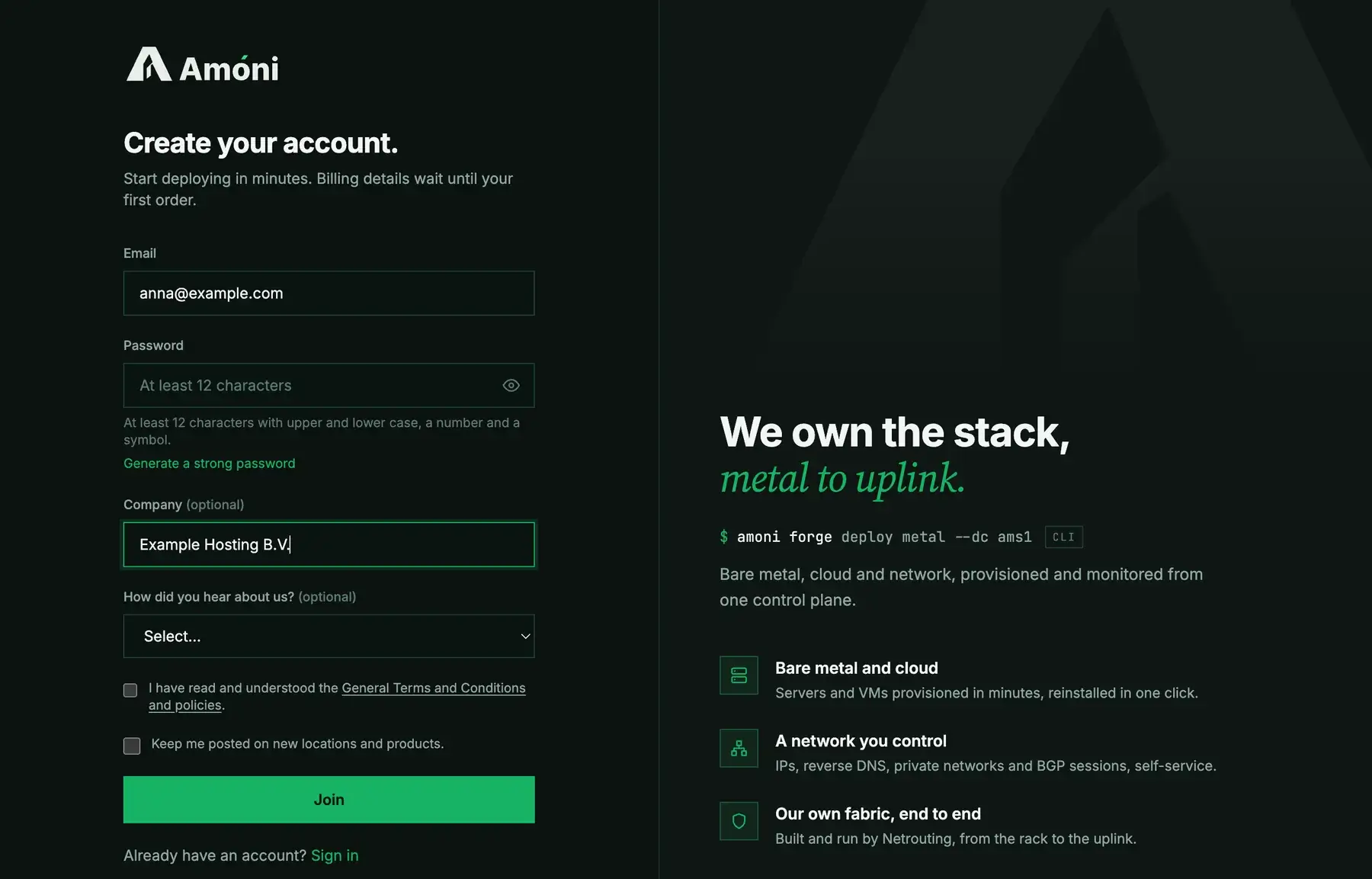
That's all there is to the form. You go straight into the portal, already signed in.
Step 2: Confirm your email address
A message from Netrouting with an activation link should arrive within a minute. Click the link, and you'll see Email confirmed before you're sent back to the portal.
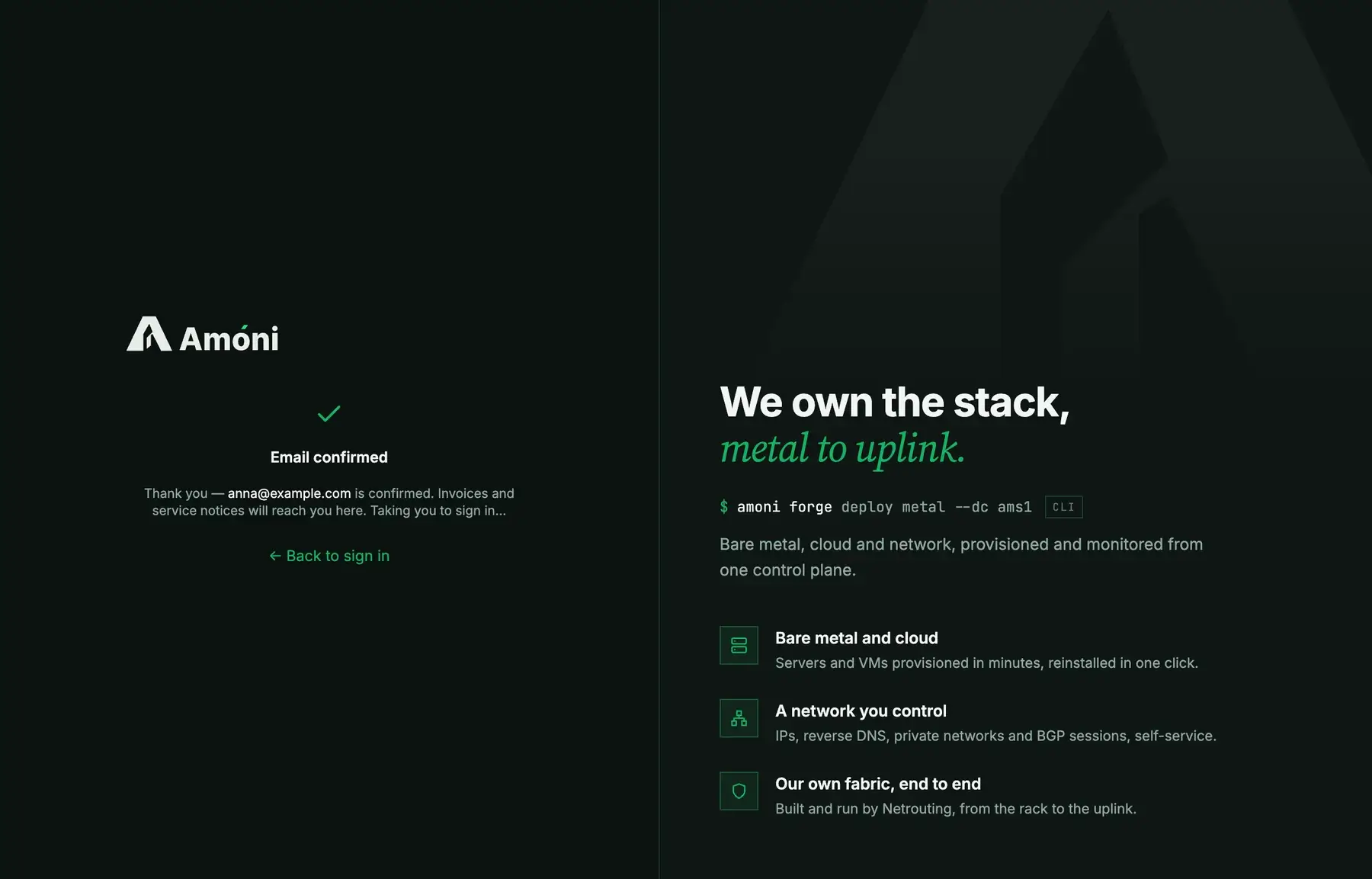
Before you click the link, you can sign in and look around, but any order you place waits until the address is confirmed. A banner at the top of the portal keeps reminding you and has a button to resend the link. If you typed the address wrong, fix it under Account and send the link again.
Step 3: Your first look at the portal
A new account starts out empty, with no servers, no invoices and €0.00 due. Even so, the sidebar already lists everything the account can hold. Datacenter is where your servers, cloud instances, colocation and IP addresses show up; Billing has invoices and payment methods; Support is for tickets. The green Deploy button takes you to the shop.
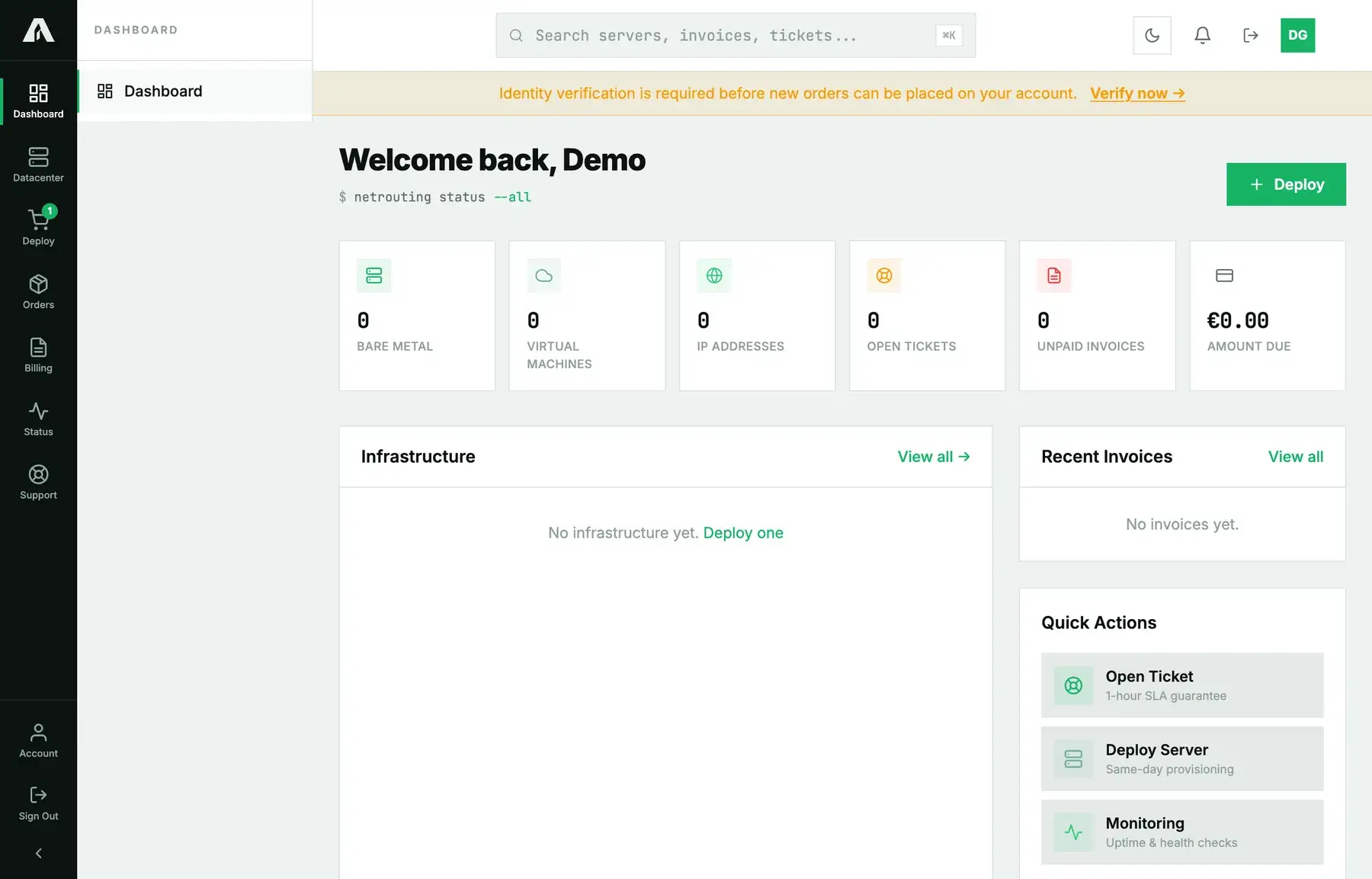
That amber banner isn't an error. We verify every account once before its first order goes live, and the portal says so up front so it doesn't surprise you at checkout. Do it now or when you order; see verify your account for what's involved. For an individual it takes about two minutes.
Already a Netrouting customer?
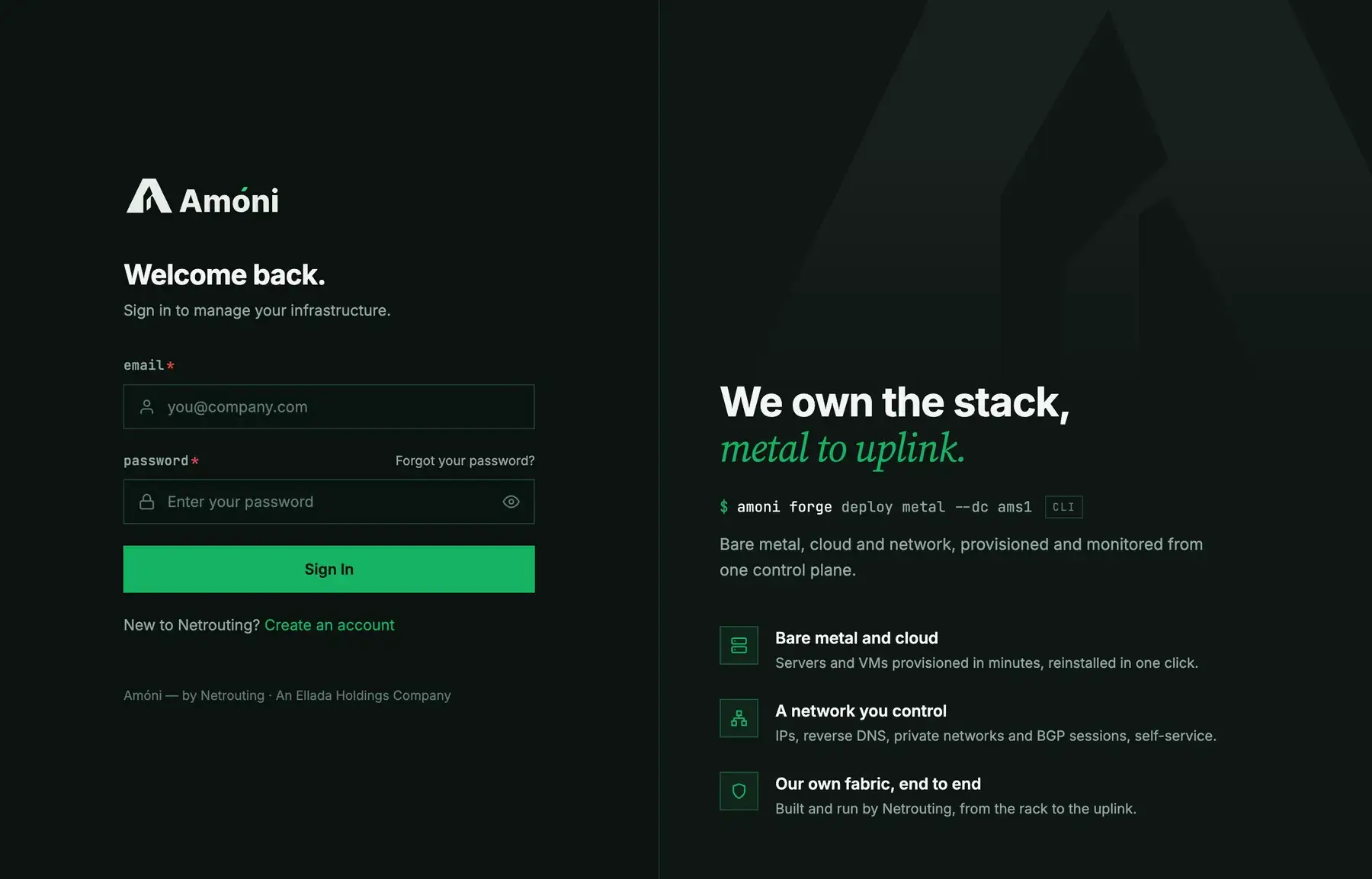
If you had a client-area login before Amóni, don't sign up again. Sign in at amoni.app/login using the email address your invoices go to. If the password doesn't work, use Forgot your password? on the sign-in page. Your services, invoices and tickets are already there waiting.
Worth doing in the first week
- Turn on two-factor authentication under Account. After that, signing in from a new browser asks for a code, and you can trust a device for 60 days so you aren't asked every time.
- Invite the people who work with you rather than handing out your password. Each contact gets their own login, limited to what they need.
- Store your SSH public key once under SSH Keys, and any server or cloud instance you order can be installed with it. See SSH keys on Netrouting.
- Automating things? You create API keys under Account, each with its own scopes. The reference lives at api.amoni.app/v1/docs.
Troubleshooting
- No activation email. Look in spam first, then use Send the activation link again in the banner. If ten minutes pass and there's still nothing, the address is most likely mistyped. Correct it under Account and resend.
- “This email address is already in use.” There's already an account on that address, maybe one from before Amóni. Sign in with it, or reset the password.
- The password is refused. It needs all four parts: 12 characters, upper and lower case, a number, a symbol. The hint below the field tells you which one is missing.
- The activation link says it is invalid or expired. Each link works only once. Sign in and ask for a fresh one from the banner.
- The verification banner is still there after I verified. The verification provider can take a few minutes to send the result back. Reload the page. If the banner is still there after an hour, open a ticket.
Still stuck?
Open a support ticket from the portal, or email support@netrouting.com from the address you signed up with, and tell us what you're seeing. Once we know which address it is, account problems are usually quick to sort out.