
Reinstalling puts a fresh operating system on your machine. On a bare-metal server that means choosing the image, how the disks are partitioned, which SSH keys and post-install scripts go on, and letting the installer run for up to fifteen minutes. On a cloud instance it is a rebuild: the disk is recreated from a template in a few minutes.
Every disk is erased. There is no undo and no automatic snapshot. Back up anything you need first: a cloud instance can take a snapshot or backup before you rebuild; a bare-metal server needs its data copied off.
Three things worth deciding before you start:
- How will you log in afterwards? Supply SSH keys and the new system accepts only those keys for root. Supply none and a root password is generated for you, shown once on the page and kept available for 48 hours.
- Which hostname? It must be a fully-qualified name (
web1.example.com, notweb1). It becomes the machine's name and its reverse DNS. - Anything staged from the App Library? Apps you queued install during this reinstall or rebuild. The page reminds you which ones; cancel them on the Apps tab first if that is not what you want.
Method 1 — In the portal
Bare-metal servers
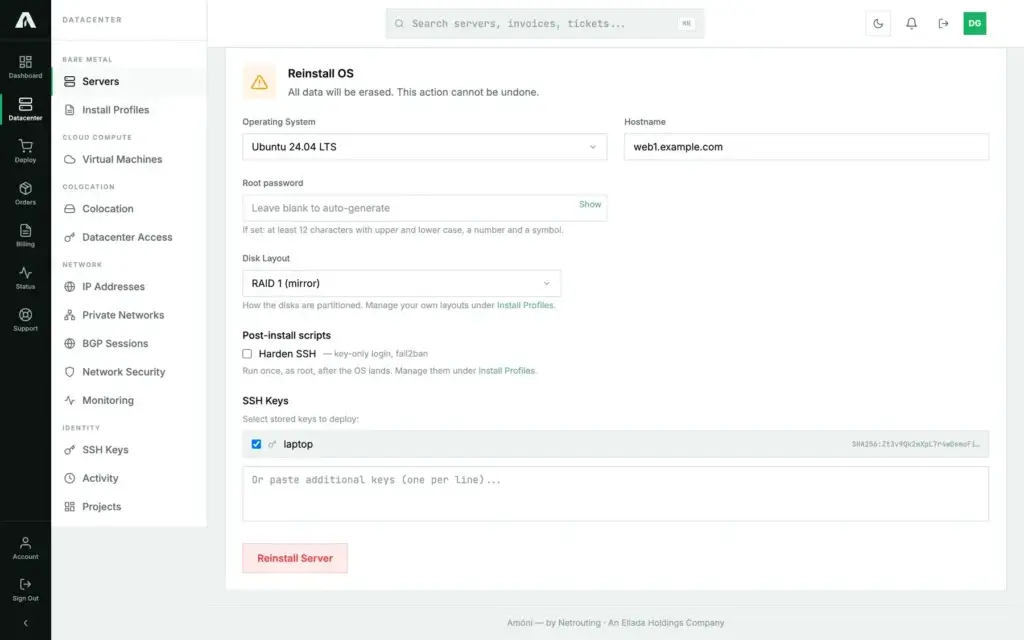
- Log in at amoni.app, open Servers, click the server, then the Reinstall tab.
- Operating System — pick the image. The list is what this machine can install; Windows images are included where licensed.
- Hostname — pre-filled with the current one. Change it if you like; it must be fully qualified.
- Root password — leave blank to have one generated. If you set your own it needs at least 12 characters with upper and lower case, a number and a symbol; the form tells you what is still missing.
- Disk Layout — Default partitioning uses the image's own scheme. Standard layouts are the platform's RAID and single-disk schemes. Your layouts are the ones you created under Install Profiles.
- Post-install scripts — tick any of your scripts to run once, as root, after the OS lands. Up to five. Managed under Install Profiles.
- SSH Keys — tick stored keys, or paste additional public keys one per line. A malformed key is flagged as you type.
- Click Reinstall Server. The installer starts at once.
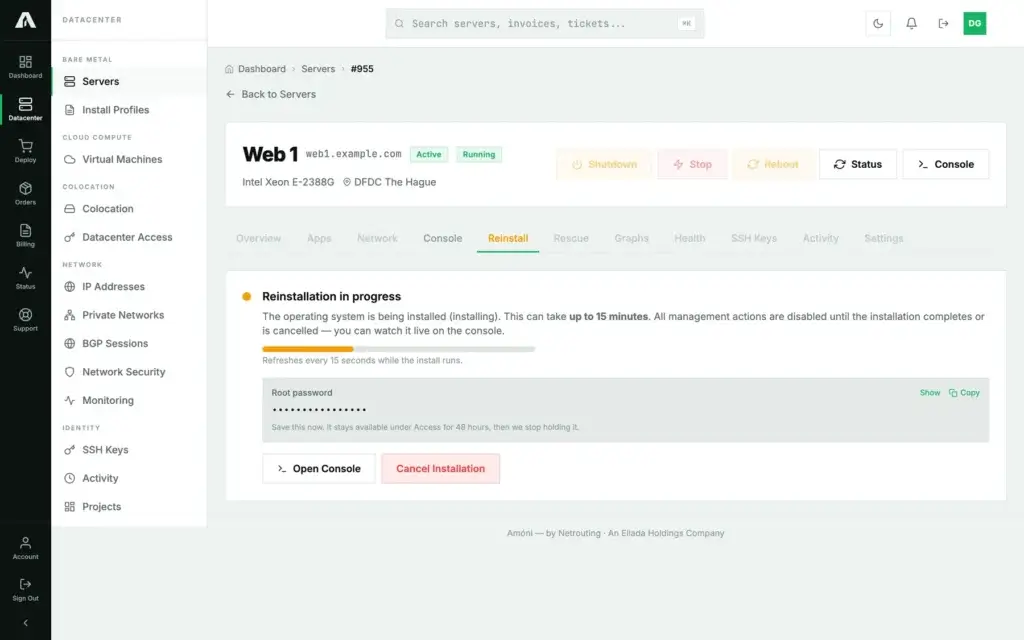
The page switches to Reinstallation in progress and stays there until the installer reports completion, refreshing every fifteen seconds. If a root password was generated it is shown in this card: click Show or Copy and save it now. All other management actions are disabled meanwhile; Open Console lets you watch the install, and Cancel Installation stops it as long as nothing has been written to disk yet.
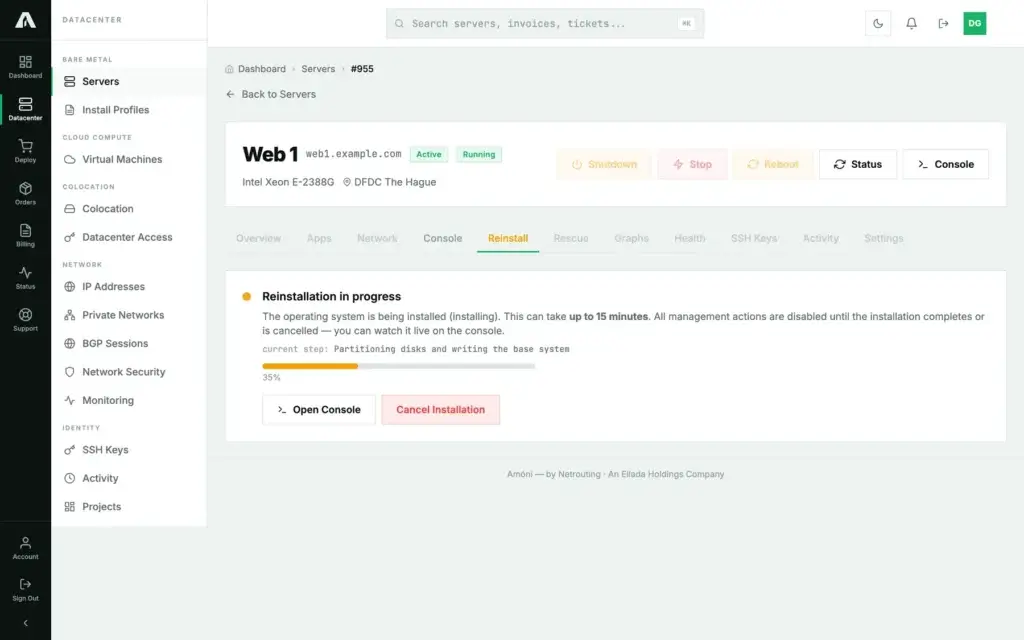
When it finishes the page unlocks, the Overview shows the new OS, and Access on the Overview tab keeps the generated root password for 48 hours. Change it once you are in; after that we no longer hold a copy.
Cloud instances
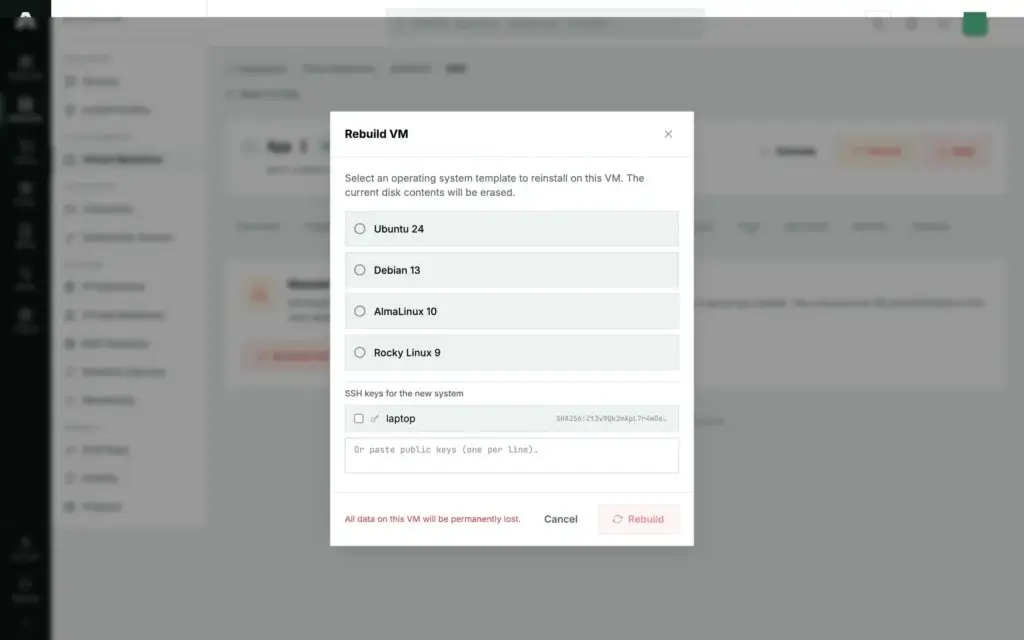
- Open Virtual Machines, click the instance, then the Rebuild tab.
- Click Rebuild VM. A dialog opens.
- Pick the operating system template.
- Tick stored SSH keys or paste public keys. Without a key, the new system is reachable by the root password you retrieve afterwards.
- Click Rebuild. The dialog's red line is the last warning.
The page reports VM rebuild initiated and shows the operation's progress until it succeeds or fails; power actions are disabled meanwhile. The fresh system boots by itself. If you gave no key, use reset password under Access to get a root password.
Method 2 — With the API
You need a key with the Servers scope (servers.write) or the VMs scope (vms.write). Reference: api.amoni.app/v1/docs.
Bare metal
1. See what the server can install. Profiles, the platform's standard disk layouts, your own layouts and your scripts, all in one call:
curl -s https://api.amoni.app/v1/servers/955/profiles \
  -H "Authorization: Bearer nr_live_..."
{
"success": true,
"data": {
"profiles": [ { "id": 11, "name": "Ubuntu 24.04 LTS", "os_slug": "ubuntu2404" }, { "id": 12, "name": "Debian 13", "os_slug": "debian13" } ],
"standard_layouts": [ { "id": 1, "name": "RAID 1 (mirror)" }, { "id": 2, "name": "RAID 0 (stripe)" } ],
"disk_layouts": [ { "id": 301, "name": "LVM, separate /var", "scope": "client" } ],
"scripts": [ { "id": 501, "name": "Harden SSH", "scope": "client" } ],
"utility": [ { "id": 90, "name": "Rescue system (Linux)" } ]
}
}2. Start the reinstall. Only profile_id is required. Use tos_disklayout_id for a standard layout or disk_layout_id for one of your own, never both. Stored keys go in ssh_key_ids (ids from /v1/ssh-keys); pasted ones in sshkeys.
curl -s -X POST https://api.amoni.app/v1/servers/955/reinstall \
  -H "Authorization: Bearer nr_live_..." \
  -H "Content-Type: application/json" \
  -d '{
    "profile_id": 11,
    "hostname": "web1.example.com",
    "tos_disklayout_id": 1,
    "ssh_key_ids": [42],
    "script_ids": [501]
  }'
{
"success": true,
"data": {
"message": "Reinstall started. This can take several minutes.",
"notice": null,
"applied": {
"os": "Ubuntu 24.04 LTS",
"disk_layout": "RAID 1 (mirror)",
"hostname": "web1.example.com",
"root_password_set": true,
"root_password_generated": false,
"ssh_keys": [ { "name": "laptop", "fingerprint": "SHA256:..." } ],
"pasted_key_count": 0
}
}
}Read applied rather than assuming: it says what actually went onto the machine. When something was dropped, for instance keys the installer refused, notice explains it in a sentence. If you supplied no password and no keys, root_password_generated is true and applied.root_password carries the generated password once.
3. Wait for it. The call returns as soon as the installer accepted the job. Poll the installation status until complete is true:
until curl -s https://api.amoni.app/v1/servers/955/provision-status \
        -H "Authorization: Bearer nr_live_..." | jq -e '.data.complete == true' >/dev/null; do
  sleep 30
done
echo "installed"
While it runs the payload carries status, step and, when the installer reports one, percentage. To abort before the disks are touched: POST /v1/servers/955/reinstall/cancel.
4. Fetch the generated password, if any. Held for 48 hours, then discarded; this endpoint needs servers.write because of what it returns.
curl -s https://api.amoni.app/v1/servers/955/root-password \
  -H "Authorization: Bearer nr_live_..."
A 404 with code: root_password_unavailable means it expired or was never generated. Once stored on your side, discard it early with DELETE on the same path.
Cloud instances
1. List templates:
curl -s https://api.amoni.app/v1/vms/990204/411/templates \
  -H "Authorization: Bearer nr_live_..."
{ "success": true, "data": [ { "vmid": 9001, "name": "ubuntu-24.04" }, { "vmid": 9002, "name": "debian-13" } ] }2. Rebuild. This one is asynchronous and answers 202 with an operation:
curl -s -X POST https://api.amoni.app/v1/vms/990204/411/rebuild \
  -H "Authorization: Bearer nr_live_..." \
  -H "Content-Type: application/json" \
  -d '{"template_vmid": 9001, "ssh_key_ids": [42]}'
{
"success": true,
"data": {
"message": "Rebuild started. This wipes the current system and takes several minutes.",
"operation": { "id": 7731, "status": "pending" }
}
}3. Poll the operation until status is succeeded or failed:
curl -s https://api.amoni.app/v1/operations/7731 -H "Authorization: Bearer nr_live_..."{ "success": true, "data": { "id": 7731, "type": "vm.rebuild", "status": "running", "resource_type": "vm", "resource_id": 411,
"message": null, "result": null, "started_at": "2026-09-15 11:26:10", "finished_at": null, "created_at": "2026-09-15 11:26:02" } }GET /v1/operations lists recent operations on the account in the same shape, newest first; reverse DNS changes and power actions appear there too.
4. Password. If you supplied no keys, a root password was generated: GET /v1/vms/990204/411/root-password once the operation has succeeded, same 48-hour rule as bare metal.
What the API will tell you
| Status | Meaning |
|---|---|
| 200 / 202 | Accepted. Bare metal answers 200 with applied; cloud answers 202 with an operation. |
| 401 / 403 | Bad key, or a key without servers.write / vms.write. |
| 403 | The server is managed infrastructure; reinstall is disabled for it. Contact support. |
| 404 | No such server or VM on your account, or no such operation. Body: {"success": false, "error": "Not found"}. |
| 409 | A chosen layout or script exists but is not usable yet (no partitioning content, or not synced). The error text names it. |
| 422 | Validation. Field checks come in the framework shape, for example a hostname that is not fully qualified: {"message": "The hostname must be a fully qualified domain name — \"web1\" has no domain. Try \"web1.example.com\".", "errors": {…}}, or a template_vmid below 100. Rule checks come in the envelope: a weak password, an unknown profile, a key that is not an OpenSSH public key, a layout or script that is not yours, a server not in a state that can be reinstalled. |
| 500 | The installer or hypervisor did not answer: “Could not read the installation status.” from provision-status, “Templates are unavailable right now. Please retry.” from templates, or the generic “The action could not be completed right now” from reinstall. Retry once; then open a ticket with the time. |
Troubleshooting
- SSH says the host key has changed. Expected: a fresh install has a new host key. Remove the old one and connect again:
ssh-keygen -R 203.0.113.10 - “Permission denied (publickey)” after reinstalling with keys. By design: when keys are supplied, password login for root is switched off. Connect with the matching private key (
ssh -i ~/.ssh/id_ed25519 root@203.0.113.10). If the key is wrong, reinstall again with the right one, or use the remote console to add it. - I did not save the generated password. It stays under Access on the Overview tab for 48 hours (or at
/root-passwordin the API). After that, reset it: cloud instances have reset password under Access; bare-metal servers can be reinstalled or given a new password from the rescue system. - The hostname was rejected. It must be fully qualified: at least one dot, letters, digits and hyphens only.
- The page says the install is still in progress long after it should be done. Open the console and look at the screen. An installer waiting at a prompt, or a machine that did not boot from the network, is visible there. Cancel and start again if it is stuck before writing to disk; otherwise open a ticket.
- “This server cannot be reinstalled automatically.” This machine is not connected to the automated installer. Open a ticket and we reinstall it for you.
- My post-install script did not run. The reinstall response says so at the time (
noticein the API, an amber message in the portal) when the chosen image does not support your script. Check the script's tags under Install Profiles. - Windows: what is the password? Same as Linux: shown once after the reinstall and held for 48 hours. Log in through the remote console or RDP.
Still stuck?
Open a support ticket from the portal with the server selected in the “related server” field and the time you started the reinstall. The attempt and everything it applied are in your Activity log.