
All servers and cloud instances at Netrouting sit behind our DDoS protection. We detect attack traffic and filter it at the network edge, before it ever reaches your port, and you don't install or configure anything. Below is what that protection covers, followed by the one control you get on top of it: blackholing one of your addresses, so an attack on it can't drag down everything else you run.
What is included
- Always on. We mitigate volumetric attacks on any address you hold automatically, bare metal and cloud the same. What reaches your server is the clean traffic.
- Two tiers. Protection up to 20 Gbps comes with every bare-metal server. You can pick a 50 Gbps premium tier per server at checkout, or add it later with a ticket.
- Not billed. Whatever attack traffic the protection drops doesn't count toward a metered allowance.
- Application-layer attacks are yours. The protection operates at the network layer. A flood of HTTP requests that look legitimate, a brute force against SSH or RDP, or a slow-loris needs handling on the server itself (a firewall rule, a rate limit, fail2ban). If it's RDP password guessing, see Windows account locked out.
When to blackhole an address
A blackhole (remotely triggered blackhole, RTBH) asks our upstreams to drop all traffic to one of your addresses before it gets into our network. The address goes dark for everybody, you included. That can sound like handing the attacker a win, and sometimes it's exactly the right call:
- The attack targets one service (a game server, a mail relay, a customer's address), and losing that one beats having the whole server or the neighboring addresses degraded for as long as it lasts.
- The port fills up before filtering has fully kicked in, and you need the machine back for all the other work it does.
- You resell, and one customer's address is drawing fire at the other customers' expense.
Two rules keep this safe. First, a blackhole is temporary. You set the length, anywhere from 15 minutes to 24 hours, and it lifts on its own when time's up, which means a blackhole nobody remembers can't turn into a permanent outage. Second, it's per address: one IP, never a range, so you can't knock out more than you intended. Blackholing the primary address of a server cuts the machine off, for you as well, and that's why both the portal and the API make you confirm it explicitly.
Method 1: In the portal
- Log in at amoni.app and open Network Security under Network in the menu on the left.
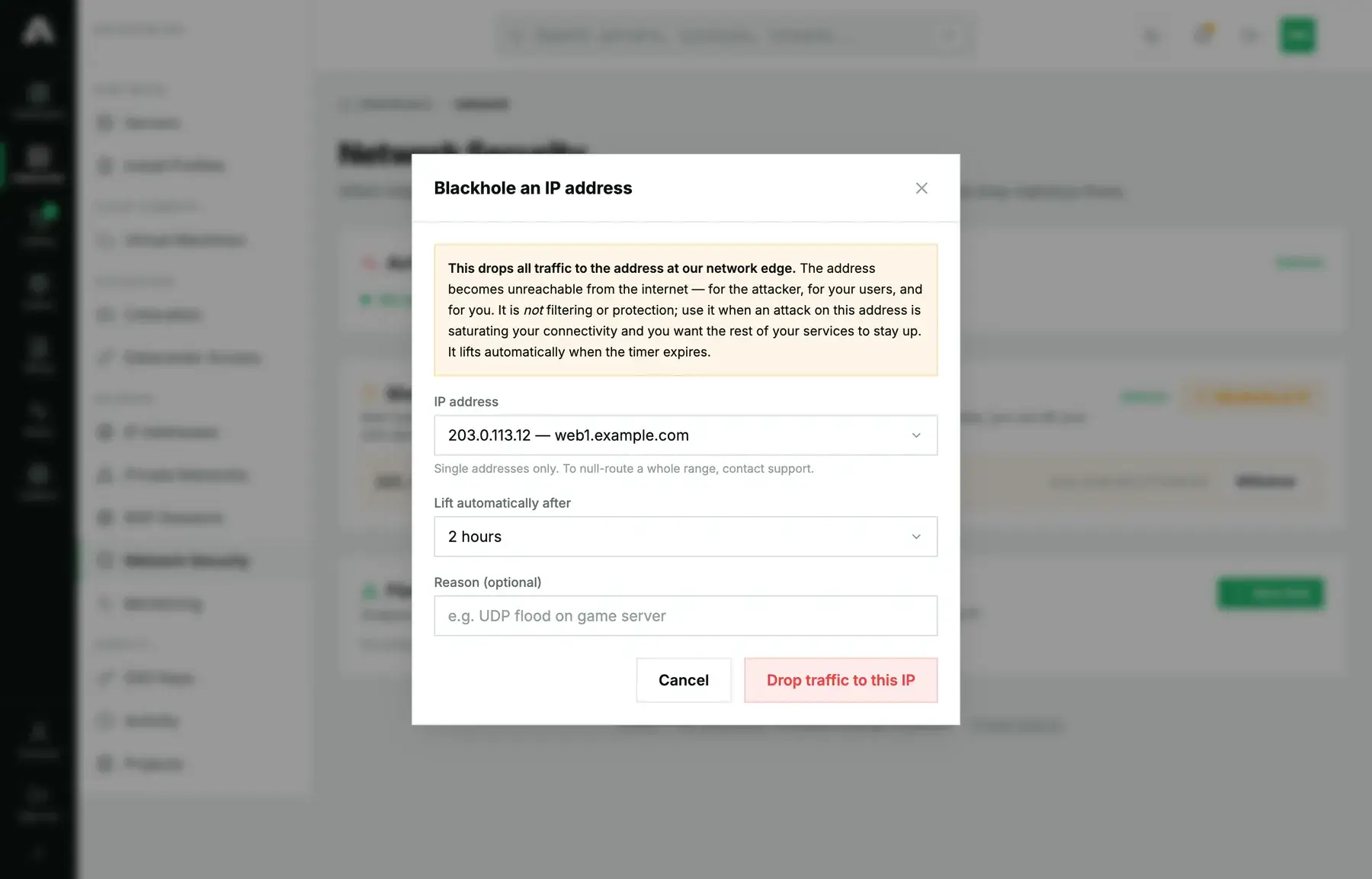
- In the Blackhole (RTBH) card, click Blackhole an IP.
- Pick the IP address. You'll see every IPv4 address on your account, each with the server it's on.
- Choose Lift automatically after: 1, 2, 4, 8 or 24 hours. Go with the shortest time you can live with. Announcing it again later is always an option.
- Add a reason if you want. It appears in the list and in the activity log, so a colleague on the account who finds an address dark can see why.
- Click Drop traffic to this IP. Within a minute the route is announced, and the card lists the address as active along with when it was announced.
If you want it lifted early, click Withdraw on its row, and traffic is back within a minute. Blackholes you didn't announce yourself (the ones our network operations team put in place) have no Withdraw button. If you think one of those should come off, open a ticket.

Method 2: With the API
Script this one. When you need a blackhole, you don't want to be hunting for a login form, and a monitoring alert can make the call for you instead. Your key needs the Network scope (network.write). Reference: api.amoni.app/v1/docs.
1. See what is active.
curl -s https://api.amoni.app/v1/blackhole \
  -H "Authorization: Bearer nr_live_..."
{ "success": true, "data": [] }2. Announce. ip is mandatory; duration_minutes runs from 15 to 1440 and falls back to a safe default if you leave it out; reason takes free text, up to 200 characters.
curl -s -X POST https://api.amoni.app/v1/blackhole \
  -H "Authorization: Bearer nr_live_..." \
  -H "Content-Type: application/json" \
  -d '{"ip": "203.0.113.11", "duration_minutes": 120, "reason": "volumetric attack on mail relay"}'
{
"success": true,
"data": {
"prefix": "203.0.113.11/32",
"expires_in_minutes": 120,
"message": "Traffic to 203.0.113.11/32 is now dropped at our network edge. The blackhole lifts automatically in 120 minutes."
}
}List again and the entry shows up with its id. You'll need that id to withdraw it:
{
  "success": true,
  "data": [
    {
      "id": "a3f03ba393954d78a1aa5bc40b505068",
      "prefix": "203.0.113.11/32",
      "status": "active",
      "since": "2026-09-21T17:23:20Z",
      "action": "discard",
      "withdrawable": true
    }
  ]
}
3. Withdraw early.
curl -s -X DELETE https://api.amoni.app/v1/blackhole/a3f03ba393954d78a1aa5bc40b505068 \
  -H "Authorization: Bearer nr_live_..."
{ "success": true, "data": { "message": "The blackhole for 203.0.113.11/32 has been withdrawn. Traffic resumes within a minute." } }To blackhole a server's primary address from the API, add "confirm_primary": true to the request. Leave it out and the call is refused with the explanation below, so no script can take a machine offline by mistake.
What the API will tell you
| Status | code |
Meaning |
|---|---|---|
| 201 | none | Announced. expires_in_minutes tells you when it lifts. |
| 403 | not_your_address |
That address isn't on your account. |
| 403 | insufficient_scope |
The key doesn't have network.write; required_scope names it. |
| 409 | already_blackholed |
The address is already dark. To start a new timer, withdraw it first. |
| 422 | confirm_primary |
It's a server's primary address. Send it again with confirm_primary: true. |
| 422 | single_address_only |
You sent a prefix. Each call takes one address; for a range, contact support. |
| 422 | too_many_active |
You already have ten active blackholes. Withdraw one or contact support. |
| 422 | none | duration_minutes outside 15 to 1440. Framework shape: {"message": "The duration minutes field must be at least 15.", "errors": {…}}. |
| 404 | not_found |
On withdraw: your account has no blackhole with that id. |
| 429 | rate_limited |
Too many announcements this hour. If the attack is sustained, contact support instead of retrying. |
| 503 | unavailable |
The mitigation platform didn't respond. Try once more, then open a ticket marked urgent. |
While it is active
Nothing on that address answers, from anywhere. Services bound to the server's other addresses carry on as normal, and you can still reach the server through those addresses or through the remote console. The Graphs tab shows traffic falling away as soon as the route is accepted. Once the timer runs out, or you withdraw, traffic comes back within a minute. If the attack hasn't stopped, our protection is still sitting in front of it.
Questions we get
- Should I blackhole at the first sign of an attack? No, the protection deals with most attacks by itself. Reach for a blackhole when one address takes enough fire to hurt everything else, or when you'd rather give up that service than let the others degrade.
- Does a blackhole stop the attack being billed? Attack traffic that gets dropped isn't billed, blackhole or not.
- Can I blackhole an IPv6 address? Not from the portal or the API yet. Open a ticket for it.
- Can I blackhole a whole /29? Not on your own; self-service is single addresses only. For a range, open a ticket and explain why.
- I want to filter a port, not the whole address. That belongs on the server: use the VM firewall on a cloud instance, and the operating system's firewall on bare metal.
- How do I know an attack is happening at all? On the Graphs tab, look for inbound traffic that's out of line with your outbound. The status page covers network-wide events, and an uptime monitor (see uptime monitoring) lets you know when a service stops answering.
Still stuck?
Open a support ticket and mark it Urgent if the attack is still going. Tell us which address, since when, and what you've blackholed so far. Our network operations engineers can see the attack telemetry and filter far more precisely than a blackhole can.